Safety starts at home! Experts who have dedicated their lives to protecting children share the secrets to protecting your home and stopping child abductions and crimes in the home before they happen.
Presented with limited commercial interruption thanks to Lifelock. Join now and save up to 40% your first year. Call1-800-LifeLock and use promo code NANCY or go to LifeLock.com/NANCY for 40% off. Terms apply.
In Lesson #1, Safe In Your Own Home, Nancy Grace sits down with Klaas Kids founder Marc Klaas to discuss the night his daughter Polly was abducted from her home. What went wrong and what can be learned from Polly’s story? Following the emotional interview, a panel of experts analyze cases of child abduction, missing people, and crimes in the home and share the secrets to protecting your home and stopping crime before it happens.
Valentine’s Day is often seen as a celebration of romantic love, but what if love starts from within? In this Wellness Wednesday episode, Beth and Robin explore the foundation of love—self-love. Without it, we risk settling for less, struggling with boundaries, and feeling unworthy. Self-love isn’t about grand gestures; it’s in the small acts of care—enjoying a morning coffee, setting boundaries, or acknowledging our worth. Whether single or in a relationship, self-love shapes how we give and receive love. So, this Valentine’s Day, ask yourself: Do I truly love and respect myself? If not, where can I start
Beth and Robin revisit their most awkward, cringe-worthy, or downright baffling moments—the ones that weren’t funny at all back then. But hindsight (and a good sense of humor) turn those memories into laughable lessons. Discover how finding the funny side of life’s little mishaps can boost your well-being and lighten your load. Because let’s face it, laughter really is the best therapy (and cheaper than weekly sessions)! 🙂
This special holiday episode of the Wellness Wednesday series on the Blind Abilities Podcast is a heartfelt, lighthearted reflection on the holiday season and the approaching new year. Hosts Beth Gustin and Robin Ennis explore the joys and challenges of the festive season, sharing personal stories, traditions, and self-care tips. Beth’s enthusiasm shines as she discusses her love for holiday music and baking, while Robin fondly recalls family memories, including humorous moments with Santa’s cookies. They also acknowledge the importance of honoring loved ones who are no longer present, offering creative suggestions to celebrate their memory.
The conversation transitions into thoughts about the new year, with Robin sharing her milestone of being halfway through her doctoral program and encouraging listeners to set meaningful resolutions or themes for the year ahead.
The episode encapsulates the spirit of togetherness, celebration, and reflection, leaving listeners with a sense of hope and inspiration for the holidays and beyond
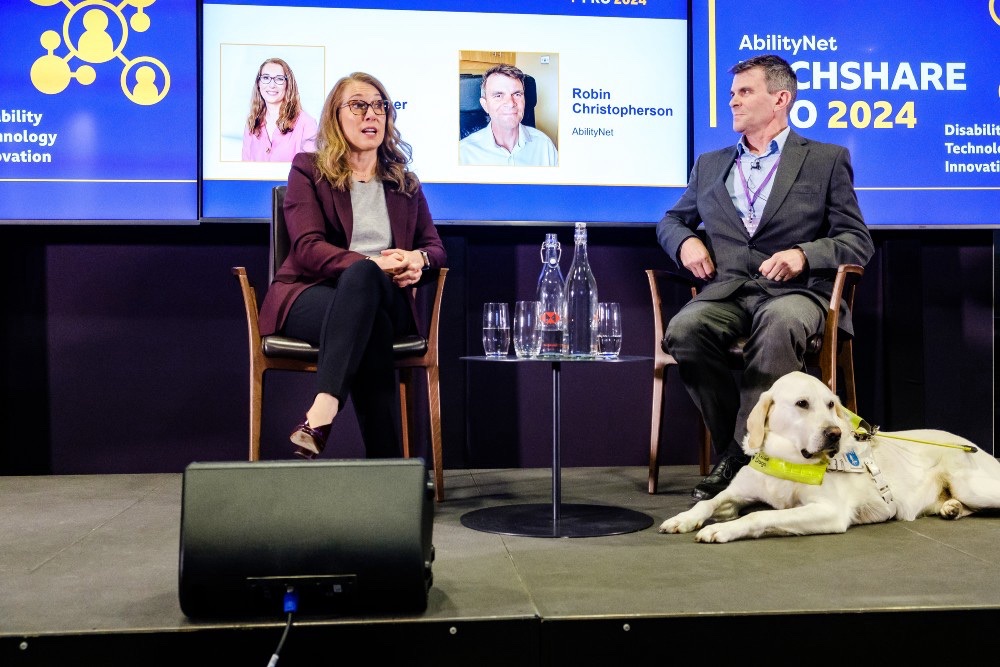
Robin Christopherson and guide dog, plus Sarah Herrlinger of Apple, on stage at TechShare Pro
Artificial intelligence (AI) is transforming many aspects of technology, particularly when it comes to accessibility. For both disabled users and developers creating accessible software, AI is proving to be a game-changer.
From real-time transcription services to tools for automated code compliance, the potential for AI in accessibility is vast and growing.
Here’s how AI is making strides in this domain, supported by practical examples.
Empowering people with disabilities through AI
AI-powered tools are becoming essential for disabled individuals by helping bridge gaps in everyday activities and communication. Here are a few examples:
Be My AI: Building on the popular Be My Eyes app, Be My AI leverages generative AI to interpret images and provide detailed contextual information. For example, a visually impaired person can photograph ingredients and ask the AI what dishes they could prepare.
Seeing AI by Microsoft: This app uses a smartphone camera to read text, identify objects, and recognize handwriting, aiding blind users in navigating their surroundings and tasks independently.
Ava and HeardThat: Apps like these transcribe conversations in real time, using advanced speech recognition models. HeardThat, in particular, isolates voices from background noise, a boon for those with hearing impairments.
AI-Powered Hearing Aids: Devices such as the Orka Two dynamically adjust settings to optimize sound clarity, prioritizing voices over ambient noise.
Goblin Tools: An AI-powered to-do list that breaks complex tasks into manageable steps, helping users with executive dysfunction stay organised.
Google’s Project Relate: Designed for individuals with non-standard speech patterns, this tool converts their speech into comprehensible text or spoken responses.
There’s no doubt that AI is unrivalled in assisting people with disabilities in their daily lives, but it’s also important that the apps and websites they need to use are accessible and inclusive.
Learn more about AI
Assisting developers in accessibility
AI is not only aiding end-users but also empowering developers to create more inclusive software and ensure compliance with accessibility standards. Key applications include:
1. Automating accessibility testing
Tools like Google’s Lighthouse and axe by Deque Systems: Automated testing suites use AI to scan for WCAG (Web Content Accessibility Guidelines) compliance, identifying common errors like poor colour contrast or missing alt text. Other common elements such as JavaScript, however, currently remain outside the abilities for AI to assess for accessibility.
2. Code generation and refinement
GitHub Copilot: This AI tool assists developers by generating code snippets, including accessible components. While it streamlines coding, developers must verify its outputs for accessibility compliance since AI can still make errors.
3. Creating personas for testing
AI has begun to be used to simulate user personas, predicting potential barriers for individuals with specific disabilities. For instance, it can model the experience of someone with low vision or limited mobility and highlight potential areas of concern.
These tools help reduce the time and effort required to identify accessibility flaws, enabling a more inclusive development lifecycle.
Challenges and ethical considerations with AI
Despite its potential, AI in accessibility comes with challenges:
Accuracy and Trust: AI models like ChatGPT sometimes confidently produce incorrect outputs, underscoring the need for human oversight – especially where the user in question isn’t able to verify the data themselves due to their disability.
Data Privacy: Using AI often involves processing user data, raising concerns about security and consent.
Ethical Testing: Simulating disabilities raises questions about whether AI can truly replicate lived experiences without oversimplifying or misrepresenting them.
The road ahead
Discussions from TechShare Pro 2024 included that AI’s capabilities are evolving rapidly, promising even more innovative solutions for accessibility. Tools are becoming better at recognising nuanced user needs, from generating more contextually aware responses to creating fully accessible digital experiences.
For developers, AI offers a path to more efficiently integrate accessibility into every stage of the design and testing process, ultimately resulting in technology that works for everyone.
By continuing to address ethical considerations and leveraging AI responsibly, we can ensure that it serves as a powerful ally in building a more inclusive digital world.
In Episode 44 of Wellness Wednesday, hosts Beth Gustin, LPC, and Robin Ennis, LCSW, CPC, bridge the gap between communities we navigate daily. They dive deep into the art of self-advocacy, exploring how personal experiences can transform feelings of isolation into moments of connection and growth. Join them as they unravel how we can bring our unique worlds into harmony, fostering understanding and belonging one journey at a time.
The Envision glasses are already a game-changer, helping users identify text, objects, and scenes in real-time. But imagine if these innovative glasses could do even more! Here are five ideas for features that could take accessibility to the next level, making everyday tasks simpler and more enjoyable. 1. Recognize Stuff Around You Imagine this: you’re at home or out at a coffee shop, and with a simple glance, your Envision glasses can identify objects around you—like your phone, keys, or a drink on the table. The glasses could give you spoken feedback on what’s nearby, like “phone at 12 o’clock” or “keys to your left,” making it far easier to locate important items. Why it’d be great: This feature could save a lot of time and hassle, especially when you’re searching for small things like keys or a wallet that can easily get misplaced. It’d be like having a personal assistant that’s always ready to help you find what you need. 2. Recognize People with Names Imagine this: The Envision glasses already detect when there’s a person in front of you, but they could take it a step further. If the glasses could remember names, it’d be possible for them to announce, “Anna is nearby” instead of just saying, “Person in front of you.” This would make social gatherings or navigating public spaces more familiar and welcoming. Why it’d be great: For those of us who interact with friends, family, or colleagues frequently, this feature would help us know who’s around and avoid those “who’s that?” moments. It’d create a more personal, interactive experience with people we care about. 3. Warn About Obstacles When Walking Imagine this: While you’re out walking, the Envision glasses could alert you to potential obstacles in your path, such as steps, curbs, or objects. With voice alerts like “step down ahead” or “curb to the right,” you could have more confidence in knowing where to step or when to be cautious. Why it’d be great: Whether you’re on a busy sidewalk or in a dimly lit room, knowing what’s around you in real-time would give you greater freedom and safety. This would be especially helpful for navigating new places without always relying on a cane or guide. 4. Control Smart Home Devices Imagine this: You walk into a room and simply say, “Turn on the lights” or “Is the front door locked?” and your Envision glasses could control smart home devices without the need for your phone. By integrating with smart home systems, the glasses could act as a hands-free, voice-activated assistant for controlling everything from lights to security. Why it’d be great: Not needing to pull out your phone to control devices would simplify daily tasks. This feature could give you more independence at home, especially in situations where reaching for your phone might be inconvenient. 5. Help with Public Transport Imagine this: You’re heading out for an appointment and need to know when the next bus or train is arriving. The Envision glasses could tell you not only when your bus is due but also where to find the nearest stop. With live information on public transport, you’d have a smoother, more predictable travel experience. Why it’d be great: Public transportation can be a challenge for anyone, but especially for those who are visually impaired. This feature could help you travel with greater independence, knowing exactly where to go and when, without needing to ask for directions or check a smartphone. Wrapping Up With these features, the Envision glasses could truly redefine independence and accessibility. Whether it’s spotting items around you, recognizing familiar faces, navigating obstacles, controlling home devices, or even helping with public transport, each feature would add incredible value. Envision is already a leader in assistive technology, but with additions like these, it could become an all-in-one tool for navigating daily life with confidence and ease.
In Episode 42 of Wellness Wednesday, hosts Beth Gustin, LPC, and Robin Ennis, LCSW, CPC, take a look at being overwhelmed. What it is, what might cause it, and some coping strategies on how to deal with it. And like they always mention, how to be more in tuned with yourself.
In Episode 40 of Wellness Wednesday, hosts Beth Gustin, LPC, and Robin Ennis, LCSW, CPC, are joined by Blind Abilities own Jeff Thompson to talk about a subject that came up pre-show. Anxiety and Ageing. How it looks and how we feel about it. Everyone has a timeline and society seems to have expectations, so how do we handle change, when time is the ticking factor.
No matter how diligent you are about entering your content in an accessible way, an accessible website is impossible without a solid foundation.
The theme and page builder or block library you choose for your WordPress site controls a significant portion of your website’s accessibility. If these components are not accessible, you’re going to have an uphill battle trying to patch them with JavaScript and ensure they stay patched with every update released.
The easiest way to have an accessible website is to choose themes and plugins that have already considered accessibility. Then all you have to do is add your content without worrying about the underlying code.
We frequently get asked which page builder provides the best accessibility starting point. This post compares the accessibility of popular page builders and WordPress block libraries to help you choose the right builder for your WordPress website.
If you have already selected a page builder for your website, find out how it compares to competitors when it comes to accessibility. This report will also show you accessibility issues that may exist on your website and fixes you may need to make to ensure compliance with accessibility laws worldwide.
This report covers the accessibility of 10 popular WordPress page builders or block libraries that can be used to build professional WordPress websites for businesses or nonprofits.
For purposes of this report, we’re using the term “page builders” to refer to both page builders and also themes and block libraries that work in the core WordPress block editor (Gutenberg). We’re broadly defining “page builders” as any toolset that can be used to create a WordPress webpage.
Below is an explanation of how tests were performed for this study.
Test Dates
Page builder accessibility tests were completed between May and July 2024. The current production (live) version of each builder was used.
Included page builders
The following page builders are included in this report:
These page builders were selected based on active install counts and whether we were able to obtain copies of current zip files or access staging sites for the builder to test.
This report will include additional page builders in the future, including WP Bakery, Oxygen, and Astra/Spectra, which are currently being tested.
Tests include paid features
If a pro or paid version exists for the page builder, the paid version of the builder was tested. Some features tested may not exist in free versions of the builders.
We accessed the paid versions of these builders in multiple ways:
· We or one of our clients already pay for the builder.
· The builder had a public demo linked on their website.
· A WordPress community member who pays for the builder gave us files or created a staging site so we could test it.
· The company that created the page builder gave us a free license so we could test it.
How we accessed the page builder has no impact on its accessibility score. We were not compensated for testing any of these page builders and do not plan to use the free licenses on any public websites.
Testing site setup
Each page builder, if a plugin, was tested using its companion theme. For example, Elementor was tested with the Hello Elementor theme, and Kadence Blocks was tested with the Kadence Theme, etc. The only plugin that was not tested with a companion theme was CoBlocks, which was tested in the Twenty Twenty-Four theme.
For each builder, we added basic or filler content only and no CSS styles. If the builder had templates to create a header and navigation menu, then we used a template to create the header, but the remaining content was completely unstyled.
For example, here is a screenshot of the testing page for Breakdance, showing a styled header from a template and components in black and white added to a page.
These tests focused on the underlying HTML of each element, not on how easy it is to add different components or style them in a particular way. We followed content accessibility best practices and did not add accessibility issues within the content.
We also looked at how easy it was to utilize the component in an accessible way. Numerous checks tested whether controls were provided to users to choose heading levels, define accessible names, or set other necessary accessibility-related settings.
No third-party components
Tests were conducted on elements and components solely controlled by the page builder and did not include any third-party add-ons. For example, we did not add one of the third-party plugins that fix accessibility in Divi prior to testing; instead, we tested Divi’s accessibility alone.
We feel strongly that page builders need to make their base components accessible.
Users should not have to purchase additional add-on plugins to fix known accessibility problems in their page builder. All developers should consider accessibility in their core products.
How we tested
Each page builder was tested using both automated testing tools and manual testing techniques.
Accessibility Checker
If we could install plugins on the testing website, we installed Accessibility Checker Free to scan test pages for issues. Accessibility Checker is a WordPress plugin that helps you quickly find accessibility problems in your content or those created by plugins and themes.
Accessibility Checker made it fast and easy for us to identify things like empty links and buttons, missing alt attributes, ambiguous links, out-of-order headings, and more.
Manual testing process
In addition to automated testing with Accessibility Checker, we also performed manual accessibility tests by:
· Using keyboard navigation (Tab key) to move through the site.
· Testing links with the Return/Enter key.
· Testing buttons with both the Return/Enter key and Space Bar.
· Inspecting the HTML code in the browser dev tools inspector.
· Listening to the website with Voiceover (a screen reader for Mac).
· Zooming the page to 200% and 400% to ensure components work on Zoom.
Not all accessibility testing can be identified with automated tools alone and manual tests are an important part of accessibility audits. Learn more about manual accessibility testing.
Reporting and Scoring Methodology
Google Sheet for reporting
The results were tracked in a Google spreadsheet as testing was completed. The data for each builder is accurate as of the test date and publication of this post, but it may have changed if the page builder has released an update.
The first column of the spreadsheet lists each item checked, grouped by component. There is a column for each builder under which you can see their scores. Builders received either a pass, fail, concern, or N/A for each item checked.
Example of what the page builder accessibility testing spreadsheet looks like.
· Pass: The element exactly matched specifications and the page builder was doing that specific thing right from an accessibility standpoint.
· Fail: The element or attribute was missing or not coded correctly. The page builder is clearly failing to meet the specific accessibility check. When given a “fail,” there is typically a note in the cell explaining why.
· Concern: The element or check mostly passes, but some small part of the component doesn’t pass, or the builder has options that would lead to a content creator adding accessibility problems. When given a “concern” there is typically a note in the cell explaining why.
· N/A: This stands for “not applicable” and is given when an element or component does not exist in the builder, and thus the check cannot be completed.
How page builders were ranked
After testing each component and scoring all relevant checks, the page builders were ranked from best at accessibility to worst at accessibility. This is how we calculated the page builder accessibility ranking:
1. Total all cells that contain “pass” for each page builder.
2. Total all cells that contain “fail” for each page builder.
3. Total all cells that contain “concern” for each page builder.
4. Calculate a percentage passing from all applicable checks.
The percentage passing was calculated in this way:
Here is an example of how this calculation works with sample numbers:
· Total pass: 3
· Total fail: 7
· Total concern: 2
(3/(3+7+2))x100=25%
In this example, we first add three, seven, and two together (this gives us 12). Then, we divide three (the total passed) by 12 (the total of pass, fail, and concern). Finally, multiply the result by 100 to get the percentage: in this case, 25%.
Using a percentage of applicable checks allows us to determine how good any given page builder is at writing accessible code when they do code things. It doesn’t penalize builders for having fewer components, as would happen if we ranked the page builders simply by the most passes.
After getting a percentage passing of the applicable checks, we were able to rank the page builders from best at accessibility (highest percentage passing) to worst at accessibility (lowest percentage passing).
Components Tested & Results
Important note: This was not a complete accessibility audit of each page builder. Rather, it was a thorough audit of some selected components and key theme features.
If you need to ensure your website is Web Content Accessibility Guideline-compliant and fully accessible, we recommend hiring a professional to conduct a WCAG accessibility audit.
How components were selected
We chose components to test based on how commonly they are found on business websites or on websites designed by a professional designer and built by a WordPress developer. The tested components are not necessarily all components that have to be included in websites, but they are frequently used to make websites appear more polished or interactive.
We also tested for the WordPress Accessibility Ready requirements and other theme features, such as skip links and navigation. As an accessibility best practice, these components should exist in all themes.
When accessibility testing navigation, we checked:
· The navigation menu is contained in a <nav> tag.
· The <nav> tag is labeled with an aria-label.
· Users can define the nav tag aria-label – this is important especially for utility, footer, or secondary menus, as the aria-label should describe the links contained in the navigation.
· Subnavigation dropdowns were keyboard accessible.
· There are separate buttons for opening and closing dropdowns.
· CTA/buttons styles achievable in primary navigation – this could be possible by allowing a class to be set. It is important to allow people to set a nav link to look like a link; if that’s not easy to do, people incorrectly add these in separate widget areas outside the <nav> tag.
· All focusable elements had a visible keyboard focus.
· The mobile menu (which becomes visible on desktop on zoom) is keyboard accessible.
The following table shows how each page builder scored in these tests.
Navigation Accessibility by Page Builder
Item tested
Avada
Beaver Builder
Breakdance
Bricks
CoBlocks
Divi
Elementor
GeneratePress
Kadence
Site Origin
Uses Nav tag
✅pass
✅pass
✅pass
✅pass
N/A
⚠️concern
✅pass
✅pass
✅pass
✅pass
Nav tag is labeled
✅pass
✅pass
❌fail
⚠️concern
N/A
❌fail
✅pass
⚠️concern
✅pass
❌fail
Users can define the nav tag aria-label
❌fail
✅pass
✅pass
✅pass
N/A
❌fail
❌fail
❌fail
❌fail
❌fail
Dropdowns keyboard accessible
✅pass
✅pass
✅pass
✅pass
N/A
❌fail
✅pass
✅pass
✅pass
✅pass
Separate buttons for opening and closing dropdowns
❌fail
❌fail
✅pass
✅pass
N/A
❌fail
❌fail
❌fail
✅pass
❌fail
CTA/buttons styles achievable in primary navigation
✅pass
❌fail
✅pass
✅pass
N/A
❌fail
❌fail
✅pass
✅pass
❌fail
Visible keyboard focus
✅pass
✅pass
✅pass
✅pass
N/A
❌fail
✅pass
✅pass
✅pass
❌fail
Mobile menu is keyboard accessible
✅pass
❌fail
✅pass
✅pass
N/A
❌fail
✅pass
✅pass
✅pass
✅pass
Other
⚠️concern
✅pass
Header search
Many business websites include a button in their header that allows users to open a search form in a modal or expanded section. These search forms can make websites more user-friendly, but only if they’re coded with accessibility in mind.
When accessibility testing header search components, we checked:
· The button to open the search form is an HTML <button> or a correctly remediated element with role="button" that includes Space Bar handlers.
· The search form overlay has a focus lock so it cannot be tabbed out of without being closed.
· The search form field is labeled.
· The search form label stays visible when the field has data typed in it – I.e., the form cannot use placeholder text in place of visible labels.
· There is a button to submit the search form. Relying on the Return/Enter key alone is not sufficient.
· The button to submit search is labeled.
· The overlay close button is a button.
· The close button is labelled.
· Any search suggestions are keyboard and screen reader accessible (none had these).
The following table shows how each page builder scored in these tests.
Header Search Accessibility by Page Builder
Item tested
Avada
Beaver Builder
Breakdance
Bricks
CoBlocks
Divi
Elementor
GeneratePress
Kadence
Site Origin
Button to open search form is a button
⚠️concern
❌fail
⚠️concern
N/A
N/A
❌fail
✅pass
✅pass
✅pass
✅pass
Search form overlay has focus lock
❌fail
❌fail
❌fail
N/A
N/A
❌fail
❌fail
✅pass
✅pass
❌fail
Search form field is labeled
✅pass
✅pass
❌fail
✅pass
N/A
❌fail
✅pass
✅pass
✅pass
✅pass
Search form label is visible when field has data typed in it
❌fail
❌fail
❌fail
❌fail
N/A
❌fail
❌fail
❌fail
❌fail
⚠️concern
There is a button to submit search
❌fail
❌fail
⚠️concern
❌fail
N/A
❌fail
❌fail
✅pass
✅pass
✅pass
Button to submit search is labeled
N/A
N/A
❌fail
N/A
N/A
N/A
N/A
✅pass
✅pass
✅pass
Overlay close button is a button
⚠️concern
N/A
❌fail
N/A
N/A
❌fail
✅pass
❌fail
✅pass
✅pass
Close button is labelled
✅pass
N/A
❌fail
N/A
N/A
❌fail
✅pass
N/A
✅pass
✅pass
Any search suggestions are keyboard and screen reader accessible
N/A
N/A
N/A
N/A
N/A
N/A
N/A
N/A
N/A
N/A
Other
❌fail
❌fail
Accessibility Ready requirements
These are requirements for themes to have the Accessibility Ready tag in the WordPress.org theme directory. Accessibility Ready requirements are created in accordance with the Web Content Accessibility Guidelines (WCAG). If you are choosing a WordPress theme, you want it to pass these requirements to ensure you are off to the best start.
When accessibility testing if a page builder was “accessibility ready,” we checked:
· There were controls allowing the website owner or developer to add HTML attributes as needed (aria-label or lang, for example).
· The theme had support for .sr-only or .screen-reader-text CSS classes baked in so that these classes could easily be added to elements in the builder to add additional information for screen reader users.
· There is a visible keyboard focus on all elements, the focus follows the visual order of the page, and all expected items are keyboard focusable.
· Theme features that behave as buttons or links must use <button>, <a>, or <input> elements.
· All controls must also have machine-readable text to indicate the nature of the control.
· Comment forms must have appropriate field labels, and all content within form tags needs to be explicitly associated with a form control.
· Post-submission responses on the comment form (errors or confirmations) are perceivable.
· Every page has an H1 (we looked at the home page, a standard page, the blog archive, a category archive, and the blog single).
· No skipped heading levels out of the box (for this, we looked at the same pages previously listed for the H1).
· The header is contained in a <header> tag or has role="banner".
· The main content in a <main> tag or has role="main".
· Any sidebars are in <aside> tags or have role="complementary".
· The footer is in a <footer> tag or container with role="contentinfo".
· No content was outside HTML landmarks (aside from the skip link, which should be just above the <header>).
· Content links were underlined by default or can be underlined without writing CSS styles.
· No title attributes were on images.
· No images were missing the alt attribute.
· No positive tabindex on any element.
· No links opened tabs in new windows without warning the user.
The following table shows how each page builder scored in these tests.
Accessibility Ready Requirements by Page Builder
Item tested
Avada
Beaver Builder
Breakdance
Bricks
CoBlocks
Divi
Elementor
GeneratePress
Kadence
Site Origin
Controls for adding HTML attributes (aria-label, lang for example)
❌fail
❌fail
✅pass
✅pass
❌fail
❌fail
✅pass
✅pass
✅pass
❌fail
Support for sr-only or screen-reader-text
✅pass
✅pass
✅pass
✅pass
N/A
✅pass
✅pass
✅pass
✅pass
✅pass
Visible keyboard focus on all elements, focus follows visual order, all expected items are keyboard focusable
❌fail
❌fail
❌fail
⚠️concern
✅pass
❌fail
✅pass
✅pass
✅pass
❌fail
Theme features that behave as buttons or links must use button, input, or a elements
✅pass
✅pass
❌fail
❌fail
✅pass
❌fail
✅pass
❌fail
✅pass
❌fail
All controls must also have machine-readable text to indicate the nature of the control.
❌fail
❌fail
❌fail
❌fail
✅pass
❌fail
✅pass
❌fail
✅pass
✅pass
Comment forms must have appropriate field labels and all content within form tags need to be explicitly associated to a form control.
✅pass
✅pass
✅pass
❌fail
N/A
❌fail
✅pass
❌fail
✅pass
✅pass
Post-submission responses on comment form (errors or confirmations) are perceivable.
⚠️concern
⚠️concern
⚠️concern
⚠️concern
N/A
⚠️concern
⚠️concern
❌fail
⚠️concern
⚠️concern
Every page has an H1
❌fail
✅pass
✅pass
✅pass
N/A
❌fail
✅pass
✅pass
✅pass
❌fail
No skipped heading levels out of the box
❌fail
❌fail
❌fail
❌fail
✅pass
❌fail
❌fail
❌fail
❌fail
❌fail
Header in header tag or has role=banner
✅pass
✅pass
⚠️concern
✅pass
N/A
⚠️concern
✅pass
✅pass
✅pass
✅pass
Main content in main tag or has role=main
✅pass
✅pass
❌fail
✅pass
N/A
❌fail
✅pass
✅pass
✅pass
✅pass
Sidebars in aside tag or role=complementary
unknown
✅pass
❌fail
✅pass
N/A
❌fail
✅pass
✅pass
✅pass
✅pass
Footer in footer tag or role=contentinfo
✅pass
✅pass
❌fail
✅pass
N/A
✅pass
✅pass
✅pass
✅pass
✅pass
No content outside landmarks
✅pass
✅pass
❌fail
✅pass
N/A
❌fail
✅pass
✅pass
✅pass
⚠️concern
Content links underlined or can be underlined
✅pass
❌fail
⚠️concern
❌fail
N/A
❌fail
⚠️concern
✅pass
⚠️concern
❌fail
No title attribute on images
✅pass
✅pass
✅pass
✅pass
✅pass
❌fail
✅pass
✅pass
✅pass
✅pass
No images missing alt attribute
❌fail
✅pass
❌fail
✅pass
✅pass
✅pass
✅pass
✅pass
✅pass
❌fail
No positive tabindex
✅pass
✅pass
✅pass
✅pass
✅pass
✅pass
✅pass
✅pass
✅pass
✅pass
No opening tabs in new windows without warning the user
❌fail
✅pass
✅pass
✅pass
✅pass
✅pass
✅pass
✅pass
❌fail
✅pass
Accordions
Accordions are incredibly common on most websites, especially when it comes to displaying frequently asked questions or similar groups of content. If your page builder does not code accordions accessibly, many users will not be able to access the content hidden in them. Learn how to code accessible accordions.
When accessibility testing accordions, we checked:
· The accordion titles were headings with <button> tags in them.
· The buttons use aria-expanded to communicate to screen reader users if they are opened or closed.
· The buttons use aria-controls to reference the relevant content panel.
· Users (website editors, developers) can choose the heading level so their accordion titles are properly nested in the outline of the page.
· All focusable elements had a visible keyboard focus.
· The accordion works on zoom for low-vision users.
The following table shows how each page builder scored in these tests.
Accordions Accessibility by Page Builder
Item tested
Avada
Beaver Builder
Breakdance
Bricks
CoBlocks
Divi
Elementor
GeneratePress
Kadence
Site Origin
Titles are headings with button tags in them
❌fail
❌fail
✅pass
❌fail
❌fail
❌fail
❌fail
❌fail
✅pass
❌fail
Buttons use aria-expanded
✅pass
✅pass
✅pass
❌fail
N/A
❌fail
✅pass
✅pass
✅pass
✅pass
Buttons use aria-controls to reference content
✅pass
✅pass
✅pass
❌fail
N/A
❌fail
✅pass
✅pass
✅pass
✅pass
User can choose the heading level
✅pass
❌fail
✅pass
✅pass
❌fail
❌fail
✅pass
❌fail
✅pass
❌fail
Has visible focus
✅pass
❌fail
✅pass
❌fail
✅pass
❌fail
✅pass
✅pass
✅pass
✅pass
Works on zoom
✅pass
✅pass
✅pass
⚠️concern
✅pass
⚠️concern
✅pass
✅pass
❌fail
✅pass
Other
❌fail
❌fail
❌fail
❌fail
Carousels or sliders
There are many arguments against using sliders or carousels on websites, and we typically avoid putting them on websites we build. However, sliders remain a favorite component for many website owners, especially in that prime spot at the top of the home page.
Unfortunately, many page builders miss the mark when it comes to carousel accessibility, so if you have a carousel or slider on your website, you should test it to confirm it’s accessible. How to test sliders for accessibility.
When accessibility testing sliders, we checked:
· The carousel is wrapped in a <section> tag (or container with role="region") with an aria-label or aria-labelledby attribute naming it. Carousels have many components contained in them and grouping all the components in a sematic region that can make them much easier for screen reader users to understand and navigate.
· Slides must be contained in an unordered (<ul>) list.
· Content creators need to have the ability to set heading levels if headings are present so that the heading levels makes sense in the context of the page.
· Previous/next and dot navigation are <buttons>.
· All buttons have meaningful labels.
· Dot navigation includes aria-current for the current item
· Keyboard focus does not go to any hidden items (such as links on slides that are not currently visible).
· Screen readers don’t read any hidden items.
· Focus shifts to the selected slide when using navigation buttons – this is important so screen reader users don’t have to Shift+Tab backward to find the slide they have selected.
· Auto-play carousels have a pause button or the ability to add a pause button.
· Animations respect prefers-reduced-motion – this is an operating system setting that allows users to communicate to websites that they don’t want any animations. If a user has this turned on, then sliders should not auto-play.
· All focusable elements had a visible keyboard focus.
The following table shows how each page builder scored in these tests.
Carousel & Slider Accessibility by Page Builder
Item tested
Avada
Beaver Builder
Breakdance
Bricks
CoBlocks
Divi
Elementor
GeneratePress
Kadence
Site Origin
Carousel is wrapped in a section tag (or role=region) with an aria-label or aria-labelledby attribute
❌fail
❌fail
⚠️concern
⚠️concern
N/A
❌fail
⚠️concern
N/A
✅pass
❌fail
Slides are a list.
✅pass
❌fail
⚠️concern
⚠️concern
N/A
❌fail
⚠️concern
N/A
❌fail
✅pass
Ability to set heading level if headings are present
✅pass
✅pass
✅pass
✅pass
N/A
✅pass
✅pass
N/A
✅pass
❌fail
Previous/next and dot navigation are buttons
❌fail
❌fail
✅pass
✅pass
N/A
❌fail
✅pass
N/A
✅pass
❌fail
All buttons have meaningful labels
❌fail
❌fail
✅pass
✅pass
N/A
❌fail
✅pass
N/A
✅pass
✅pass
Dot navigation includes aria-current for current item
❌fail
❌fail
✅pass
✅pass
N/A
❌fail
✅pass
N/A
⚠️concern
❌fail
Keyboard focus does not go to any hidden items.
✅pass
❌fail
✅pass
❌fail
N/A
✅pass
❌fail
N/A
✅pass
✅pass
Screen readers don’t read any hidden items.
✅pass
❌fail
✅pass
❌fail
N/A
✅pass
❌fail
N/A
✅pass
✅pass
Focus shifts to slide when using navigation buttons
❌fail
❌fail
❌fail
❌fail
N/A
❌fail
❌fail
N/A
❌fail
❌fail
Auto-play carousels have a pause button
❌fail
⚠️concern
❌fail
❌fail
N/A
❌fail
❌fail
N/A
❌fail
❌fail
Animations respect prefers reduced motion
❌fail
❌fail
❌fail
❌fail
N/A
❌fail
❌fail
N/A
✅pass
❌fail
Has visible focus
❌fail
❌fail
✅pass
❌fail
N/A
❌fail
✅pass
N/A
❌fail
⚠️concern
Works on zoom
⚠️concern
✅pass
✅pass
✅pass
N/A
✅pass
✅pass
N/A
❌fail
✅pass
Other
❌fail
❌fail
⚠️concern
Icon list
Icon lists are commonly used to group lists of features or benefits with decorative icons to make each item stand out. Businesses and theme designers love to include icon lists everywhere, from home pages to product pages and pricing tables. These are relatively simple components that can add accessibility issues for screen reader users, particularly if they don’t utilize HTML list format to group the items. Learn how lists help accessibility.
When accessibility testing icon lists, we checked:
· The elements are coded as an unordered list (<ul>).
· The icon has aria-hidden="true" on it so it will not be read out to screen reader users.
· The icon list wraps and reflows on zoom for low-vision users.
The following table shows how each page builder scored in these tests.
Icon List Accessibility by Page Builder
Item tested
Avada
Beaver Builder
Breakdance
Bricks
CoBlocks
Divi
Elementor
GeneratePress
Kadence
Site Origin
Elements coded as unordered list
✅pass
❌fail
✅pass
✅pass
❌fail
N/A
✅pass
N/A
✅pass
❌fail
Icon has aria-hidden=”true”
✅pass
✅pass
❌fail
✅pass
❌fail
N/A
✅pass
N/A
✅pass
✅pass
Works on zoom
✅pass
✅pass
✅pass
✅pass
✅pass
N/A
✅pass
N/A
✅pass
✅pass
Other
❌fail
Loop/post blocks
Want to display three recent blog posts on your home page? You need a loop, a.k.a. post block. These components are incredibly helpful for drawing extra attention to blog posts and can also display grids of team members, a portfolio, or a list of featured products.
When accessibility testing loop/post blocks, we checked:
· Bonus: 1 link, card-style – this would be the ideal way to link each post, though few developers do it.
· The page builder should hide redundant links from screen readers and keyboard users. (I.e., there’s no need to tab through a linked image, then linked title, then read more link for every post.)
· The posts are in a list.
· Content creators should have the ability to choose the heading level or set a p tag for post titles so it makes sense in the context of the page.
· Read more links are not ambiguous and include the post title to differentiate them from one another.
· Linked image alt describes purpose – the correct alternative text for a linked image in a post loop is the title of the post, not a description of the image or alt text set in the Media Library.
The following table shows how each page builder scored in these tests.
Loop/Posts Block Accessibility by Page Builder
Item tested
Avada
Beaver Builder
Breakdance
Bricks
CoBlocks
Divi
Elementor
GeneratePress
Kadence
Site Origin
Bonus: 1 link, card-style
N/A
N/A
N/A
N/A
N/A
N/A
N/A
⚠️concern
N/A
N/A
Hides redundant links from screen readers and keyboard users.
❌fail
❌fail
❌fail
❌fail
❌fail
❌fail
✅pass
✅pass
❌fail
❌fail
Posts in list
✅pass
❌fail
❌fail
✅pass
❌fail
❌fail
❌fail
❌fail
❌fail
❌fail
Ability to choose the heading level or p tag for post titles
✅pass
⚠️concern
✅pass
⚠️concern
❌fail
⚠️concern
⚠️concern
⚠️concern
✅pass
⚠️concern
Read more not ambiguous
❌fail
❌fail
❌fail
✅pass
N/A
❌fail
✅pass
✅pass
✅pass
❌fail
Linked image alt describes purpose
✅pass
❌fail
❌fail
❌fail
❌fail
✅pass
❌fail
❌fail
✅pass
❌fail
Other
❌fail
❌fail
Tabs
Tabs, like accordions, allow WordPress designers and content creators to group and collapse content interactively. If not coded correctly, tabs (and all the content in the not selected tabs) will be completely inaccessible to screen reader and keyboard-only users.
When accessibility testing tabs, we checked:
· The tab controls container has role="tablist".
· The tab controls are HTML buttons.
· Checked to see in tab controls are in an HTML list or announce as a list by screen readers.
· Tab controls have role="tab" and aria-controls referencing the tab content container ID.
· The current tab control button has aria-selected="true".
· Tab panels have role="tabpanel".
· Tab panels have aria-labelledby referencing the button.
· All focusable elements had a visible keyboard focus.
The following table shows how each page builder scored in these tests.
Tabs Accessibility by Page Builder
Item tested
Avada
Beaver Builder
Breakdance
Bricks
CoBlocks
Divi
Elementor
GeneratePress
Kadence
Site Origin
Tab controls container has role=”tablist”
✅pass
✅pass
✅pass
❌fail
N/A
❌fail
✅pass
⚠️concern
✅pass
✅pass
Tab controls are buttons
⚠️concern
✅pass
✅pass
❌fail
N/A
⚠️concern
✅pass
✅pass
✅pass
✅pass
Tab controls can be in a list
✅pass
✅pass
✅pass
✅pass
N/A
✅pass
✅pass
✅pass
✅pass
✅pass
Tab controls have role=”tab” and aria-controls
✅pass
✅pass
✅pass
❌fail
N/A
❌fail
✅pass
✅pass
✅pass
⚠️concern
Current tab control button has aria-selected=”true”
✅pass
⚠️concern
✅pass
❌fail
N/A
❌fail
⚠️concern
✅pass
✅pass
✅pass
Tab panels have role=”tabpanel”
✅pass
✅pass
✅pass
❌fail
N/A
❌fail
✅pass
❌fail
✅pass
✅pass
Tab panels have aria-labelledby
✅pass
✅pass
✅pass
❌fail
N/A
❌fail
✅pass
✅pass
✅pass
❌fail
Visible focus
❌fail
❌fail
✅pass
❌fail
N/A
❌fail
✅pass
✅pass
✅pass
✅pass
Testimonials
The last component we tested for accessibility was testimonial blocks, which had the greatest variety. Some were standalone quote blocks, while others were carousels. Social proof is incredibly important, but it won’t do much for your brand if everyone can’t access it.
When accessibility testing testimonials blocks, we checked:
· The testimonial quotes are contained in a blockquote tag.
· There were no random headings – I.e., the builder should not use headings to make text big.
· If the testimonials were in a carousel, the carousel is accessible (following the same checks listed above for carousels).
· Images or icons (star ratings), if included, are accessible with proper alt text or aria-labels.
The following table shows how each page builder scored in these tests.
Testimonials Accessibility by Page Builder
Item tested
Avada
Beaver Builder
Breakdance
Bricks
CoBlocks
Divi
Elementor
GeneratePress
Kadence
Site Origin
Uses blockquote tag
✅pass
❌fail
✅pass
❌fail
N/A
❌fail
❌fail
N/A
❌fail
❌fail
No random headings
✅pass
✅pass
✅pass
✅pass
N/A
✅pass
✅pass
N/A
✅pass
✅pass
If carousel, is accessible
❌fail
❌fail
N/A
❌fail
N/A
N/A
❌fail
N/A
N/A
N/A
Other
❌fail
❌fail
❌fail
❌fail
Final Results
Summary of scores
The following table shows a count of cells containing “pass,” a count of cells containing “concern,” and a count of cells containing “fail” for each page builder. As not all checks were applicable to all builders, the total of these three rows is not the same. Remember, we calculate the ranking based on a percentage of passed checks of applicable checks for each builder.
Scores
Avada
Beaver Builder
Breakdance
Bricks
CoBlocks
Divi
Elementor
GeneratePress
Kadence
Site Origin
✅ Total pass
45
36
41
37
11
12
54
40
60
41
⚠️ Total concern
5
4
7
8
0
6
6
6
4
6
❌ Total fail
26
35
27
29
10
56
17
13
15
32
After completing a nearly 100-check accessibility audit using automated testing tools and manual testing techniques of ten different page builders, we can confidently report that:
Kadence is the best page builder for accessibility today.
Of the ten page builders tested, Kadence had the highest percentage of passing checks (75.95%), with Elementor in second place (70.13%).
Divi is the absolute worst page builder for accessibility.
Divi had the worst score for accessibility (only 16.22% passing), and it wasn’t even close to the page builder that came in 9th place (Beaver Builder – with 48.00%). Divi has a ton of catching up to do.
The following table shows page builders ranked from best to worst based on their percentage of passed accessibility checks.
Page builders ranked from best to worst
Rank
Page Builder
Percent Passing
1
75.95%
2
70.13%
3
67.80%
4
59.21%
5
54.67%
6
52.38%
7
51.90%
8
50.00%
9
48.00%
10
16.22%
Get the Data
There’s much more than we could fit in this blog post!
Data request form
Fill in this form if you would like us to email you a link to view the Google Sheet with full results from our accessibility tests, including explanations of “fail” and “concern” items.
Name(Required)
FirstLast
Email(Required)
Company Name(Required)
Privacy Policy(Required)
I opt-in to sharing my information with Equalize Digital to receive the Google Sheet link and relevant emails. I can unsubscribe at any time. For more information, see the privacy policy. opens a new window
Video walk-through of the spreadsheet
Watch a recap of the June 15, 2024 WordPress Accessibility Meetup, Which Page Builder is the Best (or Worst) at Accessibility, where Amber walks through the spreadsheet of data, explains her thoughts on each line item, and the final results.
You may be wondering what this page builder accessibility comparison means for your WordPress site. Here are some things that you may want to keep in mind as you consider the results.
No builder is perfect
Regardless of which builder you use to build your website, there are likely to be accessibility problems. If you use one of the builders and the components listed above, your website may need to be fixed.
Many factors impact website accessibility
Accessibility issues in WordPress websites can come from your page builder, the plugins you install, or how content is entered on the site. Even the best page builder can create an inaccessible website if you don’t pay attention to content accessibility best practices. Likewise, a skilled developer or the right third-party plugin can remediate accessibility problems and create an accessible website even with a page builder that didn’t score as well.
The first step is to start testing
You can’t fix accessibility problems you don’t know about. Install our free Accessibility Checker plugin on your WordPress website today and start finding and fixing accessibility problems right away.
Simplifying can make accessibility easier
If you don’t have a slider on your website, it doesn’t really matter if your page builder doesn’t have accessible sliders. Making your website accessible doesn’t have to break the bank. Sometimes, the easiest fix for big accessibility problems is to replace complex problematic components with simpler ones. There are ways to improve accessibility on your website even if you can’t change your bage builder right away.
Page builder reaction
Testing page builders for accessibility took several weeks and is an ongoing project.
We’re thrilled to report that since initially releasing this data at a WordPress Accessibility Meetup, several page builders have reached out to us for additional information about how they can make their tools more accessible. (Shout out to Tom from GeneratePress, who released some fixes within hours of getting access to the Page Builder Accessibility Comparison Google Sheet!)
There were also a few page builders who asked to be included in this report out of genuine interest in getting feedback to make their products better.
We applaud the companies and individuals behind these tools who take accessibility feedback to heart and are willing to make their products work for all users regardless of ability.
Our intent with this report is to make it useful for both website owners and page builder developers. We’ll be adding additional page builders in the coming months and will update this report and ranking on at least an annual basis—we can’t wait to see which builder passes 100% of the tests first!
Through her work at Equalize Digital, Amber is striving to create a world where all people have equal access to information and tools on the internet, regardless of ability. Since 2010, she has led teams building websites and web applications for nonprofits, K-12 and higher education institutions, government agencies, and businesses of all sizes, and has become a passionate accessibility advocate.




 CoolHappenings®
You must be logged in to post a comment.