WordPress Page Builder Accessibility Comparison

https://equalizedigital.com/wordpress-page-builder-accessibility/

Equalize Digital report on page builder accessibility. Find out where your page builder needs to improve. Includes a table showing best to worst page builders: Kadence, Elelemtor, GeneratePress, Avada, Breakdance, Coblocks, SiteOrigin, Bricks, Beaverbuilder, Divi.

No matter how diligent you are about entering your content in an accessible way, an accessible website is impossible without a solid foundation.

The theme and page builder or block library you choose for your WordPress site controls a significant portion of your website’s accessibility. If these components are not accessible, you’re going to have an uphill battle trying to patch them with JavaScript and ensure they stay patched with every update released.

The easiest way to have an accessible website is to choose themes and plugins that have already considered accessibility. Then all you have to do is add your content without worrying about the underlying code.

We frequently get asked which page builder provides the best accessibility starting point. This post compares the accessibility of popular page builders and WordPress block libraries to help you choose the right builder for your WordPress website.

If you have already selected a page builder for your website, find out how it compares to competitors when it comes to accessibility. This report will also show you accessibility issues that may exist on your website and fixes you may need to make to ensure compliance with accessibility laws worldwide.

Table of Contents

·        Testing Methodology

·        Test Dates

·        Included page builders

·        Tests include paid features

·        Testing site setup

·        No third-party components

·        How we tested

·        Reporting and Scoring Methodology

·        Google Sheet for reporting

·        Explanation of scores

·        How page builders were ranked

·        Components Tested & Results

·        How components were selected

·        Skip links

·        Navigation

·        Header search

·        Accessibility Ready requirements

·        Accordions

·        Carousels or sliders

·        Icon list

·        Loop/post blocks

·        Tabs

·        Testimonials

·        Final Results

·        Summary of scores

·        Page builders ranked from best to worst

·        Get the Data

·        Data request form

·        Video walk-through of the spreadsheet

·        Closing Thoughts

·        What does this mean for your website?

·        Page builder reaction

Testing Methodology

This report covers the accessibility of 10 popular WordPress page builders or block libraries that can be used to build professional WordPress websites for businesses or nonprofits.

For purposes of this report, we’re using the term “page builders” to refer to both page builders and also themes and block libraries that work in the core WordPress block editor (Gutenberg). We’re broadly defining “page builders” as any toolset that can be used to create a WordPress webpage.

Below is an explanation of how tests were performed for this study.

Test Dates

Page builder accessibility tests were completed between May and July 2024. The current production (live) version of each builder was used.

Included page builders

The following page builders are included in this report:

·        Avada

·        Beaver Builder

·        Breakdance

·        Bricks

·        CoBlocks

·        Divi

·        Elementor

·        GeneratePress

·        Kadence

·        Page Builder by Site Origin

These page builders were selected based on active install counts and whether we were able to obtain copies of current zip files or access staging sites for the builder to test.

This report will include additional page builders in the future, including WP Bakery, Oxygen, and Astra/Spectra, which are currently being tested.

Tests include paid features

If a pro or paid version exists for the page builder, the paid version of the builder was tested. Some features tested may not exist in free versions of the builders.

We accessed the paid versions of these builders in multiple ways:

·        We or one of our clients already pay for the builder.

·        The builder had a public demo linked on their website.

·        A WordPress community member who pays for the builder gave us files or created a staging site so we could test it.

·        The company that created the page builder gave us a free license so we could test it.

How we accessed the page builder has no impact on its accessibility score. We were not compensated for testing any of these page builders and do not plan to use the free licenses on any public websites.

Testing site setup

Each page builder, if a plugin, was tested using its companion theme. For example, Elementor was tested with the Hello Elementor theme, and Kadence Blocks was tested with the Kadence Theme, etc. The only plugin that was not tested with a companion theme was CoBlocks, which was tested in the Twenty Twenty-Four theme.

For each builder, we added basic or filler content only and no CSS styles. If the builder had templates to create a header and navigation menu, then we used a template to create the header, but the remaining content was completely unstyled.

For example, here is a screenshot of the testing page for Breakdance, showing a styled header from a template and components in black and white added to a page.

Website screenshot showing components to be tested: Accordion, Carousel, Icon List, and a posts loop.

These tests focused on the underlying HTML of each element, not on how easy it is to add different components or style them in a particular way. We followed content accessibility best practices and did not add accessibility issues within the content.

We also looked at how easy it was to utilize the component in an accessible way. Numerous checks tested whether controls were provided to users to choose heading levels, define accessible names, or set other necessary accessibility-related settings.

No third-party components

Tests were conducted on elements and components solely controlled by the page builder and did not include any third-party add-ons. For example, we did not add one of the third-party plugins that fix accessibility in Divi prior to testing; instead, we tested Divi’s accessibility alone.

We feel strongly that page builders need to make their base components accessible.

Users should not have to purchase additional add-on plugins to fix known accessibility problems in their page builder. All developers should consider accessibility in their core products.

How we tested

Each page builder was tested using both automated testing tools and manual testing techniques.

Accessibility Checker

If we could install plugins on the testing website, we installed Accessibility Checker Free to scan test pages for issues. Accessibility Checker is a WordPress plugin that helps you quickly find accessibility problems in your content or those created by plugins and themes.

Accessibility Checker made it fast and easy for us to identify things like empty links and buttons, missing alt attributes, ambiguous links, out-of-order headings, and more.

Manual testing process

In addition to automated testing with Accessibility Checker, we also performed manual accessibility tests by:

·        Using keyboard navigation (Tab key) to move through the site.

·        Testing links with the Return/Enter key.

·        Testing buttons with both the Return/Enter key and Space Bar.

·        Inspecting the HTML code in the browser dev tools inspector.

·        Listening to the website with Voiceover (a screen reader for Mac).

·        Zooming the page to 200% and 400% to ensure components work on Zoom.

Not all accessibility testing can be identified with automated tools alone and manual tests are an important part of accessibility audits. Learn more about manual accessibility testing.

Reporting and Scoring Methodology

Google Sheet for reporting

The results were tracked in a Google spreadsheet as testing was completed. The data for each builder is accurate as of the test date and publication of this post, but it may have changed if the page builder has released an update.

The first column of the spreadsheet lists each item checked, grouped by component. There is a column for each builder under which you can see their scores. Builders received either a pass, fail, concern, or N/A for each item checked.

Screenshot of the top of the page builder accessibility testing spreadsheet showing the tests related to skip links: Skip link is present; Skip link is first focusable element; Skip link has at least AA color contrast; Skip link shifts keyboard focus to content. Each builder is across the top. Most builders have passes for everything except Breakdance and Divi, whcih fail, and CoBlocks which have not applicable.

Example of what the page builder accessibility testing spreadsheet looks like.

You can request access to this spreadsheet with all the data below. This post includes tables with high-level scores, but due to space limitations, comments are only available on the Google Sheet.

Explanation of scores

The scores for each check were given as follows:

·        Pass: The element exactly matched specifications and the page builder was doing that specific thing right from an accessibility standpoint.

·        Fail: The element or attribute was missing or not coded correctly. The page builder is clearly failing to meet the specific accessibility check. When given a “fail,” there is typically a note in the cell explaining why.

·        Concern: The element or check mostly passes, but some small part of the component doesn’t pass, or the builder has options that would lead to a content creator adding accessibility problems. When given a “concern” there is typically a note in the cell explaining why.

·        N/A: This stands for “not applicable” and is given when an element or component does not exist in the builder, and thus the check cannot be completed.

How page builders were ranked

After testing each component and scoring all relevant checks, the page builders were ranked from best at accessibility to worst at accessibility. This is how we calculated the page builder accessibility ranking:

1.      Total all cells that contain “pass” for each page builder.

2.      Total all cells that contain “fail” for each page builder.

3.      Total all cells that contain “concern” for each page builder.

4.      Calculate a percentage passing from all applicable checks.

The percentage passing was calculated in this way:

Percentage equals pass divided by pass plus fail plus concern (all added together first), then multiply the result of the division by 100.

Here is an example of how this calculation works with sample numbers:

·        Total pass: 3

·        Total fail: 7

·        Total concern: 2

(3/(3+7+2))x100=25%

In this example, we first add three, seven, and two together (this gives us 12). Then, we divide three (the total passed) by 12 (the total of pass, fail, and concern). Finally, multiply the result by 100 to get the percentage: in this case, 25%.

Using a percentage of applicable checks allows us to determine how good any given page builder is at writing accessible code when they do code things. It doesn’t penalize builders for having fewer components, as would happen if we ranked the page builders simply by the most passes.

After getting a percentage passing of the applicable checks, we were able to rank the page builders from best at accessibility (highest percentage passing) to worst at accessibility (lowest percentage passing).

Components Tested & Results

Important note: This was not a complete accessibility audit of each page builder. Rather, it was a thorough audit of some selected components and key theme features.

If you need to ensure your website is Web Content Accessibility Guideline-compliant and fully accessible, we recommend hiring a professional to conduct a WCAG accessibility audit.

How components were selected

We chose components to test based on how commonly they are found on business websites or on websites designed by a professional designer and built by a WordPress developer. The tested components are not necessarily all components that have to be included in websites, but they are frequently used to make websites appear more polished or interactive.

We also tested for the WordPress Accessibility Ready requirements and other theme features, such as skip links and navigation. As an accessibility best practice, these components should exist in all themes.

Skip links are a WCAG requirement and an important accessibility feature for sighted keyboard-only users and people who are blind using screen readers. Learn more about skip links and testing skip links.

When accessibility testing skip links, we checked:

·        That a skip link was present.

·        The skip link was the first focusable element.

·        The skip link has at least AA color contrast.

·        Skip link shifts keyboard focus to content as expected.

·        Bonus: Skip to navigation is present (this can be helpful but is not required).

The following table shows how each page builder scored in these tests.

Item tested

Avada

Beaver Builder

Breakdance

Bricks

CoBlocks

Divi

Elementor

GeneratePress

Kadence

Site Origin


Skip link is present

✅pass

✅pass

❌fail

✅pass

N/A

❌fail

✅pass

✅pass

✅pass

✅pass

Skip link is first focusable element

✅pass

✅pass

❌fail

✅pass

N/A

❌fail

✅pass

✅pass

✅pass

✅pass

Skip link has at least AA color contrast

✅pass

❌fail

N/A

✅pass

N/A

N/A

✅pass

✅pass

✅pass

✅pass

Skip link shifts keyboard focus to content

✅pass

✅pass

N/A

✅pass

N/A

N/A

✅pass

✅pass

✅pass

✅pass

Bonus: Skip to navigation is present

N/A

N/A

N/A

N/A

N/A

N/A

N/A

N/A

N/A

N/A

Navigation

Accessible navigation is vital to allowing people to move around your website, read your content, and access the pages where sales and conversions happen. Learn about coding accessible WordPress navigation menus.

When accessibility testing navigation, we checked:

·        The navigation menu is contained in a <nav> tag.

·        The <nav> tag is labeled with an aria-label.

·        Users can define the nav tag aria-label – this is important especially for utility, footer, or secondary menus, as the aria-label should describe the links contained in the navigation.

·        Subnavigation dropdowns were keyboard accessible.

·        There are separate buttons for opening and closing dropdowns.

·        CTA/buttons styles achievable in primary navigation – this could be possible by allowing a class to be set. It is important to allow people to set a nav link to look like a link; if that’s not easy to do, people incorrectly add these in separate widget areas outside the <nav> tag.

·        All focusable elements had a visible keyboard focus.

·        The mobile menu (which becomes visible on desktop on zoom) is keyboard accessible.

The following table shows how each page builder scored in these tests.

Navigation Accessibility by Page Builder

Item tested

Avada

Beaver Builder

Breakdance

Bricks

CoBlocks

Divi

Elementor

GeneratePress

Kadence

Site Origin


Uses Nav tag

✅pass

✅pass

✅pass

✅pass

N/A

⚠️concern

✅pass

✅pass

✅pass

✅pass

Nav tag is labeled

✅pass

✅pass

❌fail

⚠️concern

N/A

❌fail

✅pass

⚠️concern

✅pass

❌fail

Users can define the nav tag aria-label

❌fail

✅pass

✅pass

✅pass

N/A

❌fail

❌fail

❌fail

❌fail

❌fail

Dropdowns keyboard accessible

✅pass

✅pass

✅pass

✅pass

N/A

❌fail

✅pass

✅pass

✅pass

✅pass

Separate buttons for opening and closing dropdowns

❌fail

❌fail

✅pass

✅pass

N/A

❌fail

❌fail

❌fail

✅pass

❌fail

CTA/buttons styles achievable in primary navigation

✅pass

❌fail

✅pass

✅pass

N/A

❌fail

❌fail

✅pass

✅pass

❌fail

Visible keyboard focus

✅pass

✅pass

✅pass

✅pass

N/A

❌fail

✅pass

✅pass

✅pass

❌fail

Mobile menu is keyboard accessible

✅pass

❌fail

✅pass

✅pass

N/A

❌fail

✅pass

✅pass

✅pass

✅pass

Other

⚠️concern

✅pass

Many business websites include a button in their header that allows users to open a search form in a modal or expanded section. These search forms can make websites more user-friendly, but only if they’re coded with accessibility in mind.

When accessibility testing header search components, we checked:

·        The button to open the search form is an HTML <button> or a correctly remediated element with role="button" that includes Space Bar handlers.

·        The search form overlay has a focus lock so it cannot be tabbed out of without being closed.

·        The search form field is labeled.

·        The search form label stays visible when the field has data typed in it – I.e., the form cannot use placeholder text in place of visible labels.

·        There is a button to submit the search form. Relying on the Return/Enter key alone is not sufficient.

·        The button to submit search is labeled.

·        The overlay close button is a button.

·        The close button is labelled.

·        Any search suggestions are keyboard and screen reader accessible (none had these).

The following table shows how each page builder scored in these tests.

Header Search Accessibility by Page Builder

Item tested

Avada

Beaver Builder

Breakdance

Bricks

CoBlocks

Divi

Elementor

GeneratePress

Kadence

Site Origin


Button to open search form is a button

⚠️concern

❌fail

⚠️concern

N/A

N/A

❌fail

✅pass

✅pass

✅pass

✅pass

Search form overlay has focus lock

❌fail

❌fail

❌fail

N/A

N/A

❌fail

❌fail

✅pass

✅pass

❌fail

Search form field is labeled

✅pass

✅pass

❌fail

✅pass

N/A

❌fail

✅pass

✅pass

✅pass

✅pass

Search form label is visible when field has data typed in it

❌fail

❌fail

❌fail

❌fail

N/A

❌fail

❌fail

❌fail

❌fail

⚠️concern

There is a button to submit search

❌fail

❌fail

⚠️concern

❌fail

N/A

❌fail

❌fail

✅pass

✅pass

✅pass

Button to submit search is labeled

N/A

N/A

❌fail

N/A

N/A

N/A

N/A

✅pass

✅pass

✅pass

Overlay close button is a button

⚠️concern

N/A

❌fail

N/A

N/A

❌fail

✅pass

❌fail

✅pass

✅pass

Close button is labelled

✅pass

N/A

❌fail

N/A

N/A

❌fail

✅pass

N/A

✅pass

✅pass

Any search suggestions are keyboard and screen reader accessible

N/A

N/A

N/A

N/A

N/A

N/A

N/A

N/A

N/A

N/A

Other

❌fail

❌fail

Accessibility Ready requirements

These are requirements for themes to have the Accessibility Ready tag in the WordPress.org theme directory. Accessibility Ready requirements are created in accordance with the Web Content Accessibility Guidelines (WCAG). If you are choosing a WordPress theme, you want it to pass these requirements to ensure you are off to the best start.

When accessibility testing if a page builder was “accessibility ready,” we checked:

·        There were controls allowing the website owner or developer to add HTML attributes as needed (aria-label or lang, for example).

·        The theme had support for .sr-only or .screen-reader-text CSS classes baked in so that these classes could easily be added to elements in the builder to add additional information for screen reader users.

·        There is a visible keyboard focus on all elements, the focus follows the visual order of the page, and all expected items are keyboard focusable.

·        Theme features that behave as buttons or links must use <button><a>, or <input> elements.

·        All controls must also have machine-readable text to indicate the nature of the control.

·        Comment forms must have appropriate field labels, and all content within form tags needs to be explicitly associated with a form control.

·        Post-submission responses on the comment form (errors or confirmations) are perceivable.

·        Every page has an H1 (we looked at the home page, a standard page, the blog archive, a category archive, and the blog single).

·        No skipped heading levels out of the box (for this, we looked at the same pages previously listed for the H1).

·        The header is contained in a <header> tag or has role="banner".

·        The main content in a <main> tag or has role="main".

·        Any sidebars are in <aside> tags or have role="complementary".

·        The footer is in a <footer> tag or container with role="contentinfo".

·        No content was outside HTML landmarks (aside from the skip link, which should be just above the <header>).

·        Content links were underlined by default or can be underlined without writing CSS styles.

·        No title attributes were on images.

·        No images were missing the alt attribute.

·        No positive tabindex on any element.

·        No links opened tabs in new windows without warning the user.

Learn more about WordPress Accessibility Ready requirements for theme developers.

The following table shows how each page builder scored in these tests.

Accessibility Ready Requirements by Page Builder

Item tested

Avada

Beaver Builder

Breakdance

Bricks

CoBlocks

Divi

Elementor

GeneratePress

Kadence

Site Origin


Controls for adding HTML attributes (aria-label, lang for example)

❌fail

❌fail

✅pass

✅pass

❌fail

❌fail

✅pass

✅pass

✅pass

❌fail

Support for sr-only or screen-reader-text

✅pass

✅pass

✅pass

✅pass

N/A

✅pass

✅pass

✅pass

✅pass

✅pass

Visible keyboard focus on all elements, focus follows visual order, all expected items are keyboard focusable

❌fail

❌fail

❌fail

⚠️concern

✅pass

❌fail

✅pass

✅pass

✅pass

❌fail

Theme features that behave as buttons or links must use button, input, or a elements

✅pass

✅pass

❌fail

❌fail

✅pass

❌fail

✅pass

❌fail

✅pass

❌fail

All controls must also have machine-readable text to indicate the nature of the control.

❌fail

❌fail

❌fail

❌fail

✅pass

❌fail

✅pass

❌fail

✅pass

✅pass

Comment forms must have appropriate field labels and all content within form tags need to be explicitly associated to a form control.

✅pass

✅pass

✅pass

❌fail

N/A

❌fail

✅pass

❌fail

✅pass

✅pass

Post-submission responses on comment form (errors or confirmations) are perceivable.

⚠️concern

⚠️concern

⚠️concern

⚠️concern

N/A

⚠️concern

⚠️concern

❌fail

⚠️concern

⚠️concern

Every page has an H1

❌fail

✅pass

✅pass

✅pass

N/A

❌fail

✅pass

✅pass

✅pass

❌fail

No skipped heading levels out of the box

❌fail

❌fail

❌fail

❌fail

✅pass

❌fail

❌fail

❌fail

❌fail

❌fail

Header in header tag or has role=banner

✅pass

✅pass

⚠️concern

✅pass

N/A

⚠️concern

✅pass

✅pass

✅pass

✅pass

Main content in main tag or has role=main

✅pass

✅pass

❌fail

✅pass

N/A

❌fail

✅pass

✅pass

✅pass

✅pass

Sidebars in aside tag or role=complementary

unknown

✅pass

❌fail

✅pass

N/A

❌fail

✅pass

✅pass

✅pass

✅pass

Footer in footer tag or role=contentinfo

✅pass

✅pass

❌fail

✅pass

N/A

✅pass

✅pass

✅pass

✅pass

✅pass

No content outside landmarks

✅pass

✅pass

❌fail

✅pass

N/A

❌fail

✅pass

✅pass

✅pass

⚠️concern

Content links underlined or can be underlined

✅pass

❌fail

⚠️concern

❌fail

N/A

❌fail

⚠️concern

✅pass

⚠️concern

❌fail

No title attribute on images

✅pass

✅pass

✅pass

✅pass

✅pass

❌fail

✅pass

✅pass

✅pass

✅pass

No images missing alt attribute

❌fail

✅pass

❌fail

✅pass

✅pass

✅pass

✅pass

✅pass

✅pass

❌fail

No positive tabindex

✅pass

✅pass

✅pass

✅pass

✅pass

✅pass

✅pass

✅pass

✅pass

✅pass

No opening tabs in new windows without warning the user

❌fail

✅pass

✅pass

✅pass

✅pass

✅pass

✅pass

✅pass

❌fail

✅pass

Accordions

Accordions are incredibly common on most websites, especially when it comes to displaying frequently asked questions or similar groups of content. If your page builder does not code accordions accessibly, many users will not be able to access the content hidden in them. Learn how to code accessible accordions.

When accessibility testing accordions, we checked:

·        The accordion titles were headings with <button> tags in them.

·        The buttons use aria-expanded to communicate to screen reader users if they are opened or closed.

·        The buttons use aria-controls to reference the relevant content panel.

·        Users (website editors, developers) can choose the heading level so their accordion titles are properly nested in the outline of the page.

·        All focusable elements had a visible keyboard focus.

·        The accordion works on zoom for low-vision users.

The following table shows how each page builder scored in these tests.

Accordions Accessibility by Page Builder

Item tested

Avada

Beaver Builder

Breakdance

Bricks

CoBlocks

Divi

Elementor

GeneratePress

Kadence

Site Origin


Titles are headings with button tags in them

❌fail

❌fail

✅pass

❌fail

❌fail

❌fail

❌fail

❌fail

✅pass

❌fail

Buttons use aria-expanded

✅pass

✅pass

✅pass

❌fail

N/A

❌fail

✅pass

✅pass

✅pass

✅pass

Buttons use aria-controls to reference content

✅pass

✅pass

✅pass

❌fail

N/A

❌fail

✅pass

✅pass

✅pass

✅pass

User can choose the heading level

✅pass

❌fail

✅pass

✅pass

❌fail

❌fail

✅pass

❌fail

✅pass

❌fail

Has visible focus

✅pass

❌fail

✅pass

❌fail

✅pass

❌fail

✅pass

✅pass

✅pass

✅pass

Works on zoom

✅pass

✅pass

✅pass

⚠️concern

✅pass

⚠️concern

✅pass

✅pass

❌fail

✅pass

Other

❌fail

❌fail

❌fail

❌fail

Carousels or sliders

There are many arguments against using sliders or carousels on websites, and we typically avoid putting them on websites we build. However, sliders remain a favorite component for many website owners, especially in that prime spot at the top of the home page.

Unfortunately, many page builders miss the mark when it comes to carousel accessibility, so if you have a carousel or slider on your website, you should test it to confirm it’s accessible. How to test sliders for accessibility.

When accessibility testing sliders, we checked:

·        The carousel is wrapped in a <section> tag (or container with role="region") with an aria-label or aria-labelledby attribute naming it. Carousels have many components contained in them and grouping all the components in a sematic region that can make them much easier for screen reader users to understand and navigate.

·        Slides must be contained in an unordered (<ul>) list.

·        Content creators need to have the ability to set heading levels if headings are present so that the heading levels makes sense in the context of the page.

·        Previous/next and dot navigation are <buttons>.

·        All buttons have meaningful labels.

·        Dot navigation includes aria-current for the current item

·        Keyboard focus does not go to any hidden items (such as links on slides that are not currently visible).

·        Screen readers don’t read any hidden items.

·        Focus shifts to the selected slide when using navigation buttons – this is important so screen reader users don’t have to Shift+Tab backward to find the slide they have selected.

·        Auto-play carousels have a pause button or the ability to add a pause button.

·        Animations respect prefers-reduced-motion – this is an operating system setting that allows users to communicate to websites that they don’t want any animations. If a user has this turned on, then sliders should not auto-play.

·        All focusable elements had a visible keyboard focus.

The following table shows how each page builder scored in these tests.

Item tested

Avada

Beaver Builder

Breakdance

Bricks

CoBlocks

Divi

Elementor

GeneratePress

Kadence

Site Origin


Carousel is wrapped in a section tag (or role=region) with an aria-label or aria-labelledby attribute

❌fail

❌fail

⚠️concern

⚠️concern

N/A

❌fail

⚠️concern

N/A

✅pass

❌fail

Slides are a list.

✅pass

❌fail

⚠️concern

⚠️concern

N/A

❌fail

⚠️concern

N/A

❌fail

✅pass

Ability to set heading level if headings are present

✅pass

✅pass

✅pass

✅pass

N/A

✅pass

✅pass

N/A

✅pass

❌fail

Previous/next and dot navigation are buttons

❌fail

❌fail

✅pass

✅pass

N/A

❌fail

✅pass

N/A

✅pass

❌fail

All buttons have meaningful labels

❌fail

❌fail

✅pass

✅pass

N/A

❌fail

✅pass

N/A

✅pass

✅pass

Dot navigation includes aria-current for current item

❌fail

❌fail

✅pass

✅pass

N/A

❌fail

✅pass

N/A

⚠️concern

❌fail

Keyboard focus does not go to any hidden items.

✅pass

❌fail

✅pass

❌fail

N/A

✅pass

❌fail

N/A

✅pass

✅pass

Screen readers don’t read any hidden items.

✅pass

❌fail

✅pass

❌fail

N/A

✅pass

❌fail

N/A

✅pass

✅pass

Focus shifts to slide when using navigation buttons

❌fail

❌fail

❌fail

❌fail

N/A

❌fail

❌fail

N/A

❌fail

❌fail

Auto-play carousels have a pause button

❌fail

⚠️concern

❌fail

❌fail

N/A

❌fail

❌fail

N/A

❌fail

❌fail

Animations respect prefers reduced motion

❌fail

❌fail

❌fail

❌fail

N/A

❌fail

❌fail

N/A

✅pass

❌fail

Has visible focus

❌fail

❌fail

✅pass

❌fail

N/A

❌fail

✅pass

N/A

❌fail

⚠️concern

Works on zoom

⚠️concern

✅pass

✅pass

✅pass

N/A

✅pass

✅pass

N/A

❌fail

✅pass

Other

❌fail

❌fail

⚠️concern

Icon list

Icon lists are commonly used to group lists of features or benefits with decorative icons to make each item stand out. Businesses and theme designers love to include icon lists everywhere, from home pages to product pages and pricing tables. These are relatively simple components that can add accessibility issues for screen reader users, particularly if they don’t utilize HTML list format to group the items. Learn how lists help accessibility.

When accessibility testing icon lists, we checked:

·        The elements are coded as an unordered list (<ul>).

·        The icon has aria-hidden="true" on it so it will not be read out to screen reader users.

·        The icon list wraps and reflows on zoom for low-vision users.

The following table shows how each page builder scored in these tests.

Icon List Accessibility by Page Builder

Item tested

Avada

Beaver Builder

Breakdance

Bricks

CoBlocks

Divi

Elementor

GeneratePress

Kadence

Site Origin


Elements coded as unordered list

✅pass

❌fail

✅pass

✅pass

❌fail

N/A

✅pass

N/A

✅pass

❌fail

Icon has aria-hidden=”true”

✅pass

✅pass

❌fail

✅pass

❌fail

N/A

✅pass

N/A

✅pass

✅pass

Works on zoom

✅pass

✅pass

✅pass

✅pass

✅pass

N/A

✅pass

N/A

✅pass

✅pass

Other

❌fail

Loop/post blocks

Want to display three recent blog posts on your home page? You need a loop, a.k.a. post block. These components are incredibly helpful for drawing extra attention to blog posts and can also display grids of team members, a portfolio, or a list of featured products.

When accessibility testing loop/post blocks, we checked:

·        Bonus: 1 link, card-style – this would be the ideal way to link each post, though few developers do it.

·        The page builder should hide redundant links from screen readers and keyboard users. (I.e., there’s no need to tab through a linked image, then linked title, then read more link for every post.)

·        The posts are in a list.

·        Content creators should have the ability to choose the heading level or set a p tag for post titles so it makes sense in the context of the page.

·        Read more links are not ambiguous and include the post title to differentiate them from one another.

·        Linked image alt describes purpose – the correct alternative text for a linked image in a post loop is the title of the post, not a description of the image or alt text set in the Media Library.

The following table shows how each page builder scored in these tests.

Loop/Posts Block Accessibility by Page Builder

Item tested

Avada

Beaver Builder

Breakdance

Bricks

CoBlocks

Divi

Elementor

GeneratePress

Kadence

Site Origin


Bonus: 1 link, card-style

N/A

N/A

N/A

N/A

N/A

N/A

N/A

⚠️concern

N/A

N/A

Hides redundant links from screen readers and keyboard users.

❌fail

❌fail

❌fail

❌fail

❌fail

❌fail

✅pass

✅pass

❌fail

❌fail

Posts in list

✅pass

❌fail

❌fail

✅pass

❌fail

❌fail

❌fail

❌fail

❌fail

❌fail

Ability to choose the heading level or p tag for post titles

✅pass

⚠️concern

✅pass

⚠️concern

❌fail

⚠️concern

⚠️concern

⚠️concern

✅pass

⚠️concern

Read more not ambiguous

❌fail

❌fail

❌fail

✅pass

N/A

❌fail

✅pass

✅pass

✅pass

❌fail

Linked image alt describes purpose

✅pass

❌fail

❌fail

❌fail

❌fail

✅pass

❌fail

❌fail

✅pass

❌fail

Other

❌fail

❌fail

Tabs

Tabs, like accordions, allow WordPress designers and content creators to group and collapse content interactively. If not coded correctly, tabs (and all the content in the not selected tabs) will be completely inaccessible to screen reader and keyboard-only users.

When accessibility testing tabs, we checked:

·        The tab controls container has role="tablist".

·        The tab controls are HTML buttons.

·        Checked to see in tab controls are in an HTML list or announce as a list by screen readers.

·        Tab controls have role="tab" and aria-controls referencing the tab content container ID.

·        The current tab control button has aria-selected="true".

·        Tab panels have role="tabpanel".

·        Tab panels have aria-labelledby referencing the button.

·        All focusable elements had a visible keyboard focus.

The following table shows how each page builder scored in these tests.

Tabs Accessibility by Page Builder

Item tested

Avada

Beaver Builder

Breakdance

Bricks

CoBlocks

Divi

Elementor

GeneratePress

Kadence

Site Origin


Tab controls container has role=”tablist”

✅pass

✅pass

✅pass

❌fail

N/A

❌fail

✅pass

⚠️concern

✅pass

✅pass

Tab controls are buttons

⚠️concern

✅pass

✅pass

❌fail

N/A

⚠️concern

✅pass

✅pass

✅pass

✅pass

Tab controls can be in a list

✅pass

✅pass

✅pass

✅pass

N/A

✅pass

✅pass

✅pass

✅pass

✅pass

Tab controls have role=”tab” and aria-controls

✅pass

✅pass

✅pass

❌fail

N/A

❌fail

✅pass

✅pass

✅pass

⚠️concern

Current tab control button has aria-selected=”true”

✅pass

⚠️concern

✅pass

❌fail

N/A

❌fail

⚠️concern

✅pass

✅pass

✅pass

Tab panels have role=”tabpanel”

✅pass

✅pass

✅pass

❌fail

N/A

❌fail

✅pass

❌fail

✅pass

✅pass

Tab panels have aria-labelledby

✅pass

✅pass

✅pass

❌fail

N/A

❌fail

✅pass

✅pass

✅pass

❌fail

Visible focus

❌fail

❌fail

✅pass

❌fail

N/A

❌fail

✅pass

✅pass

✅pass

✅pass

Testimonials

The last component we tested for accessibility was testimonial blocks, which had the greatest variety. Some were standalone quote blocks, while others were carousels. Social proof is incredibly important, but it won’t do much for your brand if everyone can’t access it.

When accessibility testing testimonials blocks, we checked:

·        The testimonial quotes are contained in a blockquote tag.

·        There were no random headings – I.e., the builder should not use headings to make text big.

·        If the testimonials were in a carousel, the carousel is accessible (following the same checks listed above for carousels).

·        Images or icons (star ratings), if included, are accessible with proper alt text or aria-labels.

The following table shows how each page builder scored in these tests.

Testimonials Accessibility by Page Builder

Item tested

Avada

Beaver Builder

Breakdance

Bricks

CoBlocks

Divi

Elementor

GeneratePress

Kadence

Site Origin


Uses blockquote tag

✅pass

❌fail

✅pass

❌fail

N/A

❌fail

❌fail

N/A

❌fail

❌fail

No random headings

✅pass

✅pass

✅pass

✅pass

N/A

✅pass

✅pass

N/A

✅pass

✅pass

If carousel, is accessible

❌fail

❌fail

N/A

❌fail

N/A

N/A

❌fail

N/A

N/A

N/A

Other

❌fail

❌fail

❌fail

❌fail

Final Results

Summary of scores

The following table shows a count of cells containing “pass,” a count of cells containing “concern,” and a count of cells containing “fail” for each page builder. As not all checks were applicable to all builders, the total of these three rows is not the same. Remember, we calculate the ranking based on a percentage of passed checks of applicable checks for each builder.

Scores

Avada

Beaver Builder

Breakdance

Bricks

CoBlocks

Divi

Elementor

GeneratePress

Kadence

Site Origin


✅ Total pass

45

36

41

37

11

12

54

40

60

41

⚠️ Total concern

5

4

7

8

0

6

6

6

4

6

❌ Total fail

26

35

27

29

10

56

17

13

15

32

After completing a nearly 100-check accessibility audit using automated testing tools and manual testing techniques of ten different page builders, we can confidently report that:

Kadence is the best page builder for accessibility today.

Of the ten page builders tested, Kadence had the highest percentage of passing checks (75.95%), with Elementor in second place (70.13%).

Divi is the absolute worst page builder for accessibility.

Divi had the worst score for accessibility (only 16.22% passing), and it wasn’t even close to the page builder that came in 9th place (Beaver Builder – with 48.00%). Divi has a ton of catching up to do.

The following table shows page builders ranked from best to worst based on their percentage of passed accessibility checks.

Page builders ranked from best to worst

Rank

Page Builder

Percent Passing

1

Kadence WP

75.95%

2

Elementor

70.13%

3

GeneratePress

67.80%

4

Avada

59.21%

5

Breakdance

54.67%

6

CoBlocks

52.38%

7

SiteOrigin

51.90%

8

Bricks

50.00%

9

Beaver Builder

48.00%

10

Divi

16.22%

Get the Data

There’s much more than we could fit in this blog post!

Data request form

Fill in this form if you would like us to email you a link to view the Google Sheet with full results from our accessibility tests, including explanations of “fail” and “concern” items.

Name(Required)

FirstLast

Email(Required)

Company Name(Required)

Privacy Policy(Required)

 I opt-in to sharing my information with Equalize Digital to receive the Google Sheet link and relevant emails. I can unsubscribe at any time. For more information, see the privacy policy. opens a new window

Video walk-through of the spreadsheet

Watch a recap of the June 15, 2024 WordPress Accessibility Meetup, Which Page Builder is the Best (or Worst) at Accessibility, where Amber walks through the spreadsheet of data, explains her thoughts on each line item, and the final results.

Watch the Meetup Video

Closing Thoughts

What does this mean for your website?

You may be wondering what this page builder accessibility comparison means for your WordPress site. Here are some things that you may want to keep in mind as you consider the results.

No builder is perfect

Regardless of which builder you use to build your website, there are likely to be accessibility problems. If you use one of the builders and the components listed above, your website may need to be fixed.

Many factors impact website accessibility

Accessibility issues in WordPress websites can come from your page builder, the plugins you install, or how content is entered on the site. Even the best page builder can create an inaccessible website if you don’t pay attention to content accessibility best practices. Likewise, a skilled developer or the right third-party plugin can remediate accessibility problems and create an accessible website even with a page builder that didn’t score as well.

The first step is to start testing

You can’t fix accessibility problems you don’t know about. Install our free Accessibility Checker plugin on your WordPress website today and start finding and fixing accessibility problems right away.

Simplifying can make accessibility easier

If you don’t have a slider on your website, it doesn’t really matter if your page builder doesn’t have accessible sliders. Making your website accessible doesn’t have to break the bank. Sometimes, the easiest fix for big accessibility problems is to replace complex problematic components with simpler ones. There are ways to improve accessibility on your website even if you can’t change your bage builder right away.

Page builder reaction

Testing page builders for accessibility took several weeks and is an ongoing project.

We’re thrilled to report that since initially releasing this data at a WordPress Accessibility Meetup, several page builders have reached out to us for additional information about how they can make their tools more accessible. (Shout out to Tom from GeneratePress, who released some fixes within hours of getting access to the Page Builder Accessibility Comparison Google Sheet!)

There were also a few page builders who asked to be included in this report out of genuine interest in getting feedback to make their products better.

We applaud the companies and individuals behind these tools who take accessibility feedback to heart and are willing to make their products work for all users regardless of ability.

Our intent with this report is to make it useful for both website owners and page builder developers. We’ll be adding additional page builders in the coming months and will update this report and ranking on at least an annual basis—we can’t wait to see which builder passes 100% of the tests first!

About Amber Hinds

Amber Hinds is the CEO of Equalize Digital, Inc., a company specializing in WordPress accessibility, maker of the Accessibility Checker plugin, lead organizer of the WordPress Accessibility Meetup, and Board President of the WP Accessibility Day conference.

Through her work at Equalize Digital, Amber is striving to create a world where all people have equal access to information and tools on the internet, regardless of ability. Since 2010, she has led teams building websites and web applications for nonprofits, K-12 and higher education institutions, government agencies, and businesses of all sizes, and has become a passionate accessibility advocate.

Follow Amber on Twitter · Find Amber on LinkedIn

Post navigation

Previous post: Which Page Builder is the Best (or Worst) at Accessibility: Amber Hinds


Wellness Wednesday: Finding Your True Self: Embracing Your Unique Journey

media

In this 34th episode of Wellness Wednesday, hosts Beth Gustin, LPC, and Robin Ennis, LCSW, CPC, explore the concept of self-identity and the impact of external influences on our personal definitions of who we are. Join Beth and Robin as they guide you through the process of embracing your authentic self and understanding that your identity is yours to define, free from the noise and expectations of others. Tune in to discover how to confidently navigate your path and stay true to yourself.


Check out all the Wellness Wednesday episodes.


Show Hosts:

            Robin Ennis on the web at www.robinennislcsw.com

            Beth Gustin, LPC, NCC, EMDRIA Approved Consultant, CAGCS, PLGS

            Www.transitioningthroughchange.com


You can message Beth and Robin by calling 612-367-6093

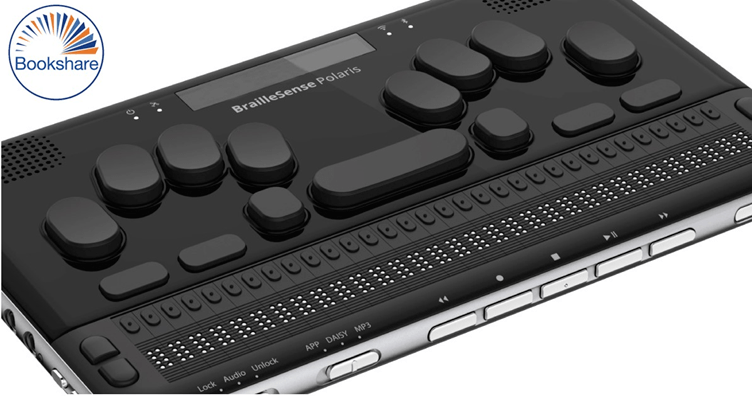
How to access Bookshare on the Braille Sense 6

Braille Sense 6 beside Bookshare

In today’s article, we will be covering how to access Bookshare on the Braille Sense 6. We will be going step-by-step on how to log on and download books.

Stage one:

  1. Power on your Braille Sense 6
  2. Press F1 to take you directly to the main menu and place it onto the File Manager.
  3. Navigate down to the Books option.
  4. Pressing enter you will be placed onto the DAISY PLAYER.
  5. Move down the different options until you find “Bookshare Download.”

Stage two

  1. Press the Enter key and you will be taken to the logon screen.
  2. You will be prompted to input your Bookshare account information and press enter.
  3. The first dialog box that you will be shown is the username/email where you will be asked to input the email account that used to sign up with.
  4. Pressing F3 you will be placed into the Password dialog box, here is where you will input your password.
  5. Once you have made sure all your account information is correct, press Enter.
  6. Once you have logged in you will be shown several separate ways to search for books to download from Bookshare.
  7. By pressing F3 you move to the search function and with this you can search by title of book, author, or category.

Today we are just focusing on searching via title.

Search By Title

  1. When you find ‘Search by Title,’ you can input the name of the book you want.
  2. Once you have done that, press enter, and you will be displayed several different book titles related to what you are wanting to search for.
  3. If you are wanting to check the description of the book, find the title and press F3 until you find the book details.
  4. Press the Enter key and you will be displaying all the different information about the book.
  5. Move down to synopsis: here is where you can find the description of the book.

Discover Book Details

  1. To discover out-of-the-book details, press F3 until you reach cancel.
  2. Pressing this will bring you out of the book detail section.
  3. Pressing spacebar F3 will move you backwards the options until you get back to the book title.
  4. Once you have found your desired book, press F3 until you reach the download button, pressing enter will start the download.
  5. This might take a few minutes depending on the file format that is being downloaded and your internet speed.

Book Downloaded and Accessing Bookshare Program

  1. Once your book is downloaded, you can then access the Bookshare program.
  2. Pressing space with as with exit you from the program or by pressing F4.
  3. You can then move to the DAISY player and press enter.
  4. When your program has loaded you will be displayed with all the books that you have downloaded to your device from Bookshare.
  5. When you find the title that you want to read or have recently downloaded press F3 on the title and you are shown a confirm button and press enter, this will open your book for you to be able to read.
  6. To exit your book, press the spacebar and Z.

This is how you can access the book directly from Braille Sense 6.

One Day With the Rabbit R1: How I’ve Been Using It So Far – CNET

Jesse Lyu, founder and CEO of Rabbit Inc., compares his company’s first product — the Rabbit R1 — to a Pokedex. After using it for just one day, I’m beginning to understand why.

Like the fictional Pokedex can identify Pokemon (creatures from the popular cartoon, video game and card game franchise of the same name), the Rabbit R1 can identify items in its environment. Point it at a plant, and it can tell you what kind it is. Aim it at your lunch, and it can tell you what’s in it. 

Like the Pokedex, it also feels a bit like a novelty so far. The Rabbit R1, despite its tiny size and simple design, claims to do a lot of things. It can call an Uber, order dinner from Doordash, translate conversations, record voice memos, play songs from Spotify and more. Your phone can already do all of those things, but Lyu is promoting the Rabbit R1 as a faster and more natural way to do so. 

AI Atlas art badge tag

Rabbit is far from being the only company trying to change the way we interact with devices. There’s the Humane AI Pin, another mini-gadget that uses artificial intelligence and a camera to answer questions and help you get things done. That device was criticized by reviewers for its high price, limited functionality and tendency to overheat. The Ray-Ban Meta Smart Glasses also have multimodal AI, meaning the eyewear can “see” what you see and tell you about it. 

So far, the Rabbit R1 feels fun, fresh and interesting, but also frustrating at times. It intrigues me, but it also hasn’t convinced me yet that there’s room for another gadget in my life.

Here’s what I’ve been using the Rabbit R1 on my first day. I’ll have more to say in my full review after I’ve spent more time with it. 

Read moreAI Is Changing Our Phones, and It’s Just Getting Started

Watch this: First Look at Rabbit R1 Mobile AI Device 01:35

First, what is the Rabbit R1?

rabbit-r1-side
The Rabbit R1 is roughly half the size of a smartphone.Lisa Eadicicco/CNET

The Rabbit R1 is a handheld device about half the size of a phone. It has a 2.8-inch screen, a scroll wheel for navigation, an 8-megapixel camera, 128GB of storage, GPS and accelerometer and gyroscope sensors for motion sensing. 

On paper, that makes it sound like a phone from more than 10 years ago, but it’s what’s on the inside of the R1 that matters. Instead of a traditional operating system with apps, the R1 runs on what the company calls a “large action model.” It’s software that’s been trained to use digital services like a human would, similar to how a large language model provides conversational answers that may sound like a person wrote them. As such, you primarily interact with the R1 by speaking to it instead of swiping and scrolling through apps and menus. However, there is a keyboard for when you need to do things like enter a Wi-Fi password. 

Lyu has big ambitions for where this Rabbit OS software can go. In a demo, he’s been able to book almost an entire vacation just by speaking a few simple sentences to the R1, such as by asking it to find flights and telling it his preferences. On day one, the Rabbit R1 is more limited. Many of the things it can do today feel smartphone-esque, like asking for the weather or playing songs on Spotify. 

It takes some getting used to. Years spent tapping, swiping and scrolling will make you forget how to do almost anything else. Sometimes it’s refreshing to discover how to use a tech product for the first time, and at other times it’s frustrating. Yesterday morning, for example, I asked it to play Taylor Swift on Spotify before leaving the house, just to make sure it worked. The good news: it worked; the bad news: I couldn’t get it to stop. It took a few frantic presses of the side button before I finally got it to quiet down.

Visual search is the most interesting feature so far

rabbit-r1-back-blue-background
The Rabbit R1 has a camera, which you can use to ask it questions about your environment. Lisa Eadicicco/CNET

The Rabbit R1 has a camera, but it’s not meant for the typical things you’d use your phone’s camera for. It’s not about photography, but instead, it’s for learning about the world around you. It’s pretty accurate for the most part so far. When I pointed it at my salad during lunch, it was able to tell me most of the ingredients. 

That’s not what I asked. After all, who orders a dish without knowing what’s in it? I asked the Rabbit R1 to tell me how many calories were in my lunch. While it couldn’t provide the answer I wanted, I was impressed with its response. 

It told me it couldn’t determine a calorie count because the calories in a salad can vary significantly depending on the ingredients. It would need more details about the ingredients and portion to provide that information, although Rabbit did tell me that it noticed grilled chicken, lettuce, tomatoes and other healthy ingredients. It suggested that I should turn to a nutritional database for a more precise calorie count. Finally, it recommended that I enjoy “healthy meals like this” without “obsessing” over calories.

That may be the best non-answer I’ve gotten from a virtual assistant. Instead of just saying “Sorry, I can’t help with that,” as Siri might, it understood my intention, provided the information it could and told me why it couldn’t give me the exact answer. 

Overall, Rabbit R1’s visual analysis worked pretty well for identifying things like plants and characters from pop culture. When describing my colleague’s sneakers, the Rabbit R1 got the brand wrong. 

This type of functionality isn’t new or specific to the R1, and you can already do something like this on your phone through Google’s Gemini assistant on Android phones (or the Gemini section of the Google app for the iPhone). It’s also very reminiscent of Google Lens, which has been around for years. 

How often do you actually use Google Lens to snap a photo and search for something? I’m guessing not a lot. That’s what makes the R1 feel different from a phone even if its purpose sounds similar. It’s not necessarily about what you’re doing with it, but how you’re doing it. For better or worse, the R1 forces that type of multimodal interaction by design rather than offering it as an optional input.
The rise of generative AI could make visual search more common, but that surely won’t be Rabbit’s doing alone. You can’t mention search without talking about the 800-pound gorilla in the room: Google. Google is already trying to get us in the habit of moving away from the constraints of words when it comes to search. 

Earlier this year, it launched Circle to Search, a feature available on certain Pixel and Galaxy Android phones that lets you search for almost anything on your phone’s screen just by drawing a circle around it. No, it’s not exactly the same as pointing a camera at something and asking a question about that subject in real-time. It feels close enough to the same idea, and I imagine Google will have even more to say about multimodal search at Google I/O next month.  

Other early thoughts

rabbit-r1-side-button
You can press and hold the Rabbit R1’s side button and speak into it like a walkie-talkie. Lisa Eadicicco/CNET

So far, I’ve used the Rabbit R1 to take voice memos, translate speech from Spanish to English, and answer basic questions about things like weather forecasts. These features work as expected for the most part, and I’ll have more to say about them when I’ve spent more time using them. Your queries and visual searches, along with the services your device is connected to (like Spotify), all live in an online hub called the Rabbit Hole, which you set up when activating the device. 

I’ve also noticed a few hiccups after my first day of use. The biggest of which has to do with ending a task and going back to the Rabbit R1’s home screen. Pressing the side button is supposed to put the R1 in standby mode, but there were multiple occasions in which nothing happened — especially when trying to stop Spotify. This made it frustrating to use at points. 

The battery also drained absurdly fast, going from 98% at around 9 a.m. to 34% by 1:41 p.m. It died before I left the office around 5 p.m., even though I had topped it off a bit in the afternoon. 

I’ll have more thoughts and impressions to share in my review of the Rabbit R1, which I’ll be writing after I’ve had more time with it. 

The Rabbit R1 AI Assistant Looks Downright Retro in Orange

See all photos

Editors’ note: CNET used an AI engine to help create several dozen stories, which are labeled accordingly. The note you’re reading is attached to articles that deal substantively with the topic of AI but are created entirely by our expert editors and writers. For more, see our AI policy.

How to Turn on Detailed Voice Guidance for Vision Impaired Users in Google Maps

Detailed Voice Guidance is not a new feature, but it is not well known and is hidden deep in the settings of Google Maps. If you are a fan of Google Maps, we think it is a good feature to turn on for a vision-impaired or blind user.

Detailed Voice Guidance expands the existing walking directions guidance with several extra elements. The directions are more proactive so that if you take a wrong turn, the vocal guide will tell you and find the best way to your destination from your new point. Along the way, it will tell you not only where to turn, but how far away it is and in what direction you are facing, and the vocal guide will also alert you before reaching busy intersections.

So how do we turn on this detailed navigation feature?

  1. Open Google Maps
  2. Navigate to Account and Settings, If you are a VoiceOver user you will find it by flicking left and it is the first option you will hear.
  3. While in here go to Settings.
  4. Now go to Navigation
  5. Flick to the right all the way down until you get to detailed Voice Guidance and turn it on

We love to hear software companies adding features like this into universal or mainstream apps as it is easier to use one app to get most of your information and gives the user more freedom and confidence.

If you are a user of Google Maps and you have turned on this feature we would like to hear if you found the extra navigation voice cues help to get to your final destination or if you are a user of any other navigation or mobility apps like Soundscape or Apple Maps we would love to hear which you find best and why?

You can send a voice note to the Talking Technology WhatsApp number 086 199 0011 and we can play it on the show.

Accessibility of FaceBook

A woman smiling holding a smart phone

Digital accessibility ensures that individuals with disabilities can access and interact with online content. Regarding social media platforms like Facebook, implementing accessibility features is crucial for creating an inclusive online environment.

Facebook, a social media site, has 3.03 billionmonthly users worldwide. It is the largest social media platform globally and has expanded into owning other social media platforms, such asInstagram. With so many users, it’s clear that many people with disabilities use Facebook—after all, 1 in 6 people worldwide have some kind of disability. So, what does Facebook do for accessibility?

Let’s examine Facebook and see what it does well, what it could improve on, and where it stands compared to other social media sites.

What Facebook does well

Facebook allows for alternative text, or alt text, to be included in all photos posted on individual pages. Alt text is a substitute for images for people with visual disabilities who use screen readers. It reads a description of the image, so no content is missed on the page. It also helps if an image doesn’t load. To add alt text, a user must click “edit photo,” then “change alt text.” This will allow them to edit the machine-generated alt text Facebook provides. 

Facebook has a feature that allows users to generate captions for any videos posted on the site. The captions are automatic, but users can edit them if the automatic captions are incorrect in any way. Captions on videos are important for people with hearing disabilities — they allow for full enjoyment of videos by providing a transcription of audio content from the videos. Captions must be complete and accurate, so editing is an important feature in case of inaccuracies in automatic captions. 

Recently, Facebook rolled out accessibility updates that included scalable font sizes and screen reader announcements. Scalable font sizes improve the readability of a site for people with vision disabilities by allowing them to change the font size to their liking. The screen reader will announce when an action has been completed, such as posting a status or sending a message.

What Facebook can improve on

Facebook is constantly innovating with its accessibility features. They have long stated that their work is never finished for accessibility and have sought help from the public in many ways for feedback. However, this doesn’t mean that Facebook is without flaws. 

Though Facebook is keyboard navigable, Facebook only recently added a “Skip to News Feed” link for people using keyboard navigation. Keyboard navigation is important for people with visual or physical disabilities that make using a mouse difficult or impossible. Without a way to skip to their news feed, people relying on keyboard navigation would have to go through many steps before they got to their news feed. Facebook could refine its keyboard navigation to ensure they’re not missing other skip links to make keyboard navigation easier. 

Facebook could also refine its automated alt text. Although all alt text is good, automated alt text carries with it some issues that human eyes can fix, and improving what the automated alt text comes up with can enhance the accessibility of the alt text available on the site for users who choose not to edit the alt text already available. 

Facebook’s overall score

Ultimately, Facebook is one of the most accessible social media sites. Compared to sister site Instagram, whose accessibility is based on each user rather than the site, Facebook comes out on top. X, formerly known as Twitter, does have some similar accessibility features, but it doesn’t have as many as Facebook, and its site support falls short of Facebook’s overall. 

Facebook can be used as a model for accessibility in social media. From the features it has to the efforts the staff makes to improve continually, Facebook is the most popular social media site for a reason, and one of those reasons is its accessibility. 

Conclusion

Facebook has taken significant steps to improve its digital accessibility. The social media giant is working towards creating a more inclusive online environment by incorporating features such as alt text for images and keyboard navigation. Content creators can further contribute to this effort by following best practices for creating accessible content on the platform.

By prioritizing digital accessibility, Facebook and its users can ensure that individuals of all abilities can fully participate in the social media experience.

Elevating E-Commerce Accessibility: Product Display Basics

Accurate, detailed product information is an essential part of any successful e-commerce experience. But if e-commerce sites aren’t created with accessibility in mind, many would-be customers may be unable to get the facts they need to make purchasing decisions—resulting in lost revenue opportunities for retailers.

So, how can designers and content authors showcase products effectively for all online shoppers? In part two of her “Elevating E-Commerce Accessibility” video series, accessible design expert Dana Randall explains how to create product listing and product detail pages that enhance every buyer’s journey.

Access part one of this series, covering accessible template design, here

Video: Product display basics

Your roadmap to accessibility in e-commerce

Get the guide

Video transcript

Welcome to part two of this three-part retail- and e-commerce-design-focused video series. I’m Dana Randall from Level Access. We’re going to cover some of the basics that should be part of designing any product listing or product detail page.

We’re going to focus on two different user profiles. User A is visiting your website or app and they don’t have a particular product in mind. They’re really there in a discovery mindset. User B is coming to your site or app with a particular product in mind. They’re in a conversion mindset.

User A: Discovery mindset

Let’s start with user A, the discovery mindset user. I’m going to start their journey on the product listing page. Let’s explore what might make a meaningful difference for a screen reader user. What are some of the baseline requirements? And what’s something that you could put a little extra thought into to shift a buying experience from good to great?

Tip number one:

Alt text. Alt text is a requirement. It’s critical to include meaningful alt text on all your product images. In this example, I’m sharing a product image with the alt text, “blue handbag.” Is this correct? Yes. Will it pass? Sure. This is required to provide your screen reader user with a good experience.

Tip number two:

Exceptional alt text. Have you considered how you can take alt text from fine to fabulous? What if I really considered how I could more meaningfully describe the product?

What shade of blue is it? Sky blue. Also, I noticed that this product has texture to it. This might be something the customer really enjoys or dislikes in their products. If the alt text on this product said, “sky blue satchel with perforated leather,” this would give the customer a much better sense of the product and its details.

Now, I know what you might be thinking. That information’s on the product detail page. This is true. But your screen reader user would need to click through to every product detail page to get that information. You could provide a more efficient experience by providing that information in the alt text.

The complete playbook for inclusive digital marketing

Access the guide

User B: Conversion mindset

Now let’s go to user B, the conversion mindset user. We’re going to explore the product detail page, or PDP. They came to your site or app knowing exactly what they wanted, so they landed on your product detail page. How can we design the best possible experience for this user to select the size and color, and enable them to add the product to their cart effectively and efficiently?

Let’s take this journey with a customer who uses a keyboard or alternate input device. In this demo example, I’m using the keyboard to navigate around the PDP. As a designer, it’s important to think about all users and be sure to consider users beyond those using a mouse or trackpad. If we overlook this journey, it’s likely we’ll design an experience that’s less ideal, or even nonfunctional, for some users.

Tip number three:

Tip number three is for defining focus. Something we need to do in design is to clearly define which elements receive focus. We also need to think about what the focus indicator looks like, and in what order we want focus to be. It’s possible that the visual order from left to right, or top to bottom, isn’t the ideal flow for the best user experience, especially in a PDP where content might have contextual groupings or be in multiple columns. By thinking about the priority and the context of the elements, we can really improve the user’s journey on the page.

Tip number four: 

I also want to touch on the different color options. It’s common on a PDP to offer the product in different colors, but it’s also common for those color swatches to receive alt text that are your internal color codes. Those are not really meaningful to the user, so that’s tip number four: color swatches.

Keep in mind that your internal color codes are not particularly meaningful for your customer, and it would be more meaningful for you to more accurately describe the color. For example, “RD-100” isn’t meaningful, but “bright red pebbled” is.

Now, these tips I shared apply to all profiles, so please keep all of these tips in mind when you’re designing. If you found any of this helpful, we’ve got more for you. Check out our other resources on accessibility and retail.

Guide every customer from discovery to conversion

Visit our retail hub for more resources on accessible design in e-commerce, and to learn how Level Access can support.

A complete guide for content creators to start making accessible content

List of Presentations From CSUN 2024, Compiled by Christopher Phillips

This list has been compiled as a spreadsheet using Google Sheets.

Activate the link to enable screen reader support to ensure screen reader accessibility.

Pressing ctrl+/ (control slash) provides a list of Google Sheets keyboard shortcuts.

Apple Books Can Do Far More Than You Think (So Use These 10 Tips)

Apple Books lets you buy, rent, and read books, listen to audiobooks (in supported regions), or import and read documents downloaded from other sources. But there’s a lot more you can do in the app than you’re probably aware of, so let’s dive in and take a look. 

1 Check Your Reading Progress

Being aware of your reading progress lets you know how far you’ve read a book and may motivate you to read more. The Books app makes it pretty easy to check your reading progress.

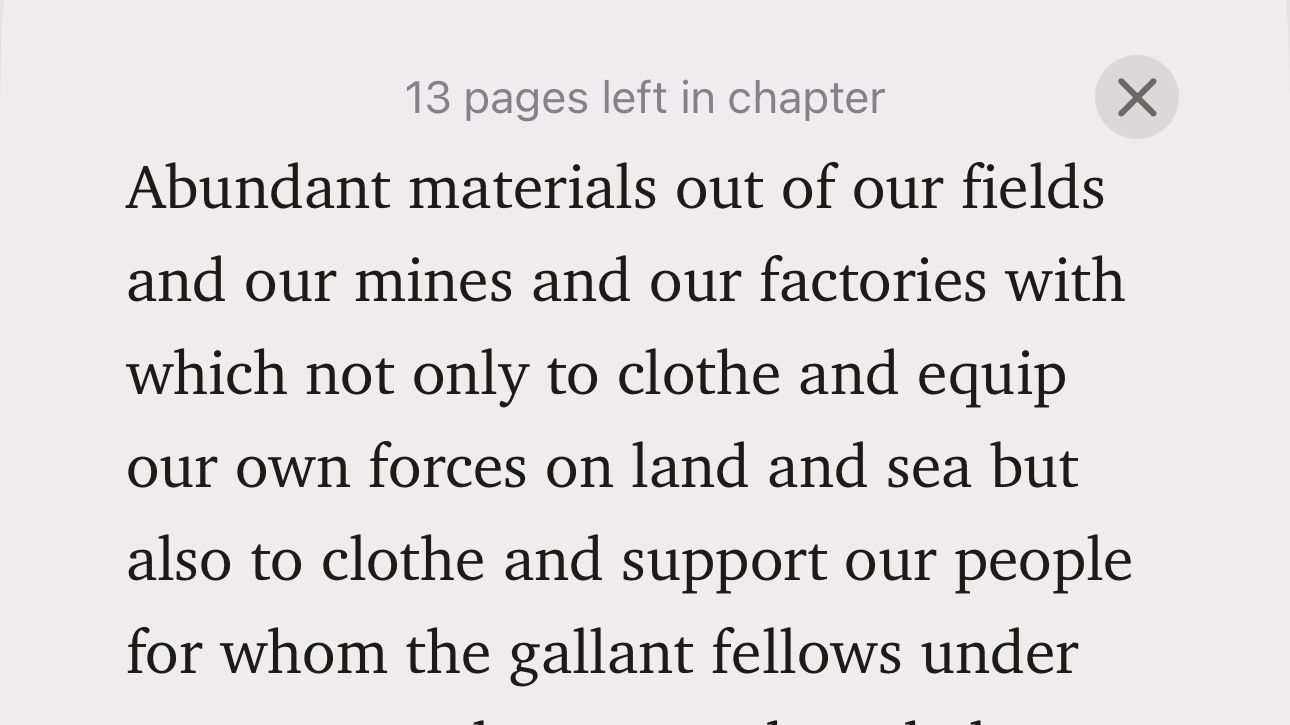
On your iPhone or iPad, open the book and go to the page you’re reading currently. Tap anywhere in the center of the page.

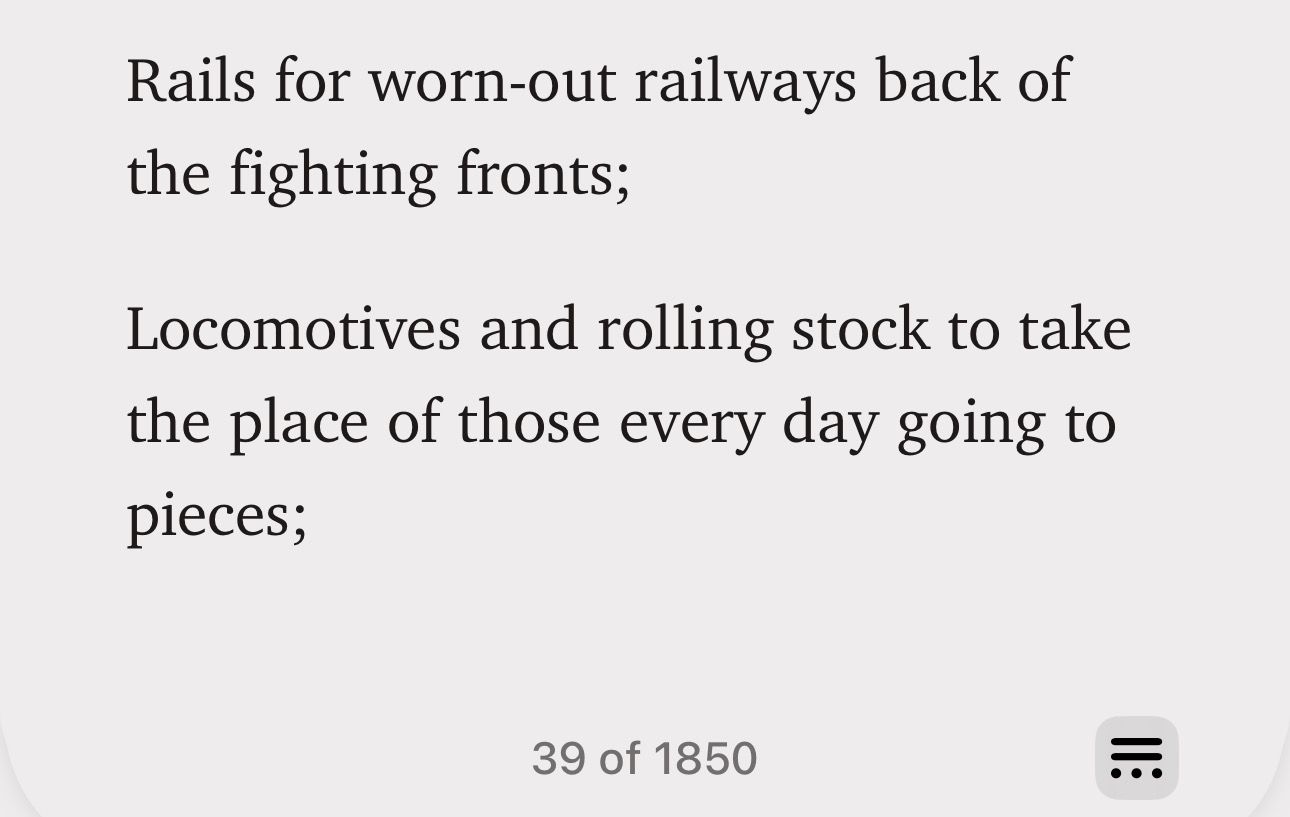
You’ll now see two numbers; one at the top and the other at the bottom of the page.

Checking the number of pages remaining in a chapter in a book in Apple Books.

The top number indicates the number of pages left in the current chapter. Meanwhile, the bottom number tells how many pages (out of the total pages in the book) you’ve read so far.

Checking the number of pages read in a book in the Apple Books app.

2 Set Reading Goals

If you haven’t been reading much lately, the Reading Goals feature can help you get back on track. Once enabled, it tells you how many minutes you spend reading each day and the number of books and audiobooks you finish each year.

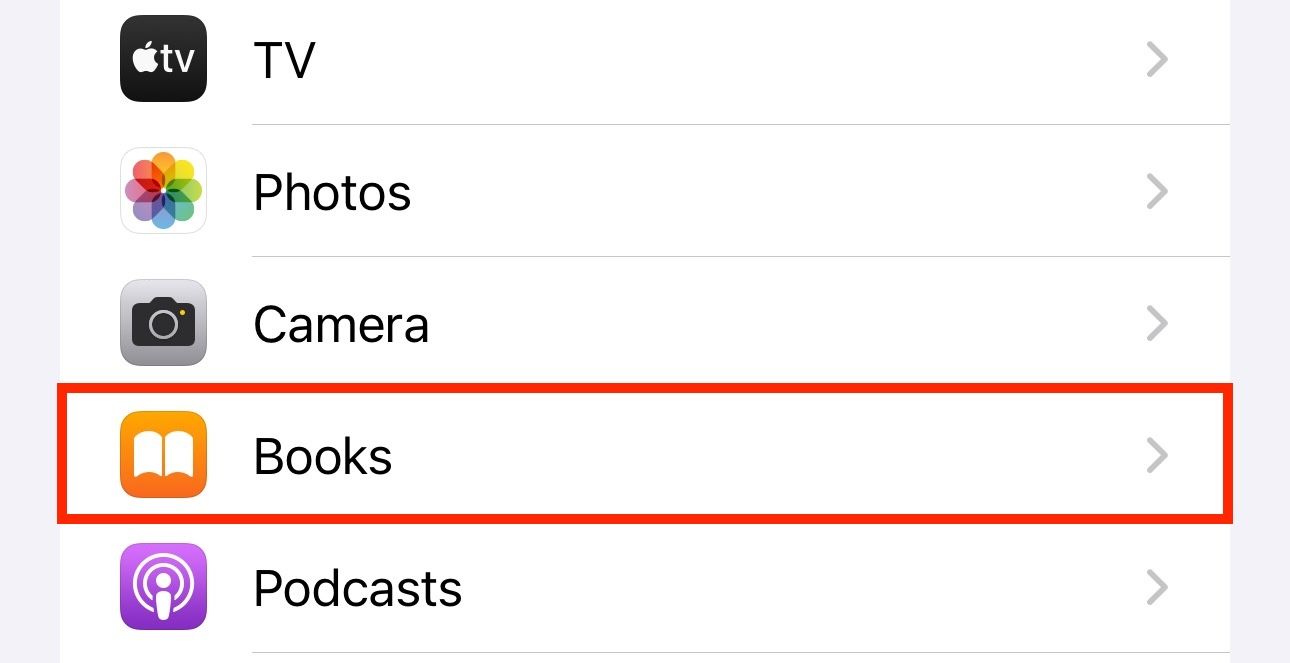
To turn on Reading Goals, open “Settings” on your iPhone or iPad and select “Books.”

The "Books" option in the iPhone Settings app.

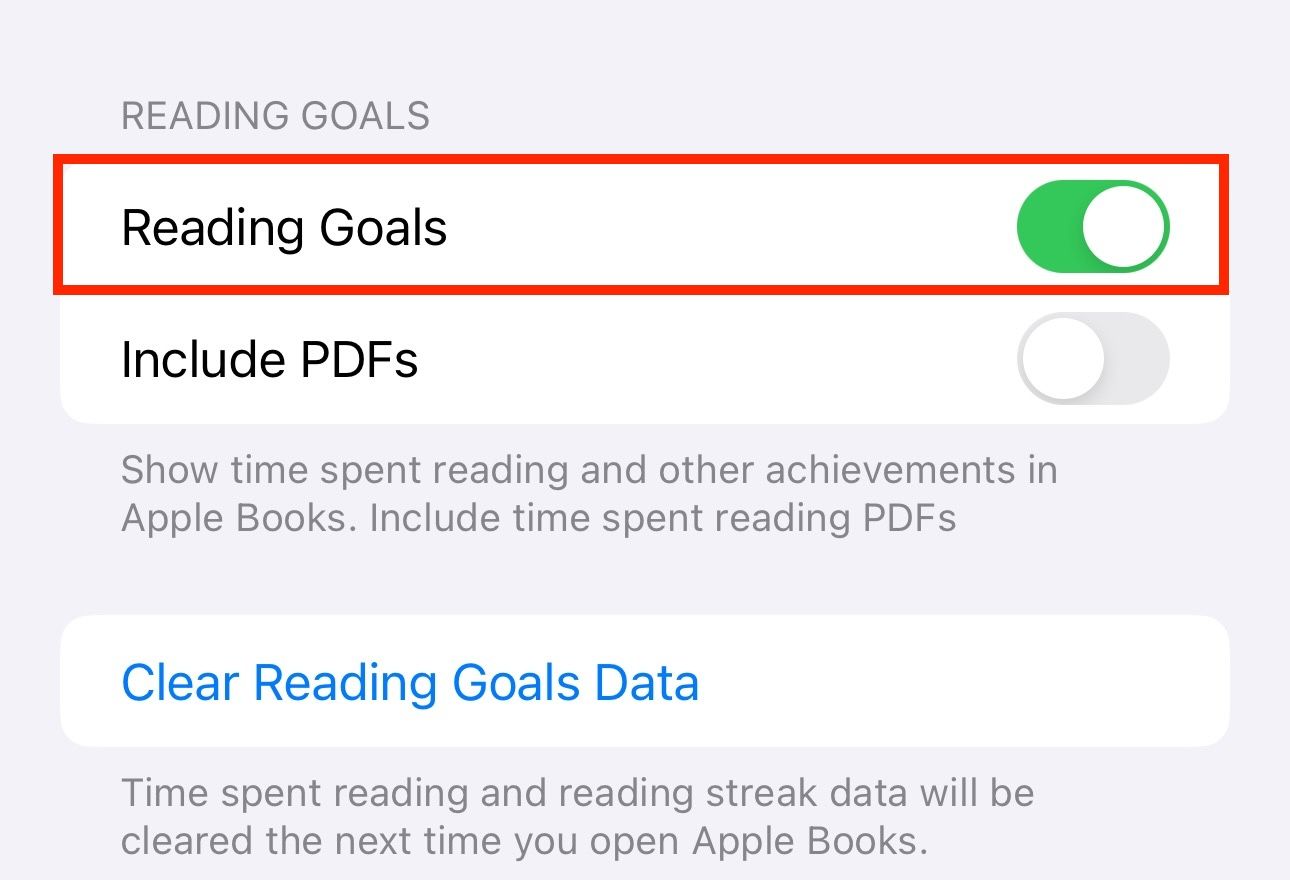
Scroll down to the “Reading Goals” section and toggle on the switch next to “Reading Goals.”

Enabling the Reading Goals feature in Books app.

Flip the switch for “Include PDFs” to also include the time you spend reading PDFs towards your reading goals.

Enabling the Reading Goals feature for PDFs in Books app.

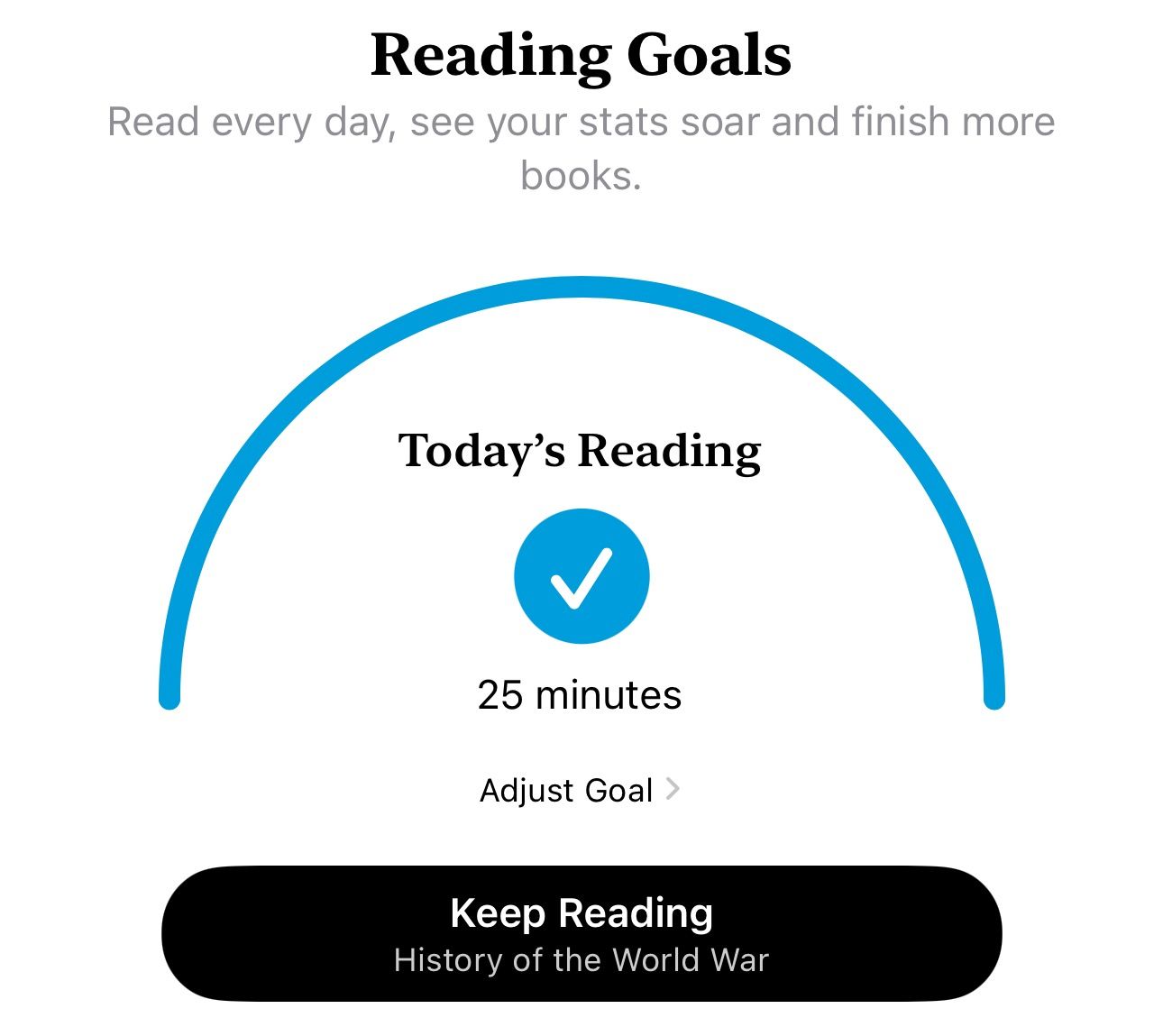
Once you resume reading regularly and want to check your progress, open the Books app and go to the “Home” tab. Scroll to the bottom of the page, and you’ll see a section called “Reading Goals” with all your reading stats.

Reading Goals section in Apple Books app on an iPhone.

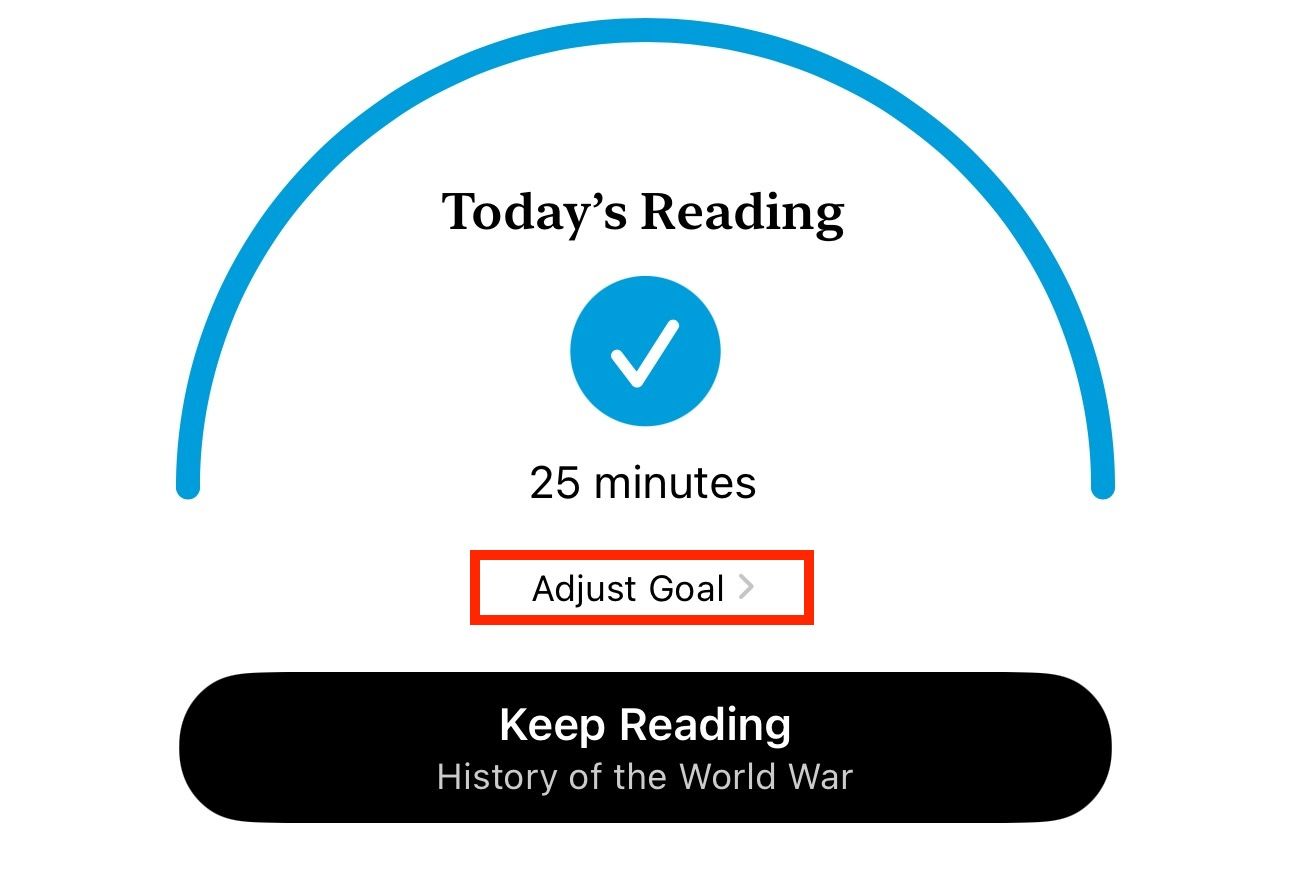
You can also adjust your reading goal from here. To do this, tap on “Today’s Reading” and hit the “Adjust Goal” button.

Adjust Goal option for settings a reading goal in Apple Books app.

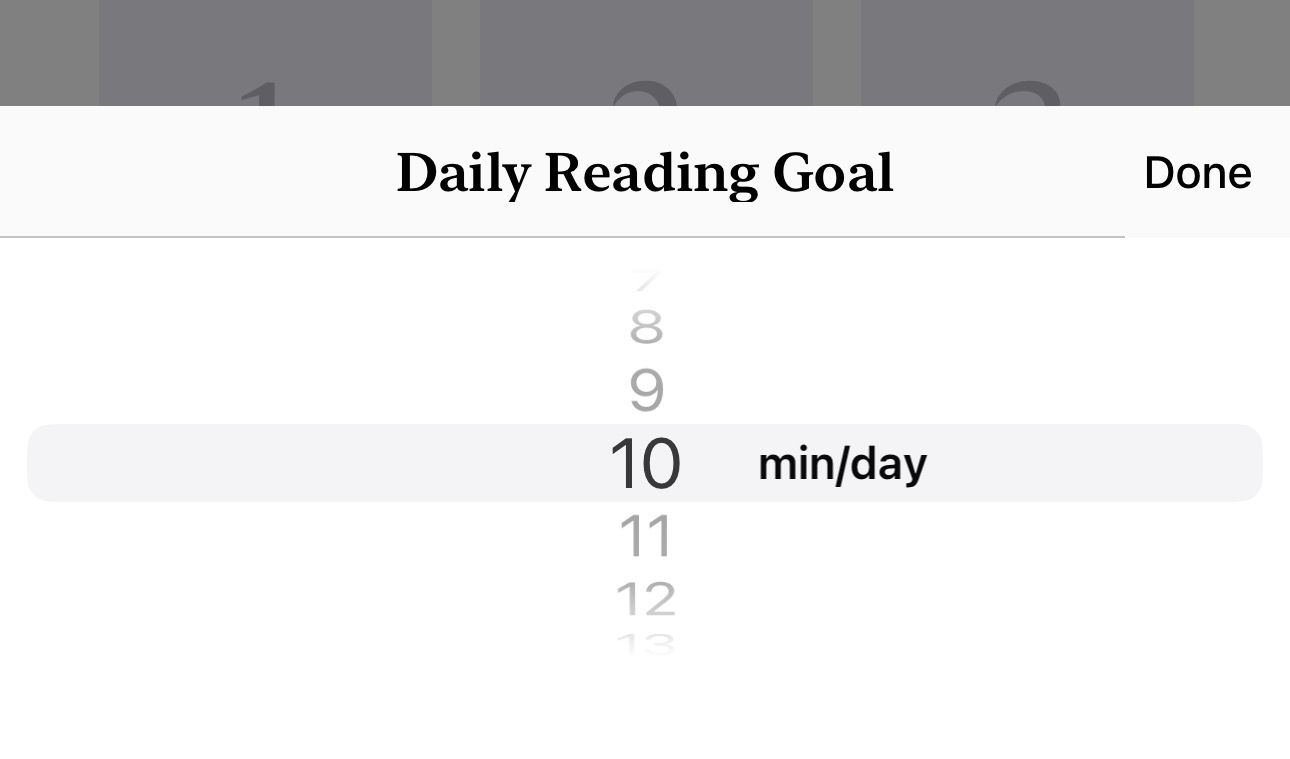
Set the time you want to spend reading books each day on the overlay screen. Hit “Done” to save.

Setting a daily reading goal in Apple Books.

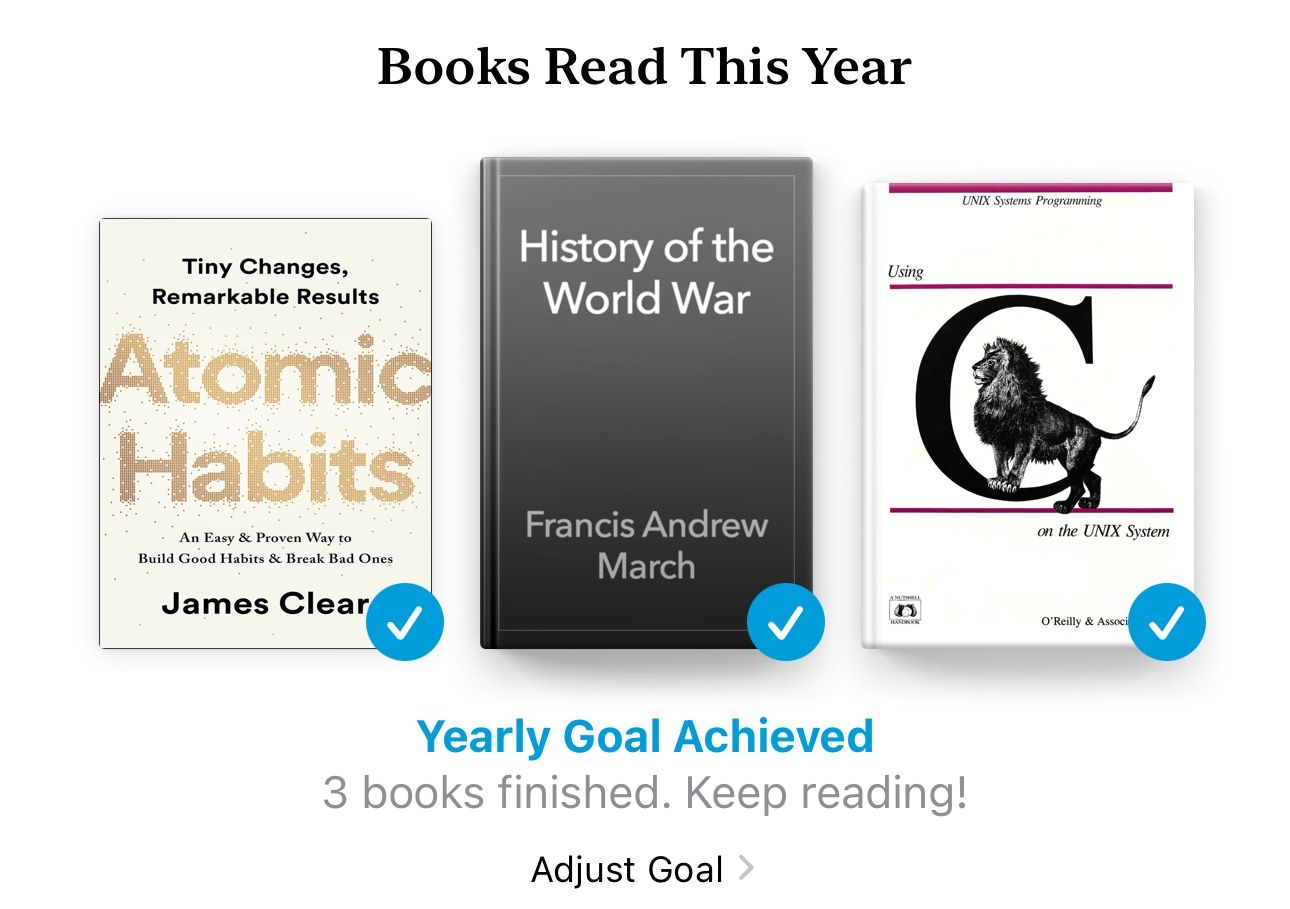
Similarly, you can scroll down further to the “Books Read This Year” section to see how many books you’ve finished this year.

Books Read This Year section in the Apple Books app on iPhone.

To modify the goal, hit the “Adjust Goal” button. Then, set the number of books you want to read each year and hit “Done” to set this as your new yearly reading goal.

3 Customize the App’s Appearance

Apple offers several customization options in the Books app to help you customize your reading experience. You can use these options to change everything from fonts and themes to page-turn animations and line spacing, among other things.

To access them, go to the Books app, open a book, and tap anywhere on the page and then hit the menu button at the bottom-right of the page.

Menu button in the Apple Books app on an iPhone.

Select “Themes & Settings.” 

Themes & Settings option in Apple Books menu.

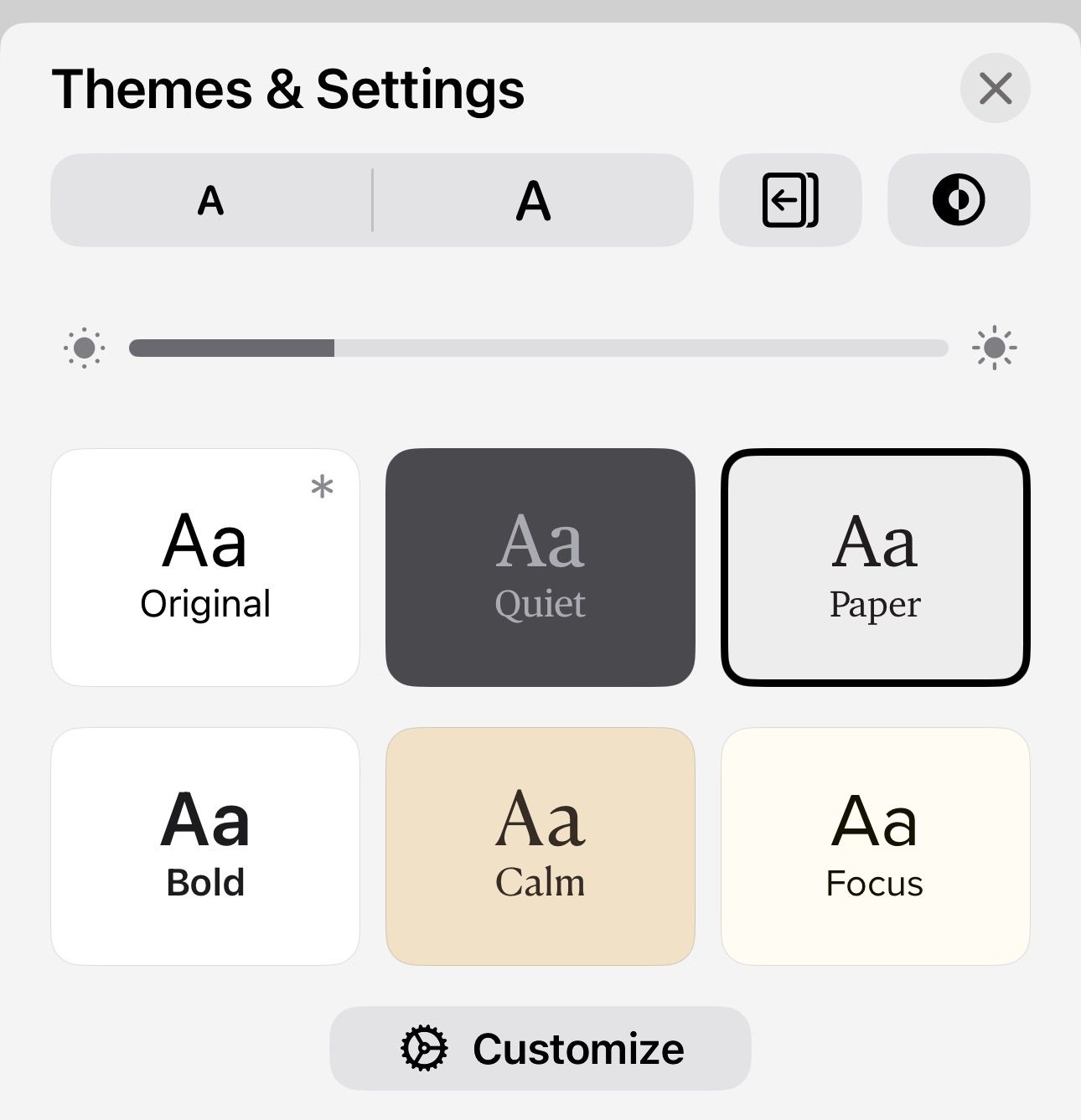
Now you can change a bunch of things from the “Themes & Settings” overlay screen, including the font size, font type, theme, and page turn animations.

Themes & Settings overlay screen on the Apple Books app.

In addition, you can tap on “Customize” at the bottom of the page to open the theme customizer. From here, you can adjust other aspects of the page, such as line spacing, character spacing, and word spacing, among other things, as per your preference.

4 Jump to a Page 

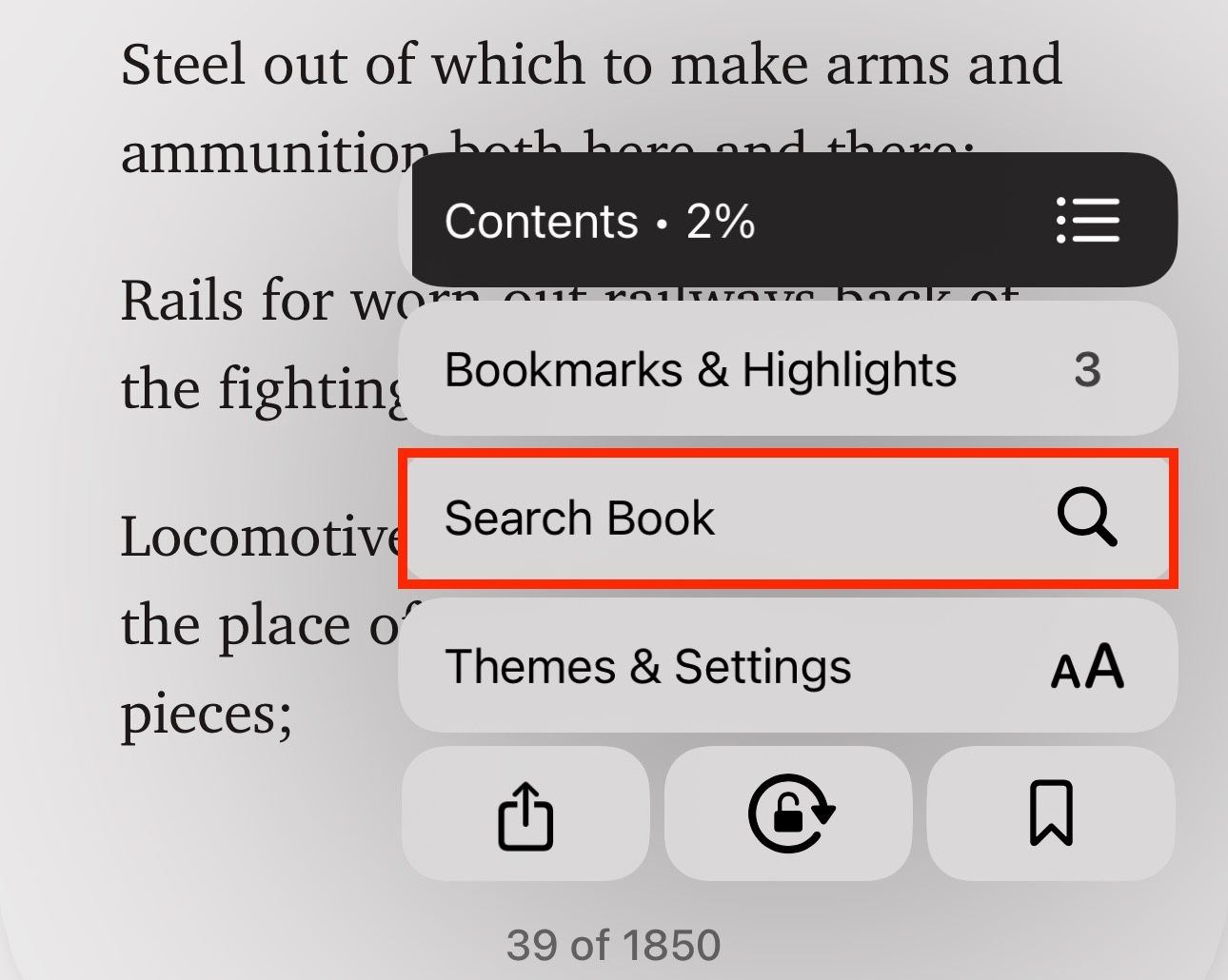
Using the table of contents is one way to navigate a book. However, if it’s unavailable, or you want to jump to a page in a book or PDF directly, you can simply use built-in search functionality to find the page.

To do this, open the book and tap on the menu button in the lower right-hand corner. Select “Search Book”.

Search Book feature in Apple Books app.

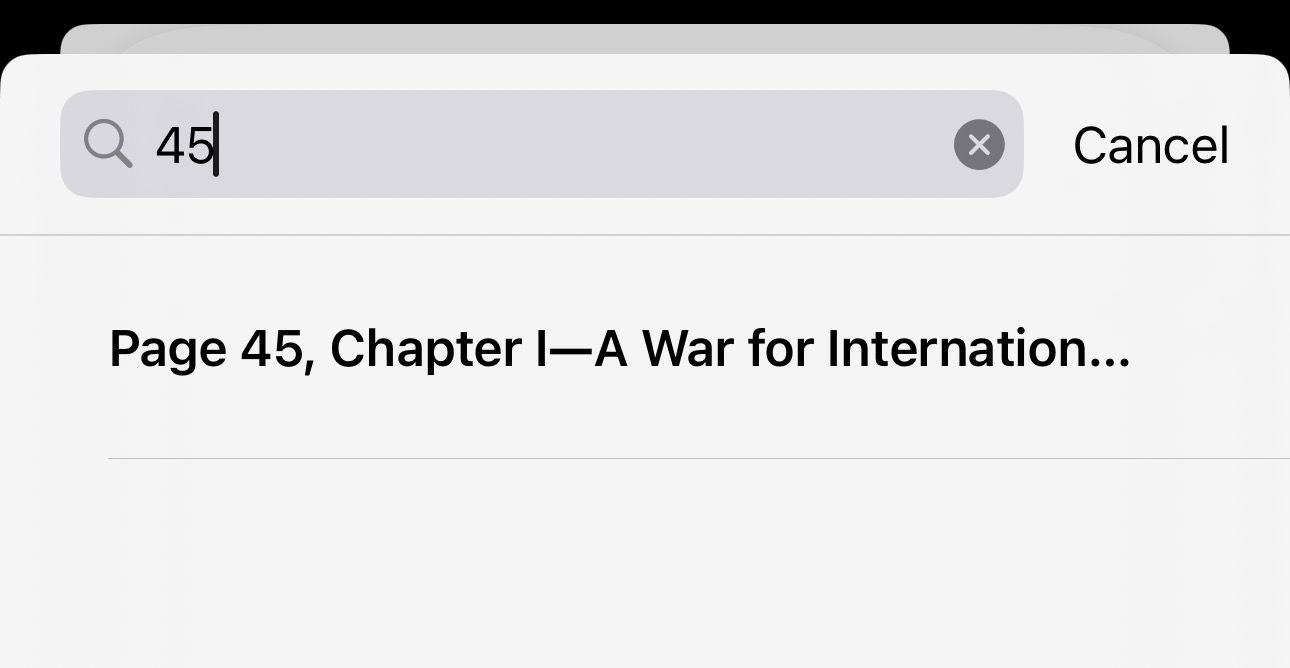
Now, type a number, and tap on the result to open that page. 

Searching a book by page number.

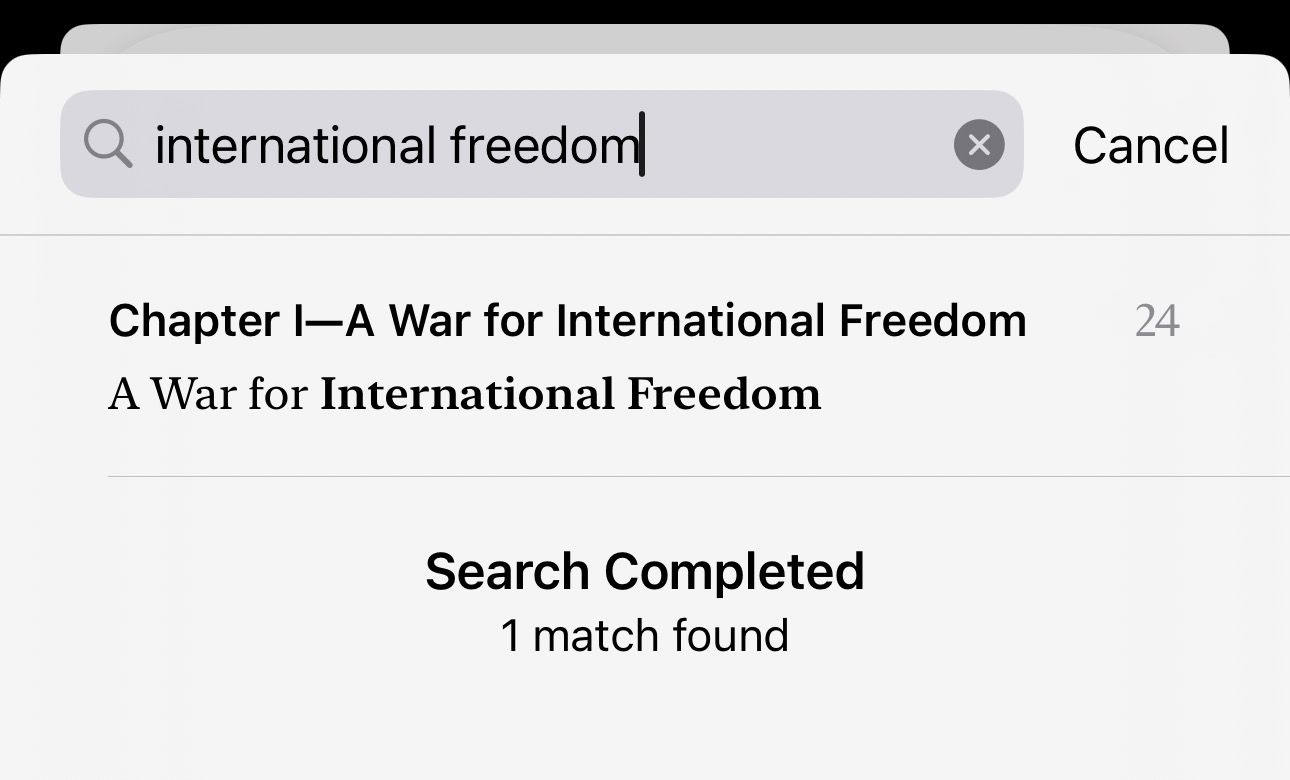
You can also use this search feature to look up something specific in a book. Simply type the text you want to find, and the app will show all the instances of it in the book.

Searching a book in Apple Books by a word or phrase.

Tap on one to jump in and read. 

5 Add Bookmarks (Not Just One)

When you stumble upon something interesting in a book, adding a bookmark will save it, so you can revisit it later. To bookmark a page in Apple Books, tap the menu button in the bottom-right corner and hit the bookmark button.

Bookmark button in the Apple Books app on an iPhone.

You’ll see a bookmark icon in the bottom-right corner of the page, indicating it’s bookmarked. The Books app keeps all your bookmarks for a book in one place. You can access them by tapping the menu button and going into “Bookmarks & Highlights.”

Checking Bookmarks & Highlights in the Books app on an iPhone.

When you want to remove a bookmark, it’s easy. Tap the bookmark icon to bring up the menu, and then hit the bookmark button again.

6 Highlight Text and Take Notes

In addition to bookmarking a page, the Books app also lets you highlight text snippets in a book you find interesting or may need later. You can even add a personal note to something you highlighted to include context or an important detail.

To highlight text in Apple Books, tap and hold on a word, and when it shows the grab points, move them to adjust your selection.

Selecting text in a paragraph to highlight in the Books app.

Next, tap the “Highlight” button that appears in the context menu above the text.

Highlighting a paragraph in the Apple Books app on an iPhone.

Then, choose a color you’d like to use for the highlight. Alternatively, you can underline the text by tapping on the “U” button.

HIghlight options in Apple Books.

If you want to add a note to the highlight, tap on the highlighted text and select “Add Note” from the menu.

Adding a note to a highlight in Apple Books app.

Start typing your note and hit “Done.” Once you add a note to a highlight, you’ll see a square box next to the text. Tap on this box to view the note.

Square box in Books app indicating a highlight with a note.

Alternatively, if you have multiple notes on a page, you can view them in one place. Tap the menu button in the bottom-right corner of the page and select “Bookmarks & Highlights.” Switch to the “Highlights” tab, and you’ll see all your highlights and notes for that book on this page. 

Checking all the higlights in a book in Apple Books.

7 Keep Your Books Synced Across All Your Devices 

One of the best features of the Books app is cross-device sync, which syncs your content across all your Apple devices. It allows you to pick up the book or audiobook you’re reading or listening to on one device and continue reading or listening to it on another. 

In addition to syncing reading progress, Apple Books also syncs and gives you access to all of your bookmarks, highlights, and notes, with the ability to create new ones across all your devices.

To enable sync in Apple Books, open the “Settings” app on your iPhone or iPad and tap on your name at the top of the screen.

iPhone Settings app.

Select “iCloud.” 

Selecting iCloud under Apple account settings on an iPhone.

Under “Apps Using iCloud,” tap on “Show All.” 

Viewing all apps using iCloud.

Here, make sure the toggle next to “Books” is on. 

Allowing Books to use iCloud on an iPhone.

Lastly, tap on “iCloud Drive” and enable it if it isn’t already enabled. 

Turning on the Sync this iPhone feature under iCloud settings.

8 Read and Annotate PDFs

Alongside books in its library, Apple also lets you read PDFs downloaded from other sources in Apple Books. So, if you’ve downloaded a document or a book from somewhere else on your Apple device, you can import it straight into Books and start reading it. Be aware that you may not experience the same reading experience, and the app may not show you the same features it does with the native eBook experience.

To import a PDF into Apple Books, go to the app containing the PDF document. Open the PDF, click the Share button. This includes any PDFs that you have opened in Safari.

Share button in the Files app on an iPhone.

Then, select “Books” from the Share Sheet. 

Selecting Books in Share Sheet to import a PDF into it.

This will open the PDF in the Apple Books app. You can now read the PDF or annotate it using the Markup tools.

Markup option on a PDF in Apple Books app.

9 Create a Wish List of Books You Want to Read 

If you’re always on the lookout for new books, the Books app offers a nifty feature called Want to Buy that lets you create a wishlist of all the books you’d want to read. The app syncs your wishlist across all devices, so you can add new items to your wishlist from any of your devices. 

Adding a book to your wishlist is easy. When you find an interesting read while exploring books in the “Book Store” tab on the Apple Books app, tap on the book to expand its details. Then, hit the “Want to Read” button below the “Get” button to add the book to your wishlist. 

Want to Read button in Books app to add a book to wishlist.

When you want to access your wishlist, head to the “Home” tab. Find the “Want to Read” section and tap on it. Here, you’ll see all the books you’ve saved and can check their samples or purchase them.

Want to Read section in the Apple Books app on an iPhone.

Since the Books store is so exhaustive, you can use this feature to keep track of books whether or not you intend to read them digitally (or on the Apple Books service).

10 Read Without Being Disturbed

App notifications can be annoying, especially when you’re trying to concentrate. Thankfully, there’s a workaround to silence your iPhone or iPad while reading that you can use to read books without interruptions. It involves using the Focus feature, which lets you limit or turn off notifications to reduce interruptions (while letting the really important things through, like phone calls from family members). 


The above tips will help you use Apple Books like a pro and elevate your reading experience on your iPhone or iPad. As you spend more time on the app, you’ll explore more such tips and functionalities and be able to get more out of it.