In this 34th episode of Wellness Wednesday, hosts Beth Gustin, LPC, and Robin Ennis, LCSW, CPC, explore the concept of self-identity and the impact of external influences on our personal definitions of who we are. Join Beth and Robin as they guide you through the process of embracing your authentic self and understanding that your identity is yours to define, free from the noise and expectations of others. Tune in to discover how to confidently navigate your path and stay true to yourself.
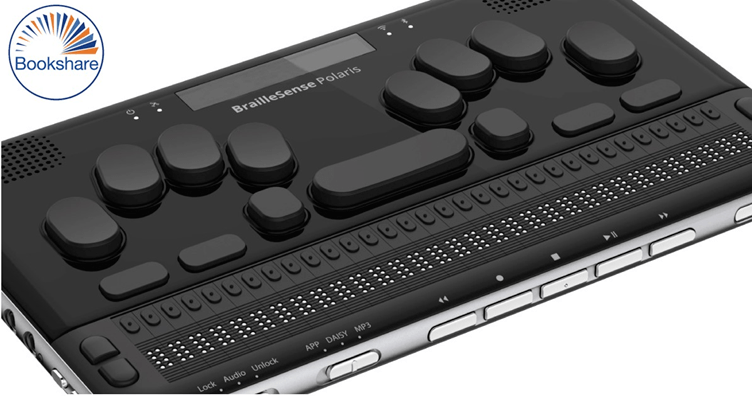
In today’s article, we will be covering how to access Bookshare on the Braille Sense 6. We will be going step-by-step on how to log on and download books.
Stage one:
Power on your Braille Sense 6
Press F1 to take you directly to the main menu and place it onto the File Manager.
Navigate down to the Books option.
Pressing enter you will be placed onto the DAISY PLAYER.
Move down the different options until you find “Bookshare Download.”
Stage two
Press the Enter key and you will be taken to the logon screen.
You will be prompted to input your Bookshare account information and press enter.
The first dialog box that you will be shown is the username/email where you will be asked to input the email account that used to sign up with.
Pressing F3 you will be placed into the Password dialog box, here is where you will input your password.
Once you have made sure all your account information is correct, press Enter.
Once you have logged in you will be shown several separate ways to search for books to download from Bookshare.
By pressing F3 you move to the search function and with this you can search by title of book, author, or category.
Today we are just focusing on searching via title.
Search By Title
When you find ‘Search by Title,’ you can input the name of the book you want.
Once you have done that, press enter, and you will be displayed several different book titles related to what you are wanting to search for.
If you are wanting to check the description of the book, find the title and press F3 until you find the book details.
Press the Enter key and you will be displaying all the different information about the book.
Move down to synopsis: here is where you can find the description of the book.
Discover Book Details
To discover out-of-the-book details, press F3 until you reach cancel.
Pressing this will bring you out of the book detail section.
Pressing spacebar F3 will move you backwards the options until you get back to the book title.
Once you have found your desired book, press F3 until you reach the download button, pressing enter will start the download.
This might take a few minutes depending on the file format that is being downloaded and your internet speed.
Book Downloaded and Accessing Bookshare Program
Once your book is downloaded, you can then access the Bookshare program.
Pressing space with as with exit you from the program or by pressing F4.
You can then move to the DAISY player and press enter.
When your program has loaded you will be displayed with all the books that you have downloaded to your device from Bookshare.
When you find the title that you want to read or have recently downloaded press F3 on the title and you are shown a confirm button and press enter, this will open your book for you to be able to read.
To exit your book, press the spacebar and Z.
This is how you can access the book directly from Braille Sense 6.
Jesse Lyu, founder and CEO of Rabbit Inc., compares his company’s first product — the Rabbit R1 — to a Pokedex. After using it for just one day, I’m beginning to understand why.
Like the fictional Pokedex can identify Pokemon (creatures from the popular cartoon, video game and card game franchise of the same name), the Rabbit R1 can identify items in its environment. Point it at a plant, and it can tell you what kind it is. Aim it at your lunch, and it can tell you what’s in it.
Like the Pokedex, it also feels a bit like a novelty so far. The Rabbit R1, despite its tiny size and simple design, claims to do a lot of things. It can call an Uber, order dinner from Doordash, translate conversations, record voice memos, play songs from Spotify and more. Your phone can already do all of those things, but Lyu is promoting the Rabbit R1 as a faster and more natural way to do so.
Rabbit is far from being the only company trying to change the way we interact with devices. There’s the Humane AI Pin, another mini-gadget that uses artificial intelligence and a camera to answer questions and help you get things done. That device was criticized by reviewers for its high price, limited functionality and tendency to overheat. The Ray-Ban Meta Smart Glasses also have multimodal AI, meaning the eyewear can “see” what you see and tell you about it.
So far, the Rabbit R1 feels fun, fresh and interesting, but also frustrating at times. It intrigues me, but it also hasn’t convinced me yet that there’s room for another gadget in my life.
Here’s what I’ve been using the Rabbit R1 on my first day. I’ll have more to say in my full review after I’ve spent more time with it.
Watch this: First Look at Rabbit R1 Mobile AI Device 01:35
First, what is the Rabbit R1?
The Rabbit R1 is roughly half the size of a smartphone.Lisa Eadicicco/CNET
The Rabbit R1 is a handheld device about half the size of a phone. It has a 2.8-inch screen, a scroll wheel for navigation, an 8-megapixel camera, 128GB of storage, GPS and accelerometer and gyroscope sensors for motion sensing.
On paper, that makes it sound like a phone from more than 10 years ago, but it’s what’s on the inside of the R1 that matters. Instead of a traditional operating system with apps, the R1 runs on what the company calls a “large action model.” It’s software that’s been trained to use digital services like a human would, similar to how a large language model provides conversational answers that may sound like a person wrote them. As such, you primarily interact with the R1 by speaking to it instead of swiping and scrolling through apps and menus. However, there is a keyboard for when you need to do things like enter a Wi-Fi password.
Lyu has big ambitions for where this Rabbit OS software can go. In a demo, he’s been able to book almost an entire vacation just by speaking a few simple sentences to the R1, such as by asking it to find flights and telling it his preferences. On day one, the Rabbit R1 is more limited. Many of the things it can do today feel smartphone-esque, like asking for the weather or playing songs on Spotify.
It takes some getting used to. Years spent tapping, swiping and scrolling will make you forget how to do almost anything else. Sometimes it’s refreshing to discover how to use a tech product for the first time, and at other times it’s frustrating. Yesterday morning, for example, I asked it to play Taylor Swift on Spotify before leaving the house, just to make sure it worked. The good news: it worked; the bad news: I couldn’t get it to stop. It took a few frantic presses of the side button before I finally got it to quiet down.
Visual search is the most interesting feature so far
The Rabbit R1 has a camera, which you can use to ask it questions about your environment. Lisa Eadicicco/CNET
The Rabbit R1 has a camera, but it’s not meant for the typical things you’d use your phone’s camera for. It’s not about photography, but instead, it’s for learning about the world around you. It’s pretty accurate for the most part so far. When I pointed it at my salad during lunch, it was able to tell me most of the ingredients.
That’s not what I asked. After all, who orders a dish without knowing what’s in it? I asked the Rabbit R1 to tell me how many calories were in my lunch. While it couldn’t provide the answer I wanted, I was impressed with its response.
It told me it couldn’t determine a calorie count because the calories in a salad can vary significantly depending on the ingredients. It would need more details about the ingredients and portion to provide that information, although Rabbit did tell me that it noticed grilled chicken, lettuce, tomatoes and other healthy ingredients. It suggested that I should turn to a nutritional database for a more precise calorie count. Finally, it recommended that I enjoy “healthy meals like this” without “obsessing” over calories.
That may be the best non-answer I’ve gotten from a virtual assistant. Instead of just saying “Sorry, I can’t help with that,” as Siri might, it understood my intention, provided the information it could and told me why it couldn’t give me the exact answer.
Overall, Rabbit R1’s visual analysis worked pretty well for identifying things like plants and characters from pop culture. When describing my colleague’s sneakers, the Rabbit R1 got the brand wrong.
This type of functionality isn’t new or specific to the R1, and you can already do something like this on your phone through Google’s Gemini assistant on Android phones (or the Gemini section of the Google app for the iPhone). It’s also very reminiscent of Google Lens, which has been around for years.
How often do you actually use Google Lens to snap a photo and search for something? I’m guessing not a lot. That’s what makes the R1 feel different from a phone even if its purpose sounds similar. It’s not necessarily about what you’re doing with it, but how you’re doing it. For better or worse, the R1 forces that type of multimodal interaction by design rather than offering it as an optional input.
The rise of generative AI could make visual search more common, but that surely won’t be Rabbit’s doing alone. You can’t mention search without talking about the 800-pound gorilla in the room: Google. Google is already trying to get us in the habit of moving away from the constraints of words when it comes to search.
Earlier this year, it launched Circle to Search, a feature available on certain Pixel and Galaxy Android phones that lets you search for almost anything on your phone’s screen just by drawing a circle around it. No, it’s not exactly the same as pointing a camera at something and asking a question about that subject in real-time. It feels close enough to the same idea, and I imagine Google will have even more to say about multimodal search at Google I/O next month.
Other early thoughts
You can press and hold the Rabbit R1’s side button and speak into it like a walkie-talkie. Lisa Eadicicco/CNET
So far, I’ve used the Rabbit R1 to take voice memos, translate speech from Spanish to English, and answer basic questions about things like weather forecasts. These features work as expected for the most part, and I’ll have more to say about them when I’ve spent more time using them. Your queries and visual searches, along with the services your device is connected to (like Spotify), all live in an online hub called the Rabbit Hole, which you set up when activating the device.
I’ve also noticed a few hiccups after my first day of use. The biggest of which has to do with ending a task and going back to the Rabbit R1’s home screen. Pressing the side button is supposed to put the R1 in standby mode, but there were multiple occasions in which nothing happened — especially when trying to stop Spotify. This made it frustrating to use at points.
The battery also drained absurdly fast, going from 98% at around 9 a.m. to 34% by 1:41 p.m. It died before I left the office around 5 p.m., even though I had topped it off a bit in the afternoon.
I’ll have more thoughts and impressions to share in my review of the Rabbit R1, which I’ll be writing after I’ve had more time with it.
The Rabbit R1 AI Assistant Looks Downright Retro in Orange
Editors’ note: CNET used an AI engine to help create several dozen stories, which are labeled accordingly. The note you’re reading is attached to articles that deal substantively with the topic of AI but are created entirely by our expert editors and writers. For more, see our AI policy.
Detailed Voice Guidance is not a new feature, but it is not well known and is hidden deep in the settings of Google Maps. If you are a fan of Google Maps, we think it is a good feature to turn on for a vision-impaired or blind user.
Detailed Voice Guidance expands the existing walking directions guidance with several extra elements. The directions are more proactive so that if you take a wrong turn, the vocal guide will tell you and find the best way to your destination from your new point. Along the way, it will tell you not only where to turn, but how far away it is and in what direction you are facing, and the vocal guide will also alert you before reaching busy intersections.
So how do we turn on this detailed navigation feature?
Open Google Maps
Navigate to Account and Settings, If you are a VoiceOver user you will find it by flicking left and it is the first option you will hear.
While in here go to Settings.
Now go to Navigation
Flick to the right all the way down until you get to detailed Voice Guidance and turn it on
We love to hear software companies adding features like this into universal or mainstream apps as it is easier to use one app to get most of your information and gives the user more freedom and confidence.
If you are a user of Google Maps and you have turned on this feature we would like to hear if you found the extra navigation voice cues help to get to your final destination or if you are a user of any other navigation or mobility apps like Soundscape or Apple Maps we would love to hear which you find best and why?
You can send a voice note to the Talking Technology WhatsApp number 086 199 0011 and we can play it on the show.
Digital accessibility ensures that individuals with disabilities can access and interact with online content. Regarding social media platforms like Facebook, implementing accessibility features is crucial for creating an inclusive online environment.
Facebook, a social media site, has 3.03 billionmonthly users worldwide. It is the largest social media platform globally and has expanded into owning other social media platforms, such asInstagram. With so many users, it’s clear that many people with disabilities use Facebook—after all, 1 in 6 people worldwide have some kind of disability. So, what does Facebook do for accessibility?
Let’s examine Facebook and see what it does well, what it could improve on, and where it stands compared to other social media sites.
What Facebook does well
Facebook allows for alternative text, or alt text, to be included in all photos posted on individual pages. Alt text is a substitute for images for people with visual disabilities who use screen readers. It reads a description of the image, so no content is missed on the page. It also helps if an image doesn’t load. To add alt text, a user must click “edit photo,” then “change alt text.” This will allow them to edit the machine-generated alt text Facebook provides.
Facebook has a feature that allows users to generate captions for any videos posted on the site. The captions are automatic, but users can edit them if the automatic captions are incorrect in any way. Captions on videos are important for people with hearing disabilities — they allow for full enjoyment of videos by providing a transcription of audio content from the videos. Captions must be complete and accurate, so editing is an important feature in case of inaccuracies in automatic captions.
Recently, Facebook rolled out accessibility updates that included scalable font sizes and screen reader announcements. Scalable font sizes improve the readability of a site for people with vision disabilities by allowing them to change the font size to their liking. The screen reader will announce when an action has been completed, such as posting a status or sending a message.
What Facebook can improve on
Facebook is constantly innovating with its accessibility features. They have long stated that their work is never finished for accessibility and have sought help from the public in many ways for feedback. However, this doesn’t mean that Facebook is without flaws.
Though Facebook is keyboard navigable, Facebook only recently added a “Skip to News Feed” link for people using keyboard navigation. Keyboard navigation is important for people with visual or physical disabilities that make using a mouse difficult or impossible. Without a way to skip to their news feed, people relying on keyboard navigation would have to go through many steps before they got to their news feed. Facebook could refine its keyboard navigation to ensure they’re not missing other skip links to make keyboard navigation easier.
Facebook could also refine its automated alt text. Although all alt text is good, automated alt text carries with it some issues that human eyes can fix, and improving what the automated alt text comes up with can enhance the accessibility of the alt text available on the site for users who choose not to edit the alt text already available.
Facebook’s overall score
Ultimately, Facebook is one of the most accessible social media sites. Compared to sister site Instagram, whose accessibility is based on each user rather than the site, Facebook comes out on top. X, formerly known as Twitter, does have some similar accessibility features, but it doesn’t have as many as Facebook, and its site support falls short of Facebook’s overall.
Facebook can be used as a model for accessibility in social media. From the features it has to the efforts the staff makes to improve continually, Facebook is the most popular social media site for a reason, and one of those reasons is its accessibility.
Conclusion
Facebook has taken significant steps to improve its digital accessibility. The social media giant is working towards creating a more inclusive online environment by incorporating features such as alt text for images and keyboard navigation. Content creators can further contribute to this effort by following best practices for creating accessible content on the platform.
By prioritizing digital accessibility, Facebook and its users can ensure that individuals of all abilities can fully participate in the social media experience.
Accurate, detailed product information is an essential part of any successful e-commerce experience. But if e-commerce sites aren’t created with accessibility in mind, many would-be customers may be unable to get the facts they need to make purchasing decisions—resulting in lost revenue opportunities for retailers.
So, how can designers and content authors showcase products effectively for all online shoppers? In part two of her “Elevating E-Commerce Accessibility” video series, accessible design expert Dana Randall explains how to create product listing and product detail pages that enhance every buyer’s journey.
Access part one of this series, covering accessible template design, here.
Welcome to part two of this three-part retail- and e-commerce-design-focused video series. I’m Dana Randall from Level Access. We’re going to cover some of the basics that should be part of designing any product listing or product detail page.
We’re going to focus on two different user profiles. User A is visiting your website or app and they don’t have a particular product in mind. They’re really there in a discovery mindset. User B is coming to your site or app with a particular product in mind. They’re in a conversion mindset.
User A: Discovery mindset
Let’s start with user A, the discovery mindset user. I’m going to start their journey on the product listing page. Let’s explore what might make a meaningful difference for a screen reader user. What are some of the baseline requirements? And what’s something that you could put a little extra thought into to shift a buying experience from good to great?
Tip number one:
Alt text. Alt text is a requirement. It’s critical to include meaningful alt text on all your product images. In this example, I’m sharing a product image with the alt text, “blue handbag.” Is this correct? Yes. Will it pass? Sure. This is required to provide your screen reader user with a good experience.
Tip number two:
Exceptional alt text. Have you considered how you can take alt text from fine to fabulous? What if I really considered how I could more meaningfully describe the product?
What shade of blue is it? Sky blue. Also, I noticed that this product has texture to it. This might be something the customer really enjoys or dislikes in their products. If the alt text on this product said, “sky blue satchel with perforated leather,” this would give the customer a much better sense of the product and its details.
Now, I know what you might be thinking. That information’s on the product detail page. This is true. But your screen reader user would need to click through to every product detail page to get that information. You could provide a more efficient experience by providing that information in the alt text.
The complete playbook for inclusive digital marketing
Now let’s go to user B, the conversion mindset user. We’re going to explore the product detail page, or PDP. They came to your site or app knowing exactly what they wanted, so they landed on your product detail page. How can we design the best possible experience for this user to select the size and color, and enable them to add the product to their cart effectively and efficiently?
Let’s take this journey with a customer who uses a keyboard or alternate input device. In this demo example, I’m using the keyboard to navigate around the PDP. As a designer, it’s important to think about all users and be sure to consider users beyond those using a mouse or trackpad. If we overlook this journey, it’s likely we’ll design an experience that’s less ideal, or even nonfunctional, for some users.
Tip number three:
Tip number three is for defining focus. Something we need to do in design is to clearly define which elements receive focus. We also need to think about what the focus indicator looks like, and in what order we want focus to be. It’s possible that the visual order from left to right, or top to bottom, isn’t the ideal flow for the best user experience, especially in a PDP where content might have contextual groupings or be in multiple columns. By thinking about the priority and the context of the elements, we can really improve the user’s journey on the page.
Tip number four:
I also want to touch on the different color options. It’s common on a PDP to offer the product in different colors, but it’s also common for those color swatches to receive alt text that are your internal color codes. Those are not really meaningful to the user, so that’s tip number four: color swatches.
Keep in mind that your internal color codes are not particularly meaningful for your customer, and it would be more meaningful for you to more accurately describe the color. For example, “RD-100” isn’t meaningful, but “bright red pebbled” is.
Now, these tips I shared apply to all profiles, so please keep all of these tips in mind when you’re designing. If you found any of this helpful, we’ve got more for you. Check out our other resources on accessibility and retail.
Guide every customer from discovery to conversion
Visit our retail hub for more resources on accessible design in e-commerce, and to learn how Level Access can support.
Apple Books lets you buy, rent, and read books, listen to audiobooks (in supported regions), or import and read documents downloaded from other sources. But there’s a lot more you can do in the app than you’re probably aware of, so let’s dive in and take a look.
1 Check Your Reading Progress
Being aware of your reading progress lets you know how far you’ve read a book and may motivate you to read more. The Books app makes it pretty easy to check your reading progress.
On your iPhone or iPad, open the book and go to the page you’re reading currently. Tap anywhere in the center of the page.
You’ll now see two numbers; one at the top and the other at the bottom of the page.
The top number indicates the number of pages left in the current chapter. Meanwhile, the bottom number tells how many pages (out of the total pages in the book) you’ve read so far.
2 Set Reading Goals
If you haven’t been reading much lately, the Reading Goals feature can help you get back on track. Once enabled, it tells you how many minutes you spend reading each day and the number of books and audiobooks you finish each year.
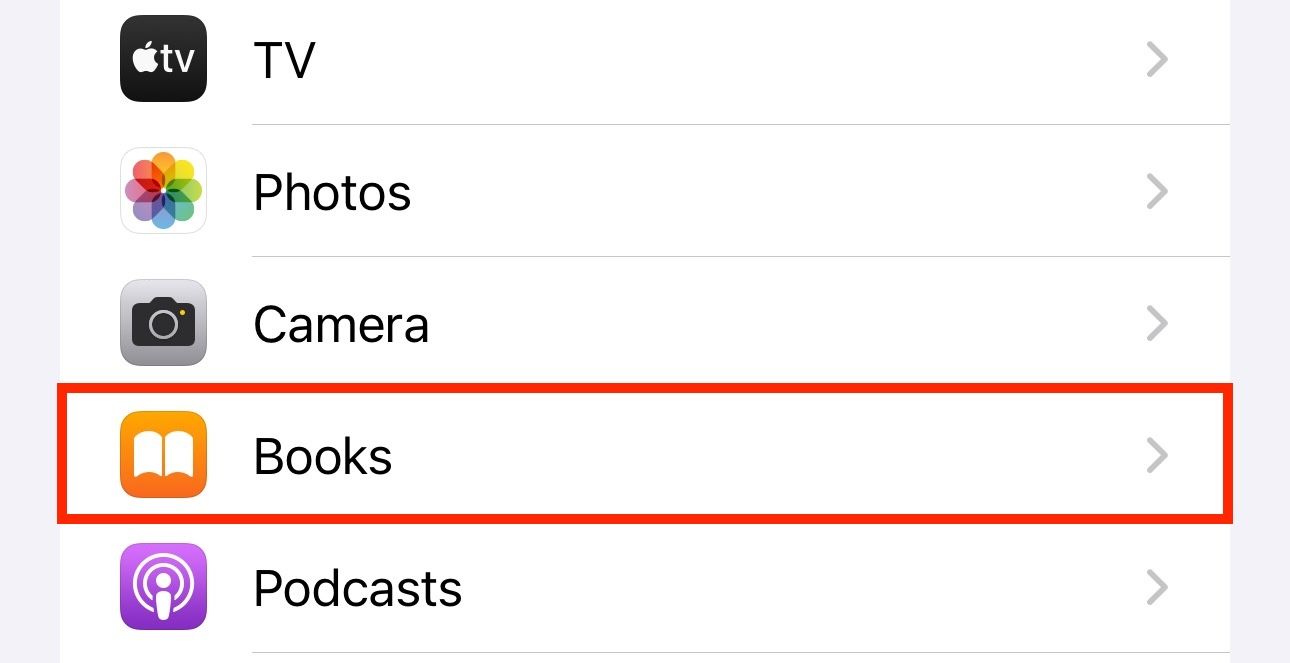
To turn on Reading Goals, open “Settings” on your iPhone or iPad and select “Books.”
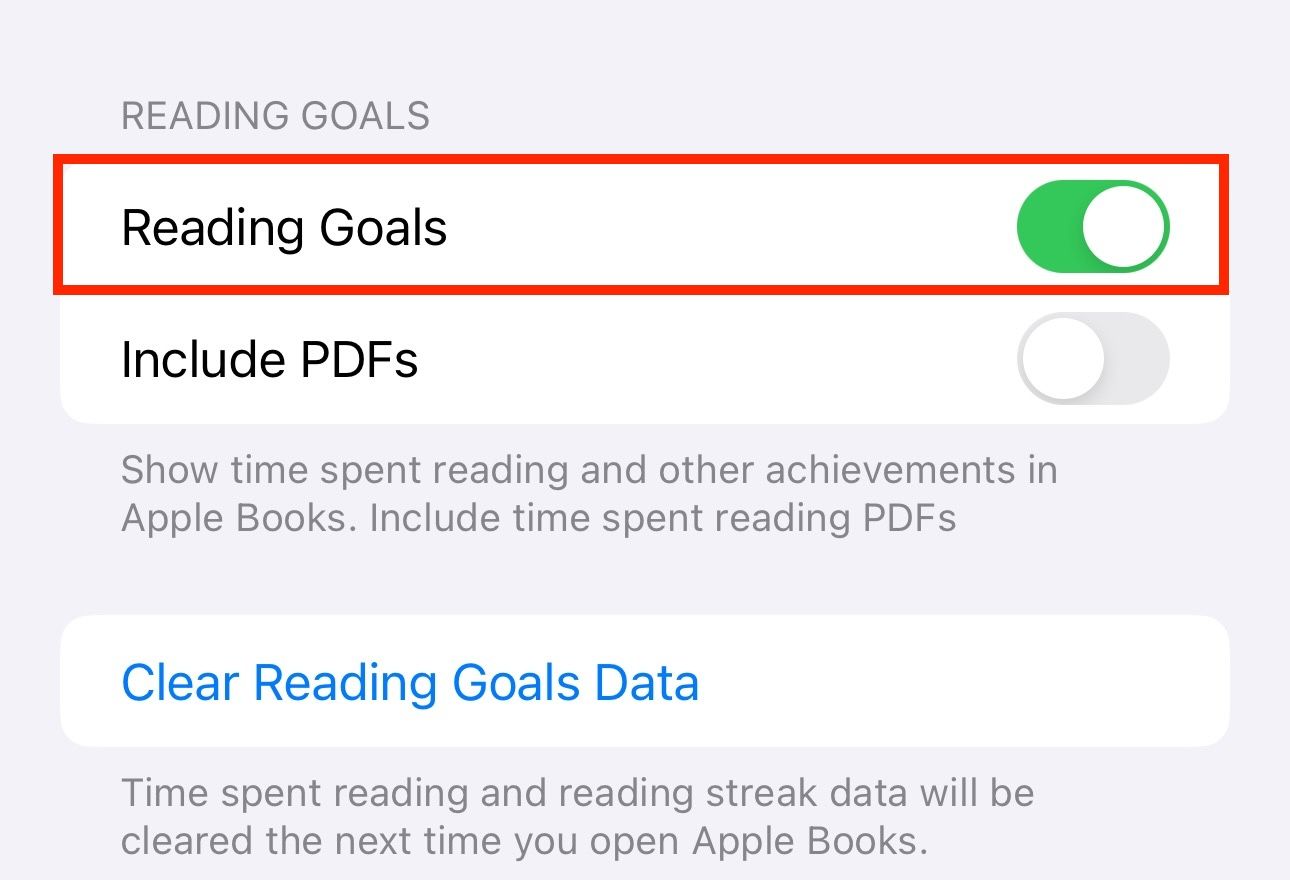
Scroll down to the “Reading Goals” section and toggle on the switch next to “Reading Goals.”
Flip the switch for “Include PDFs” to also include the time you spend reading PDFs towards your reading goals.
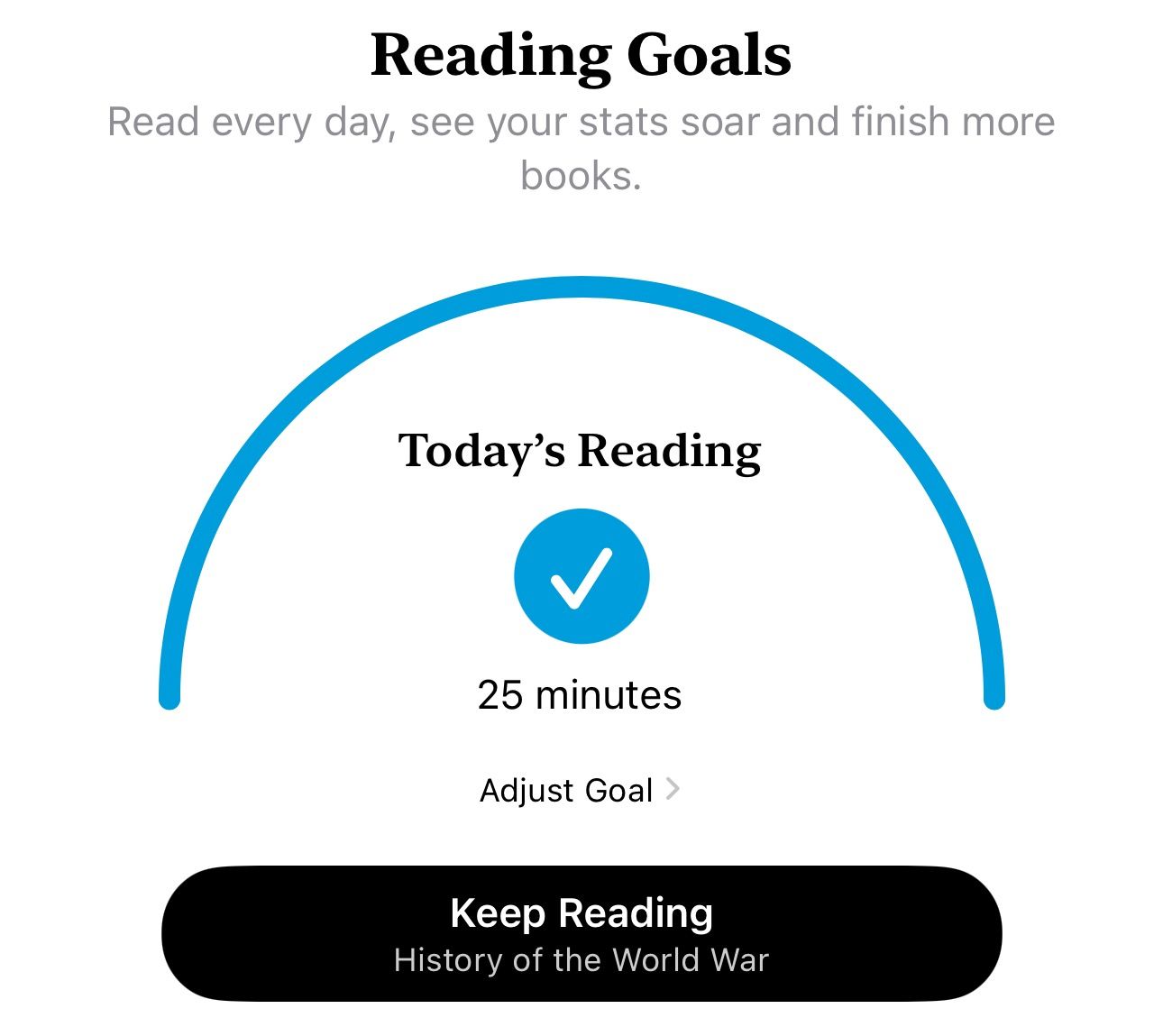
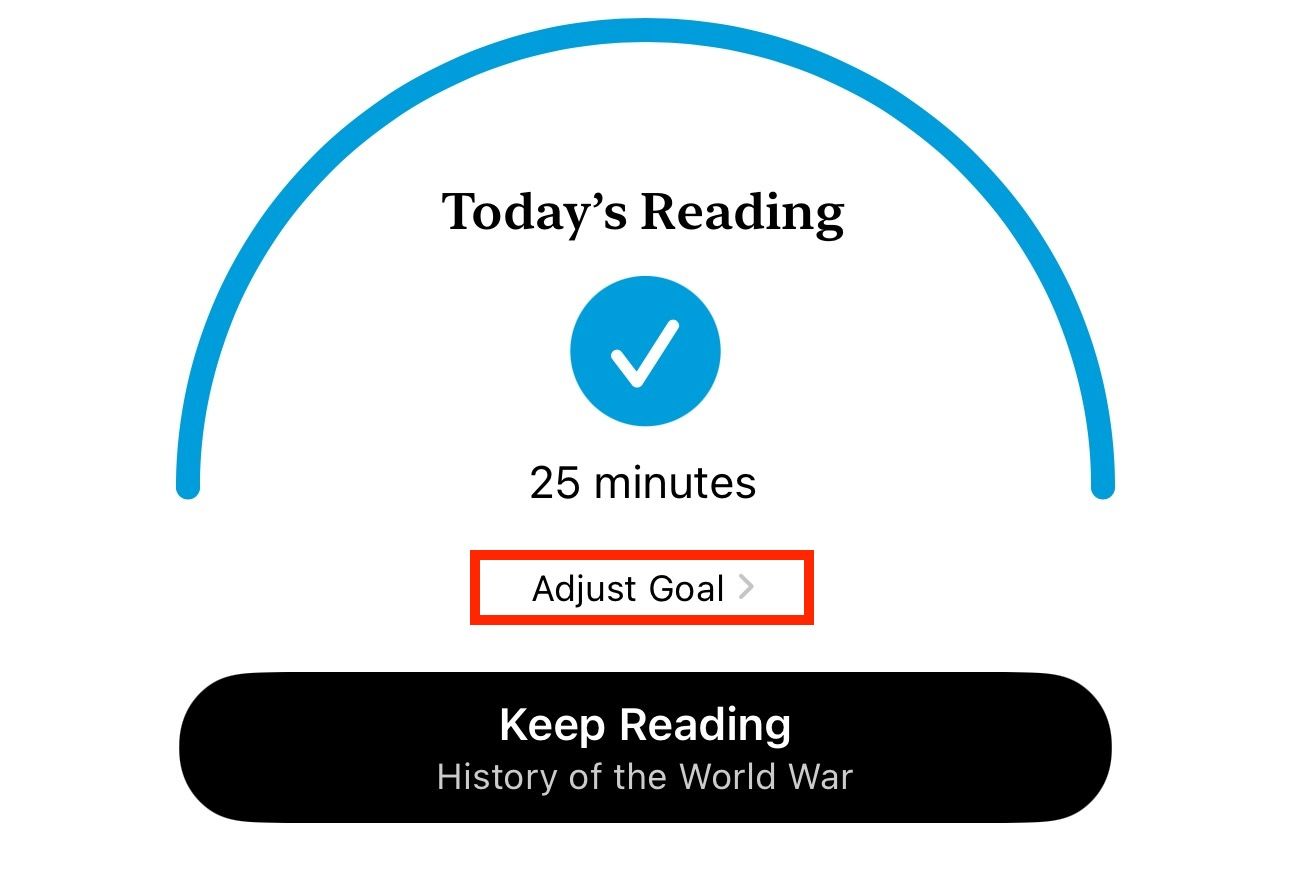
Once you resume reading regularly and want to check your progress, open the Books app and go to the “Home” tab. Scroll to the bottom of the page, and you’ll see a section called “Reading Goals” with all your reading stats.
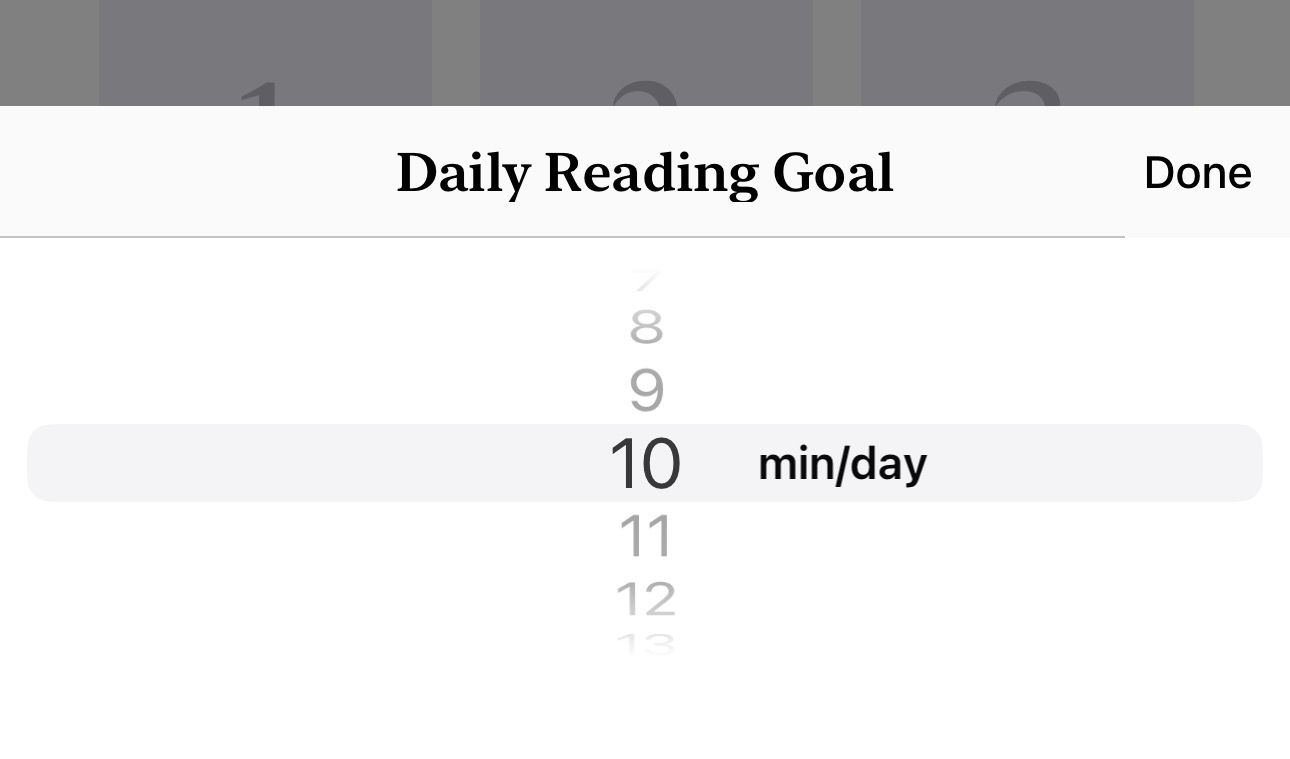
You can also adjust your reading goal from here. To do this, tap on “Today’s Reading” and hit the “Adjust Goal” button.
Set the time you want to spend reading books each day on the overlay screen. Hit “Done” to save.
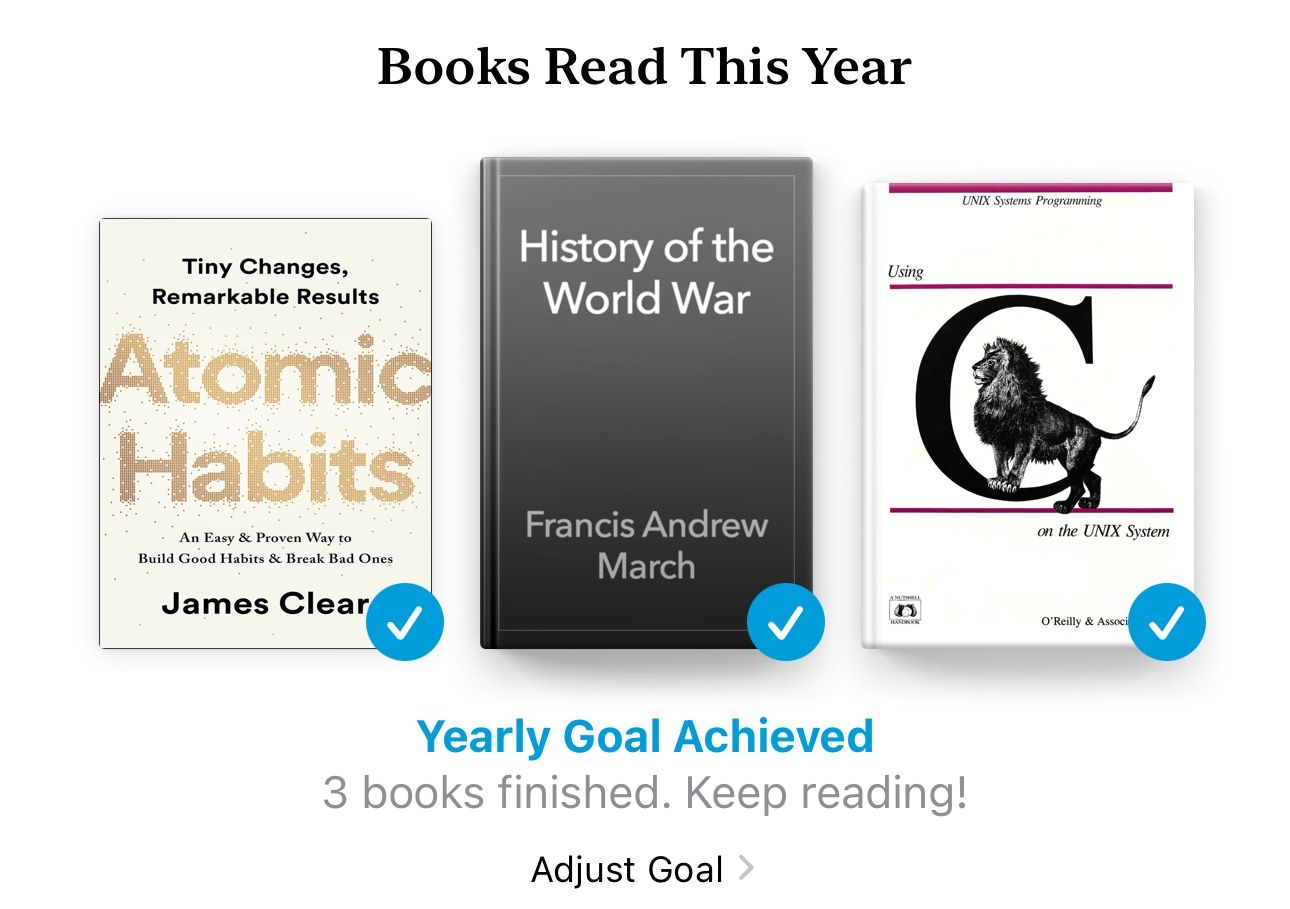
Similarly, you can scroll down further to the “Books Read This Year” section to see how many books you’ve finished this year.
To modify the goal, hit the “Adjust Goal” button. Then, set the number of books you want to read each year and hit “Done” to set this as your new yearly reading goal.
3 Customize the App’s Appearance
Apple offers several customization options in the Books app to help you customize your reading experience. You can use these options to change everything from fonts and themes to page-turn animations and line spacing, among other things.
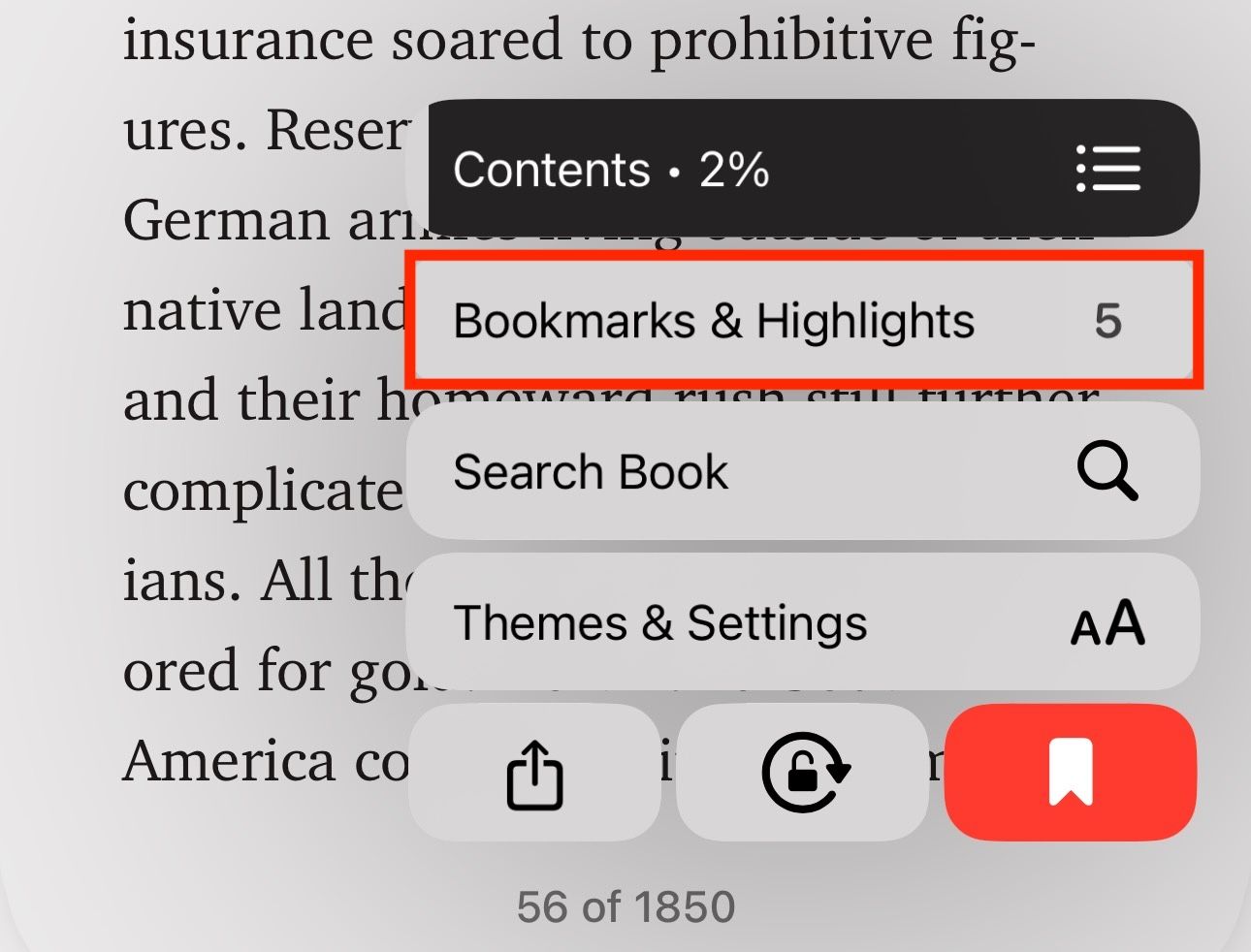
To access them, go to the Books app, open a book, and tap anywhere on the page and then hit the menu button at the bottom-right of the page.
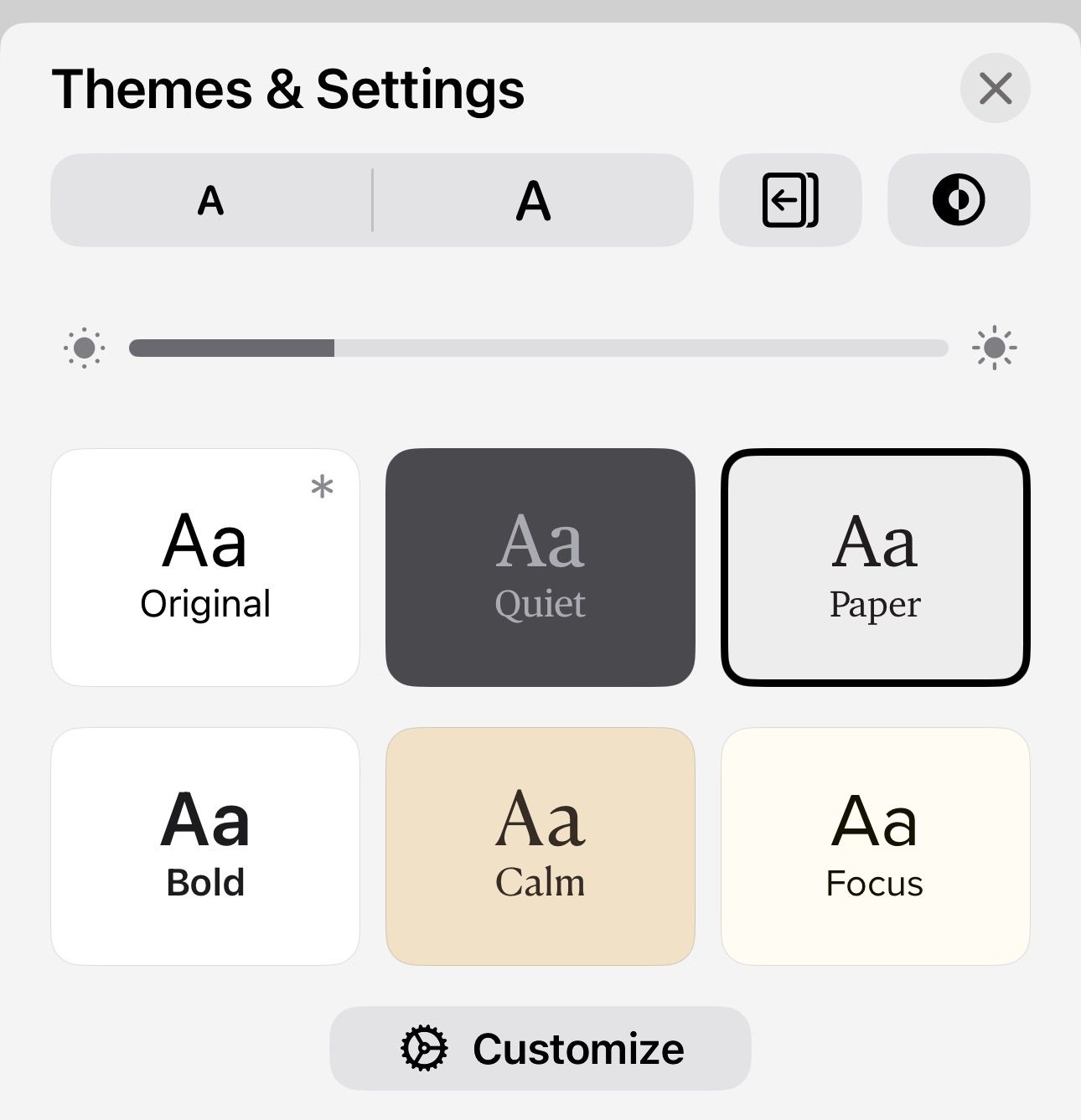
Select “Themes & Settings.”
Now you can change a bunch of things from the “Themes & Settings” overlay screen, including the font size, font type, theme, and page turn animations.
In addition, you can tap on “Customize” at the bottom of the page to open the theme customizer. From here, you can adjust other aspects of the page, such as line spacing, character spacing, and word spacing, among other things, as per your preference.
4 Jump to a Page
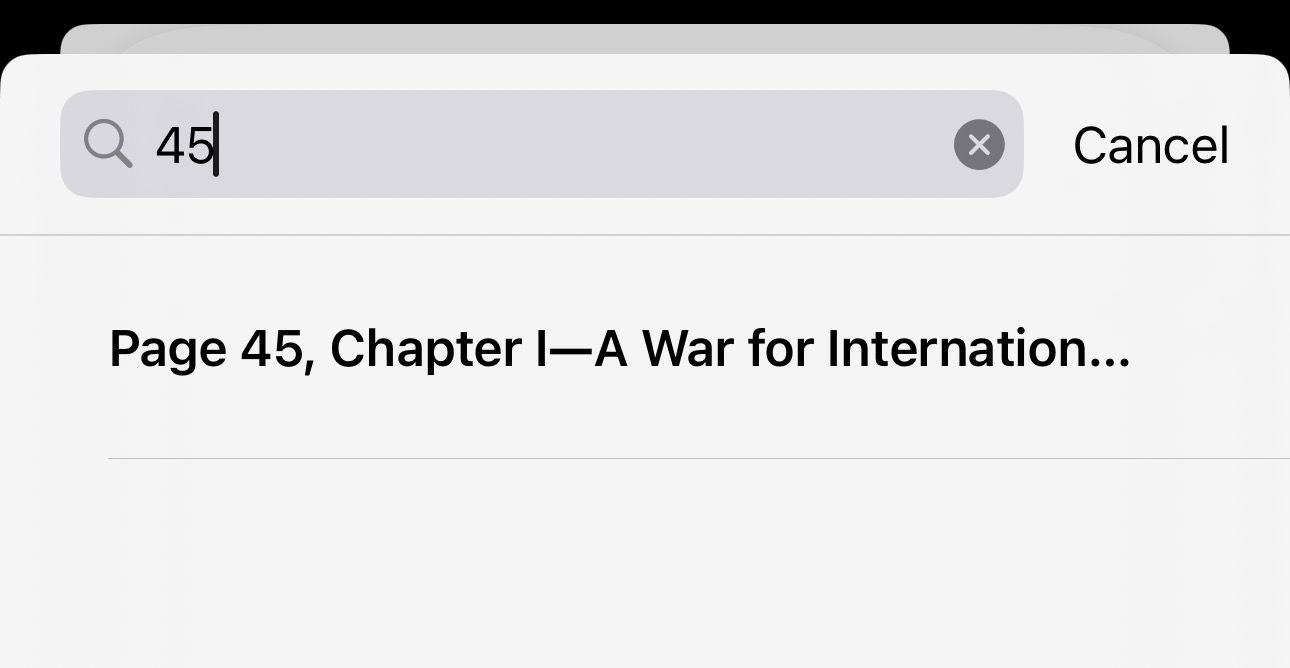
Using the table of contents is one way to navigate a book. However, if it’s unavailable, or you want to jump to a page in a book or PDF directly, you can simply use built-in search functionality to find the page.
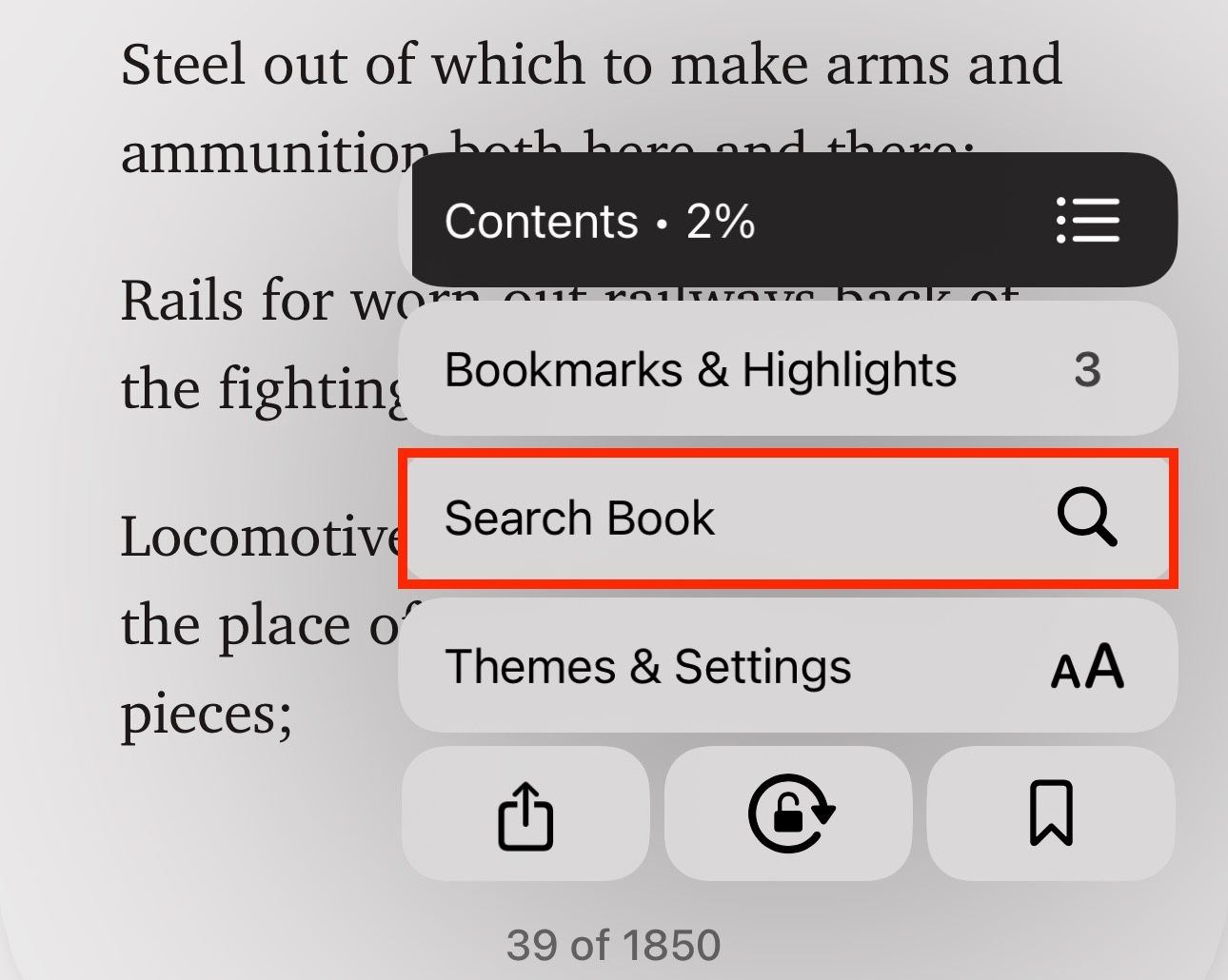
To do this, open the book and tap on the menu button in the lower right-hand corner. Select “Search Book”.
Now, type a number, and tap on the result to open that page.
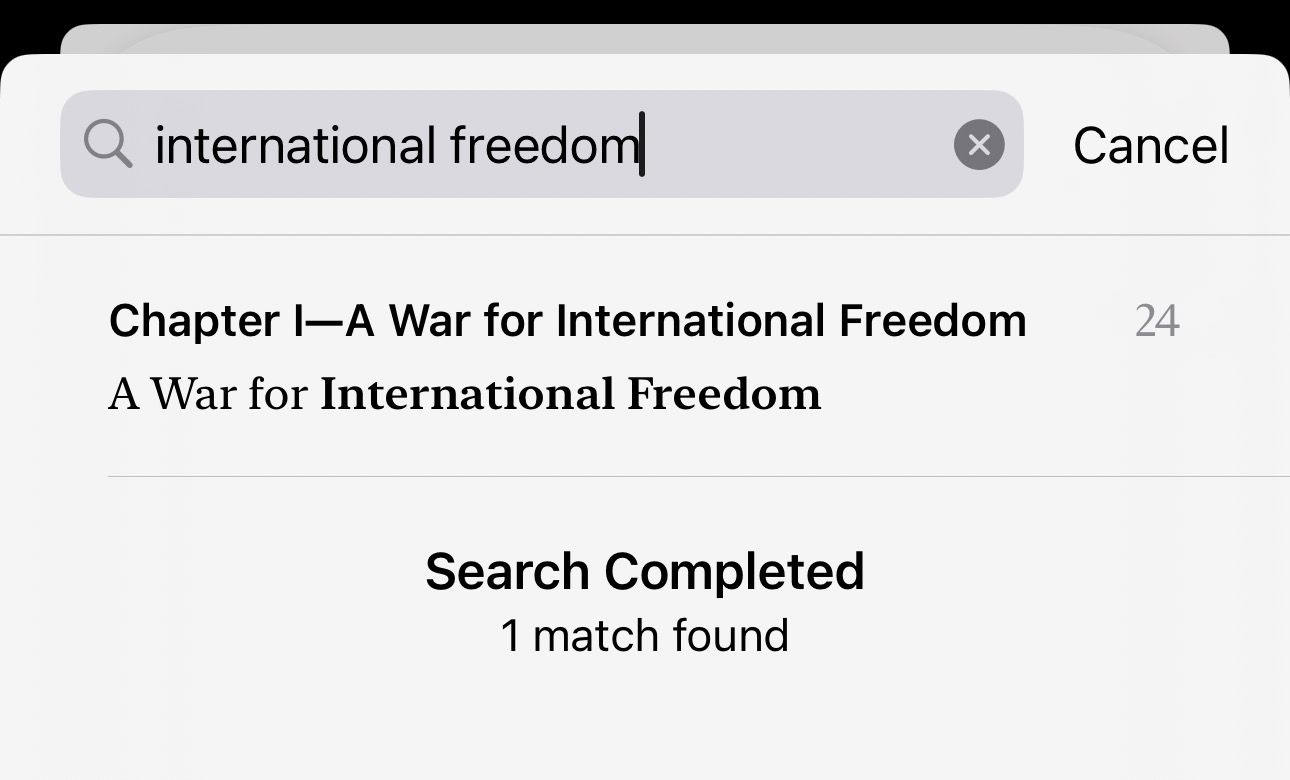
You can also use this search feature to look up something specific in a book. Simply type the text you want to find, and the app will show all the instances of it in the book.
Tap on one to jump in and read.
5 Add Bookmarks (Not Just One)
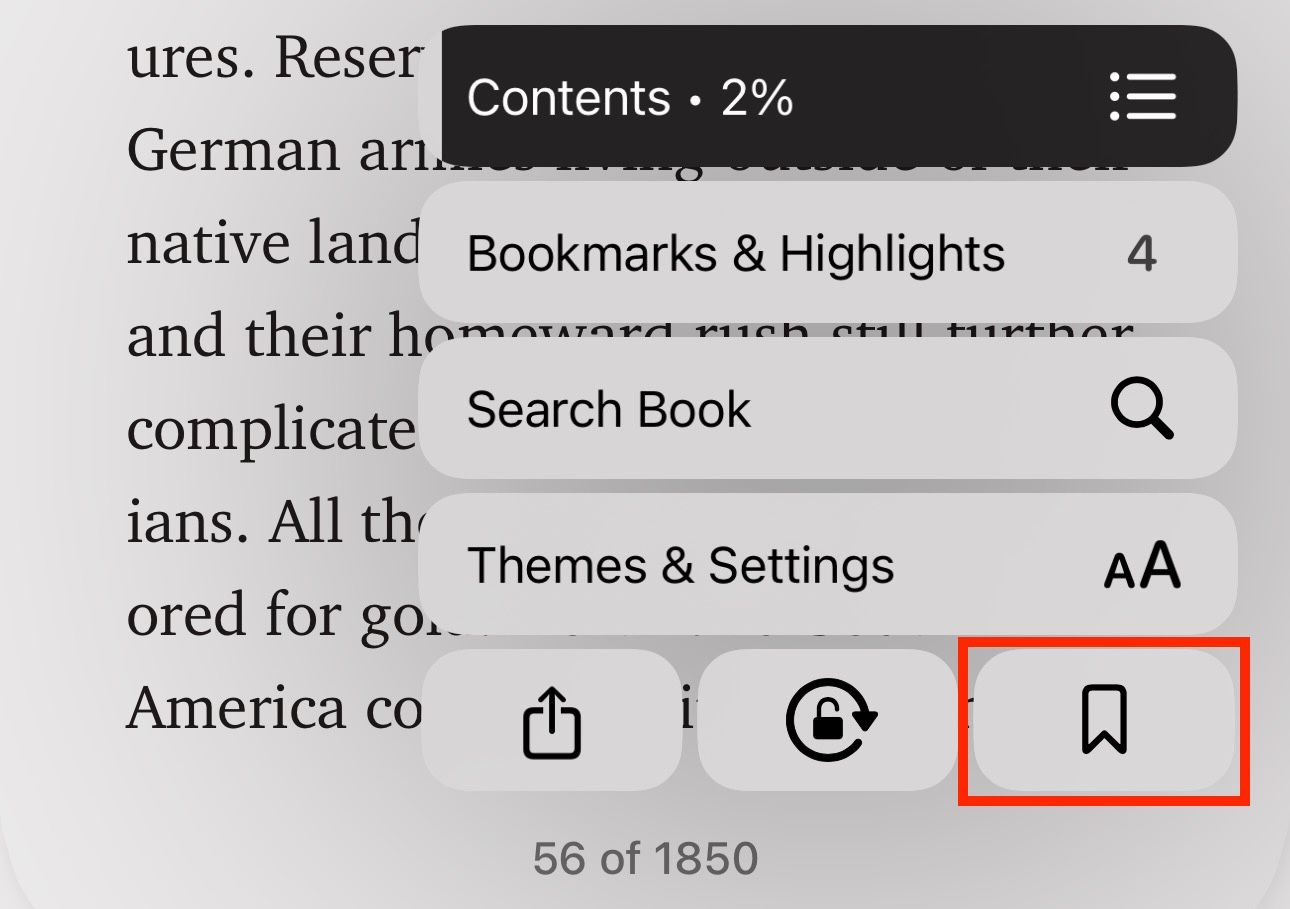
When you stumble upon something interesting in a book, adding a bookmark will save it, so you can revisit it later. To bookmark a page in Apple Books, tap the menu button in the bottom-right corner and hit the bookmark button.
You’ll see a bookmark icon in the bottom-right corner of the page, indicating it’s bookmarked. The Books app keeps all your bookmarks for a book in one place. You can access them by tapping the menu button and going into “Bookmarks & Highlights.”
When you want to remove a bookmark, it’s easy. Tap the bookmark icon to bring up the menu, and then hit the bookmark button again.
6 Highlight Text and Take Notes
In addition to bookmarking a page, the Books app also lets you highlight text snippets in a book you find interesting or may need later. You can even add a personal note to something you highlighted to include context or an important detail.
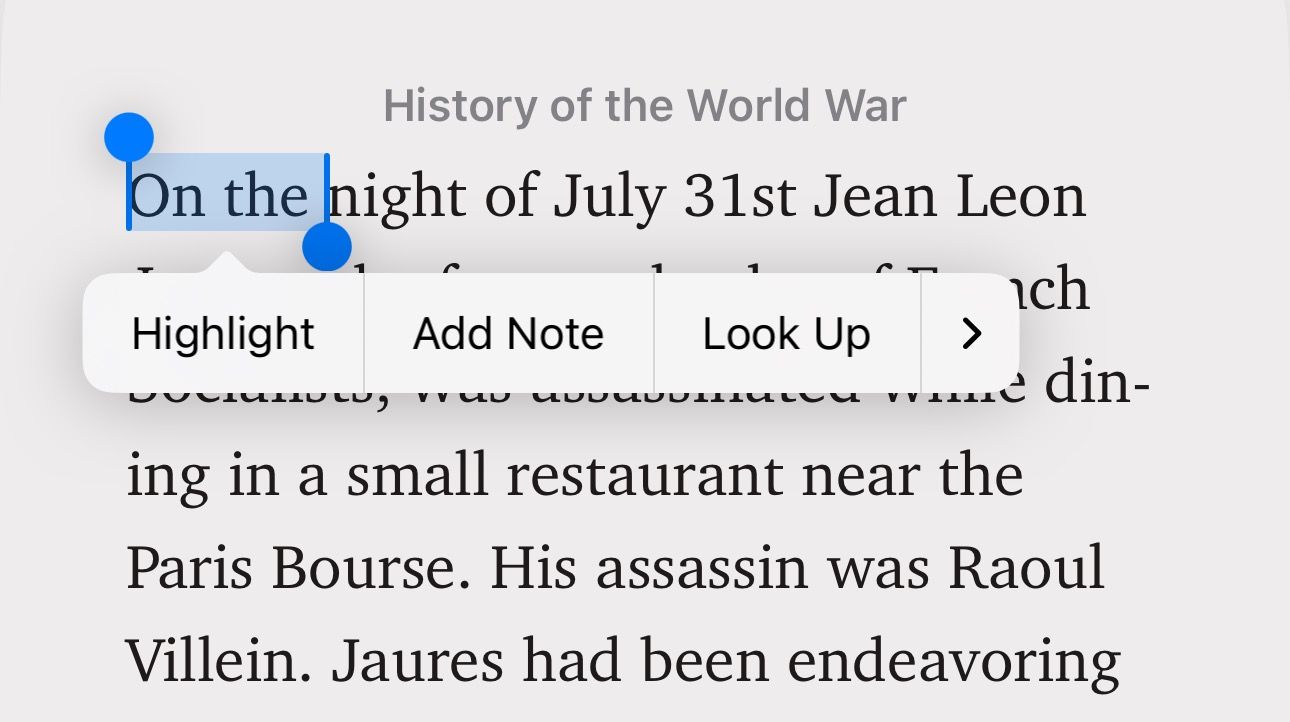
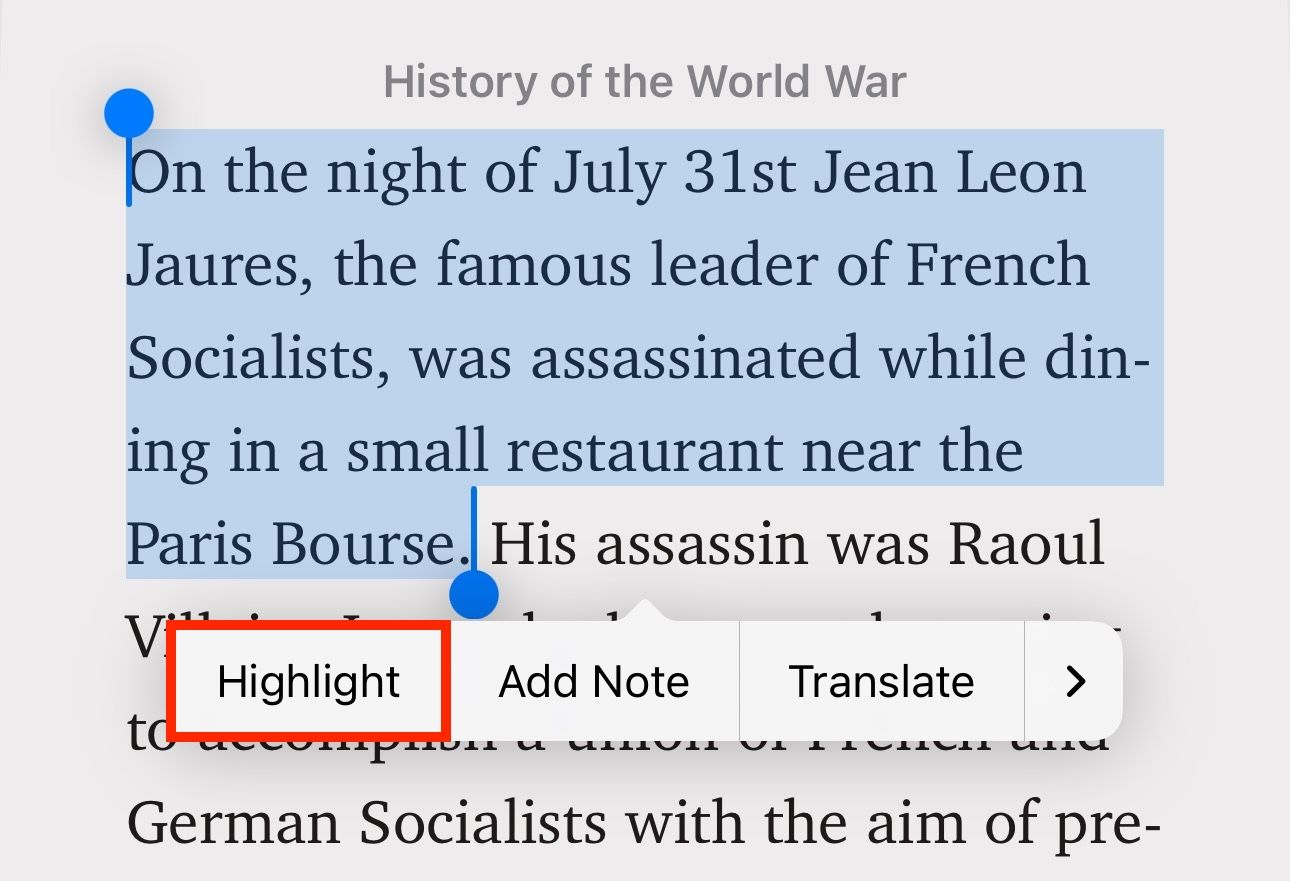
To highlight text in Apple Books, tap and hold on a word, and when it shows the grab points, move them to adjust your selection.
Next, tap the “Highlight” button that appears in the context menu above the text.
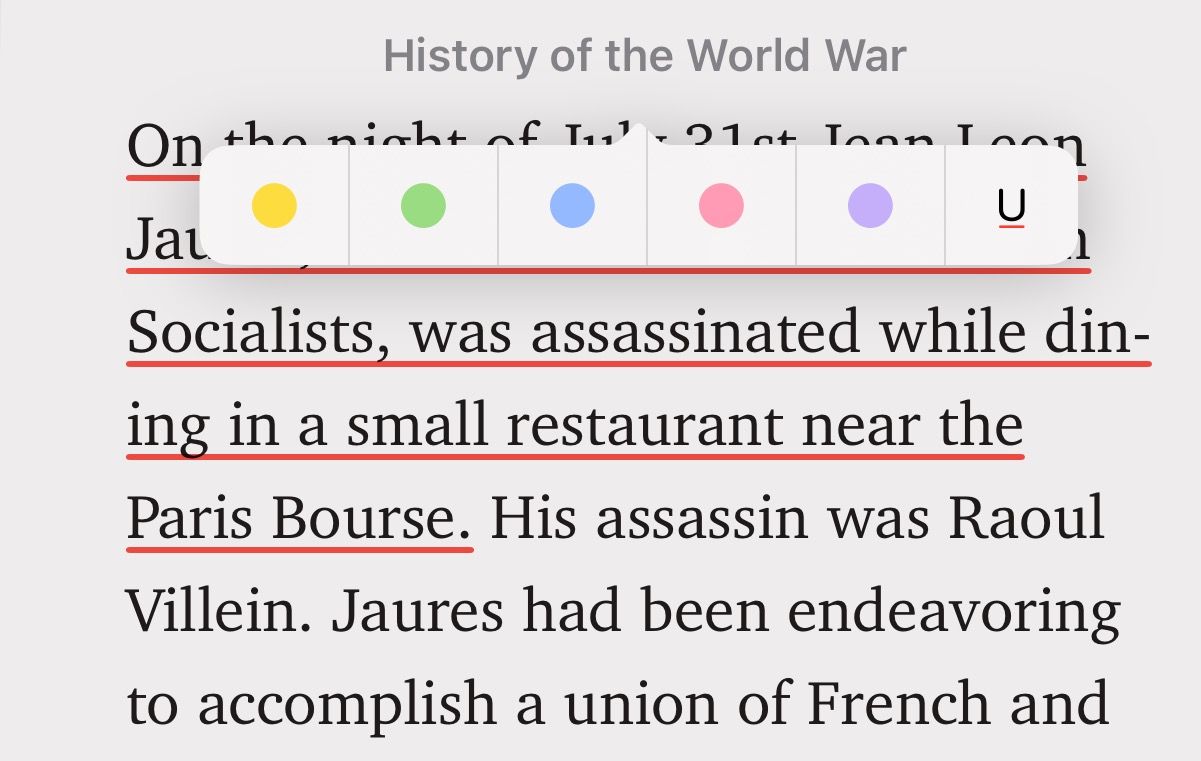
Then, choose a color you’d like to use for the highlight. Alternatively, you can underline the text by tapping on the “U” button.
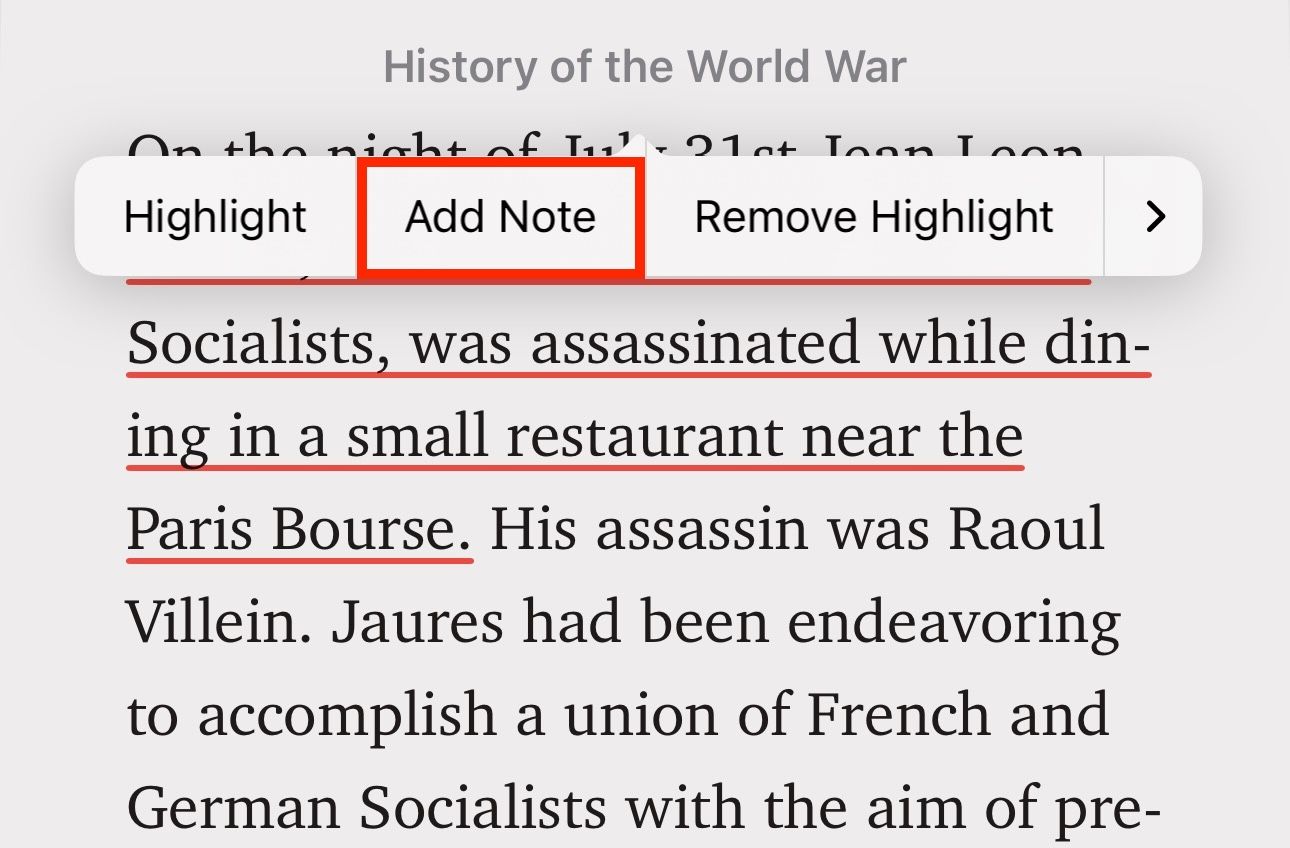
If you want to add a note to the highlight, tap on the highlighted text and select “Add Note” from the menu.
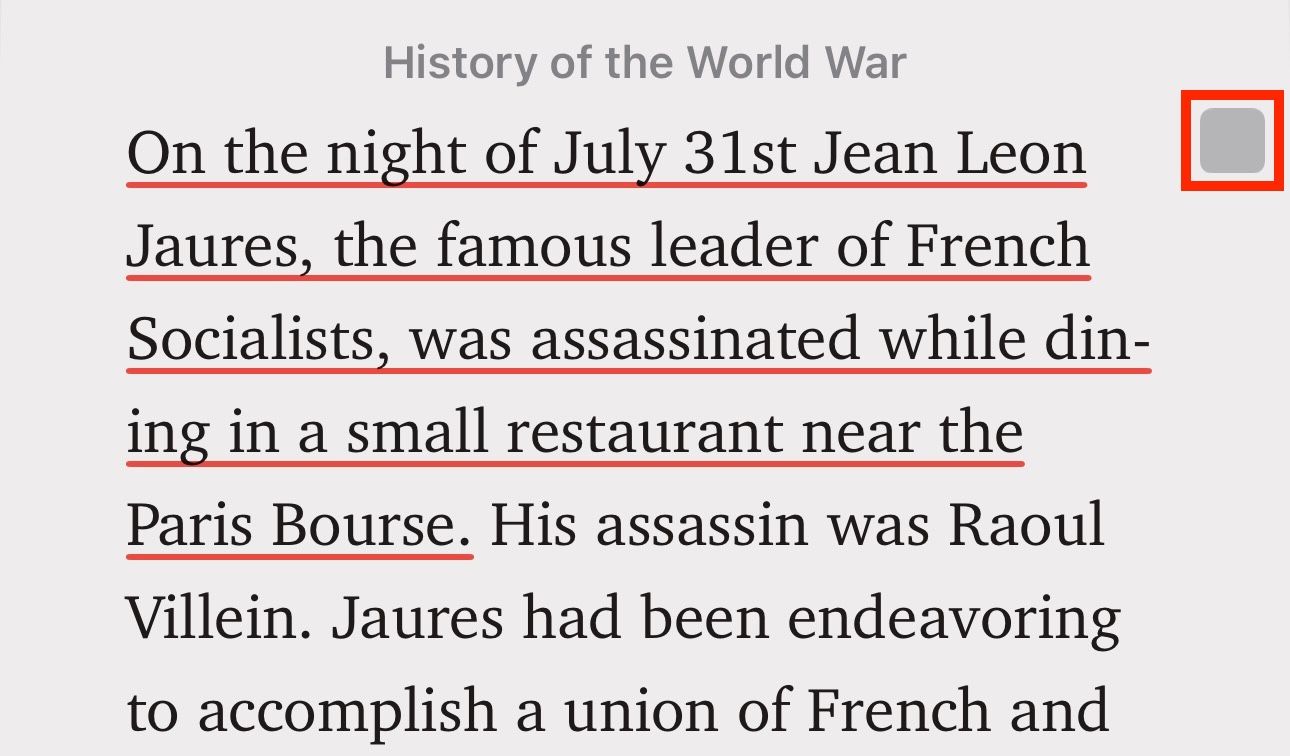
Start typing your note and hit “Done.” Once you add a note to a highlight, you’ll see a square box next to the text. Tap on this box to view the note.
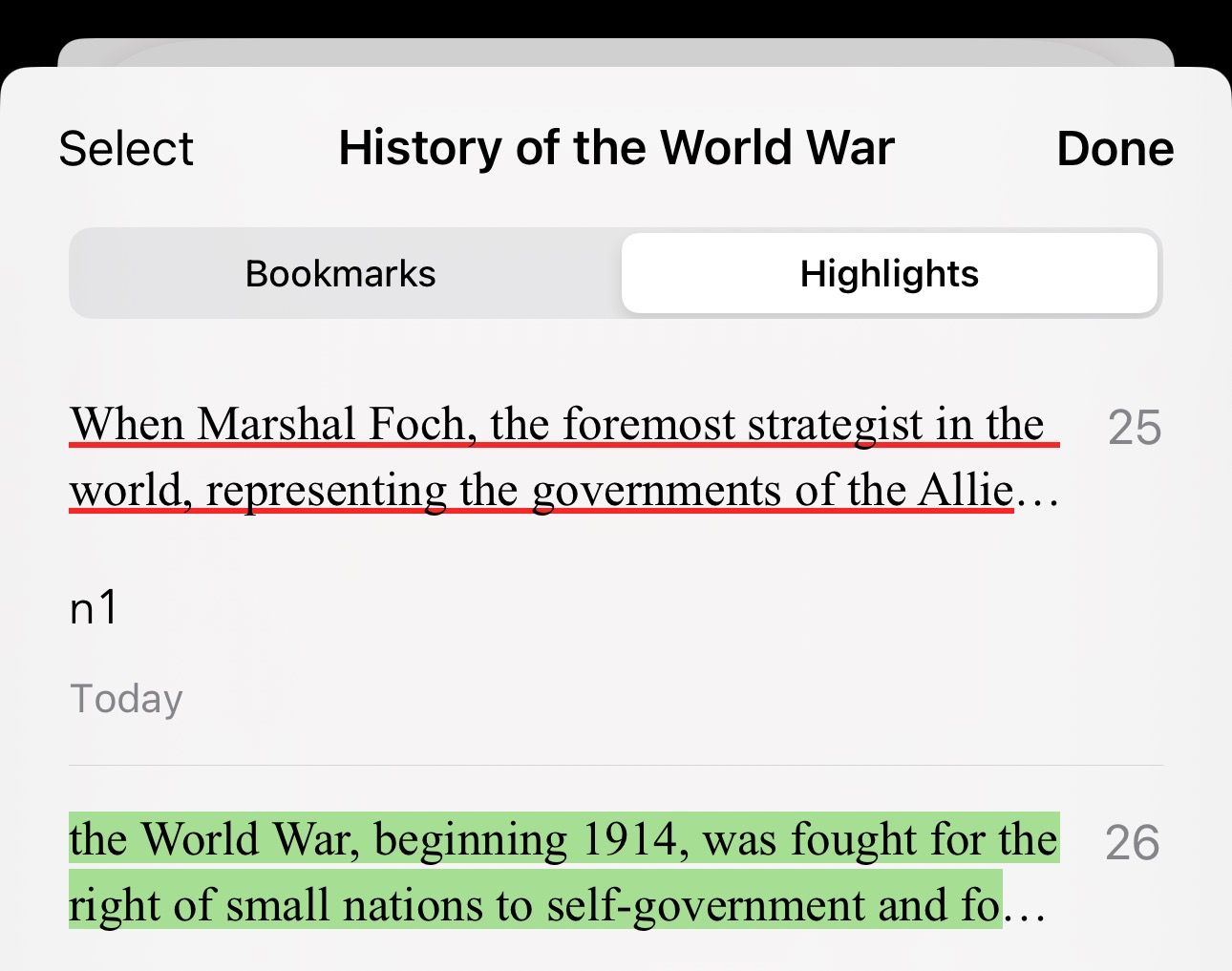
Alternatively, if you have multiple notes on a page, you can view them in one place. Tap the menu button in the bottom-right corner of the page and select “Bookmarks & Highlights.” Switch to the “Highlights” tab, and you’ll see all your highlights and notes for that book on this page.
7 Keep Your Books Synced Across All Your Devices
One of the best features of the Books app is cross-device sync, which syncs your content across all your Apple devices. It allows you to pick up the book or audiobook you’re reading or listening to on one device and continue reading or listening to it on another.
In addition to syncing reading progress, Apple Books also syncs and gives you access to all of your bookmarks, highlights, and notes, with the ability to create new ones across all your devices.
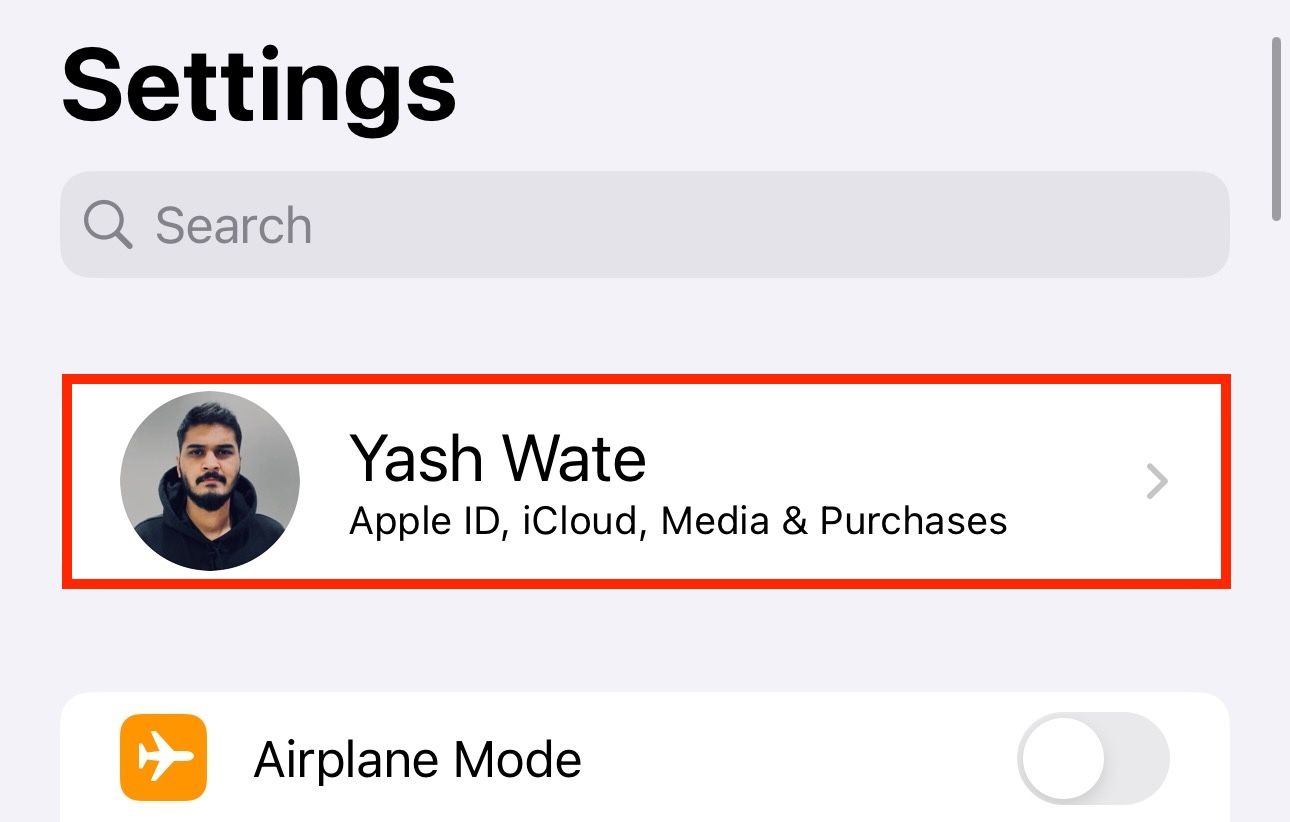
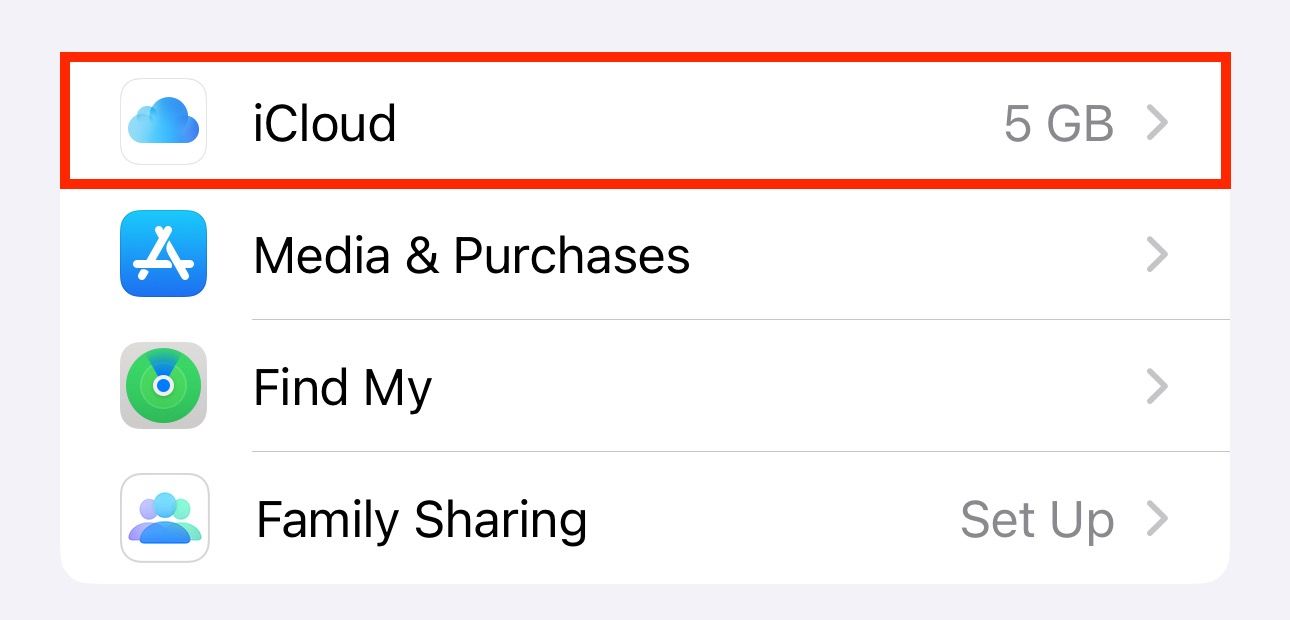
To enable sync in Apple Books, open the “Settings” app on your iPhone or iPad and tap on your name at the top of the screen.
Select “iCloud.”
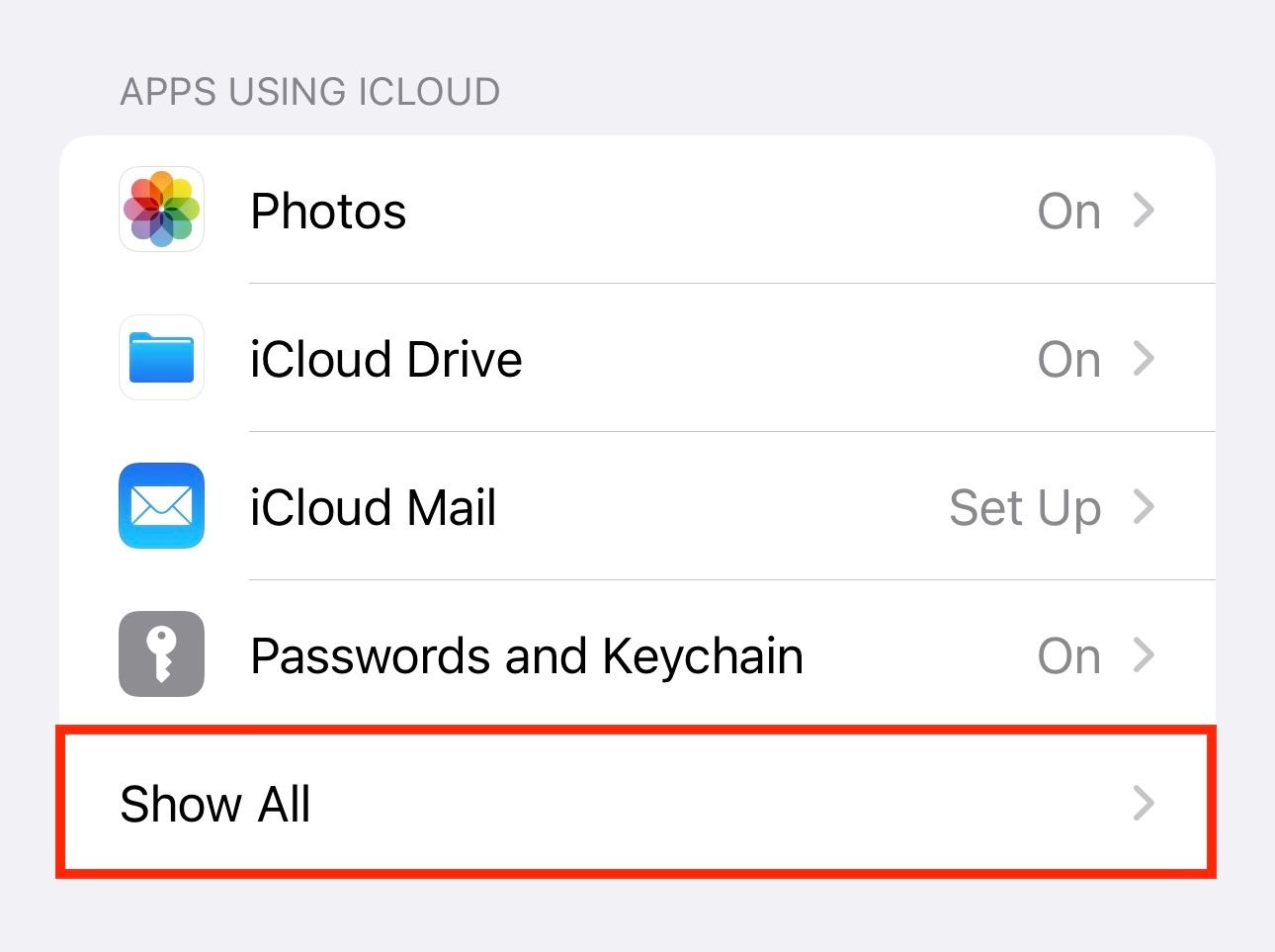
Under “Apps Using iCloud,” tap on “Show All.”
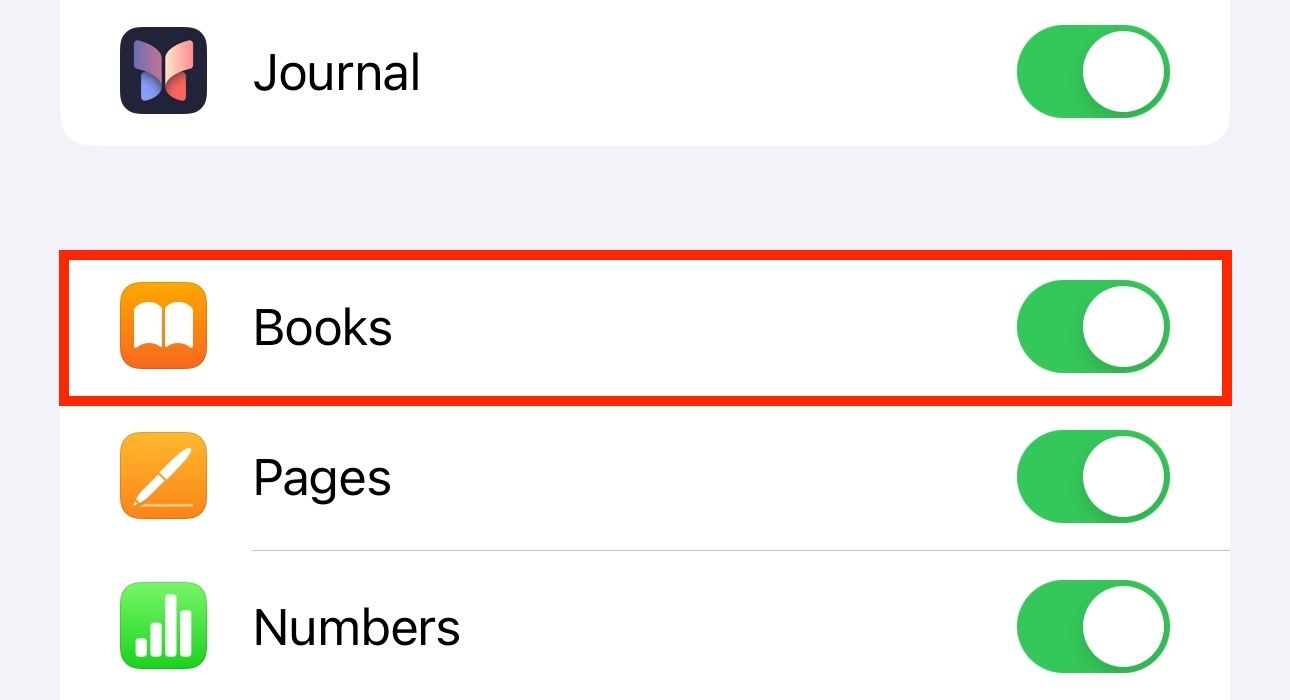
Here, make sure the toggle next to “Books” is on.
Lastly, tap on “iCloud Drive” and enable it if it isn’t already enabled.
8 Read and Annotate PDFs
Alongside books in its library, Apple also lets you read PDFs downloaded from other sources in Apple Books. So, if you’ve downloaded a document or a book from somewhere else on your Apple device, you can import it straight into Books and start reading it. Be aware that you may not experience the same reading experience, and the app may not show you the same features it does with the native eBook experience.
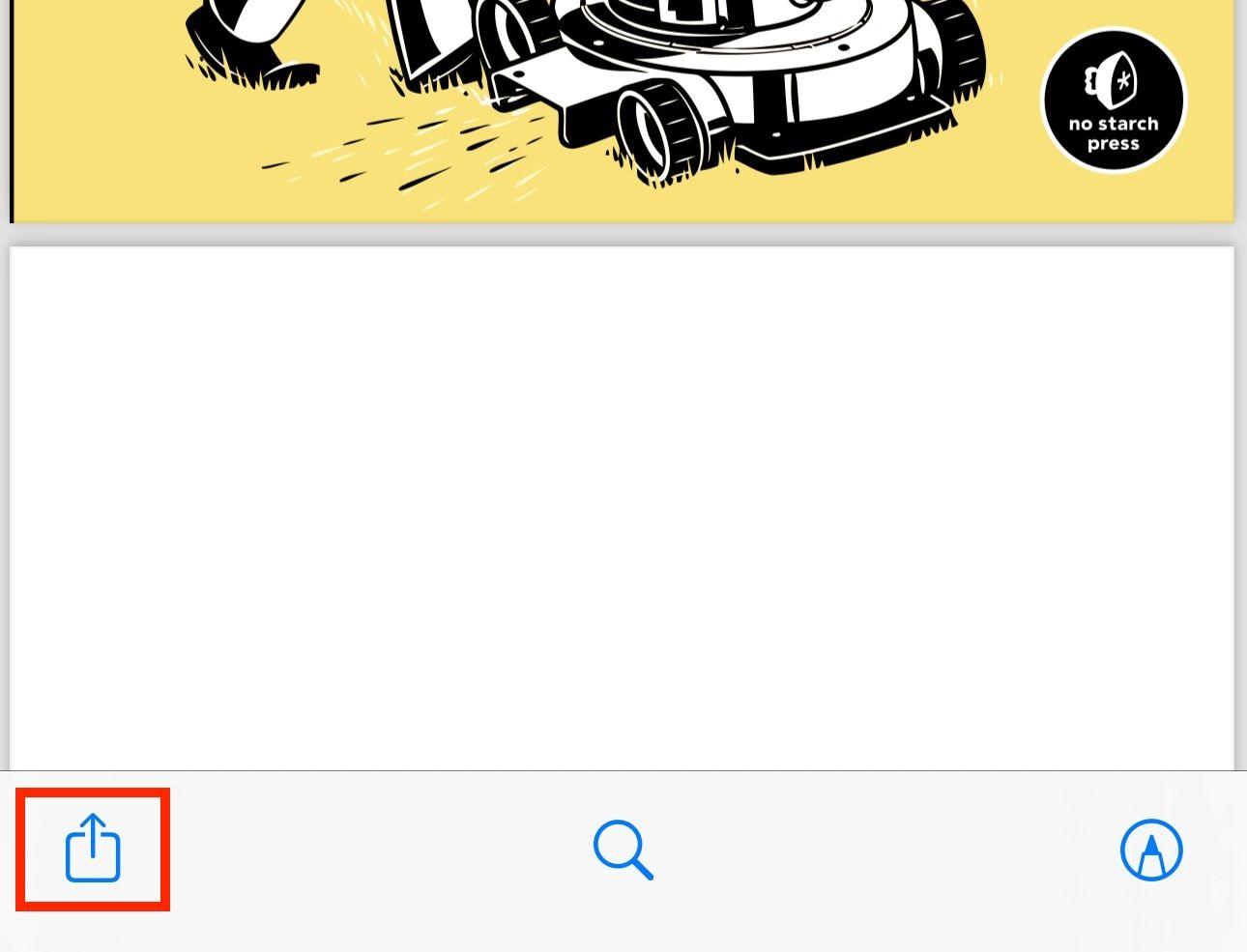
To import a PDF into Apple Books, go to the app containing the PDF document. Open the PDF, click the Share button. This includes any PDFs that you have opened in Safari.
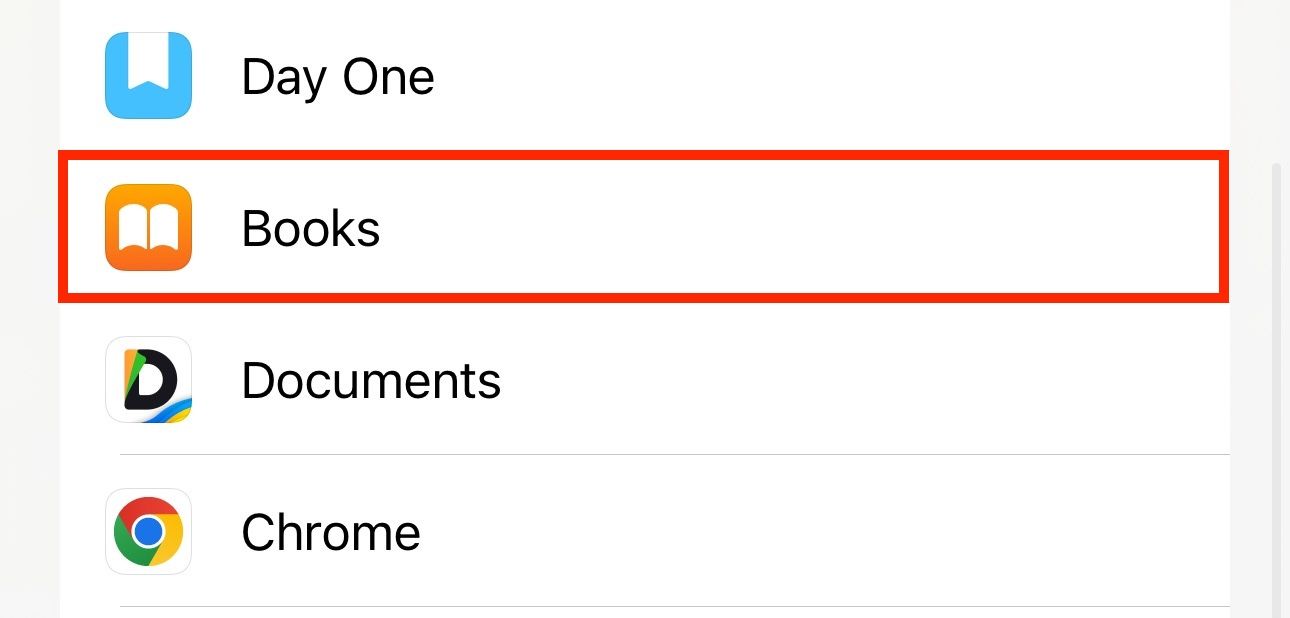
Then, select “Books” from the Share Sheet.
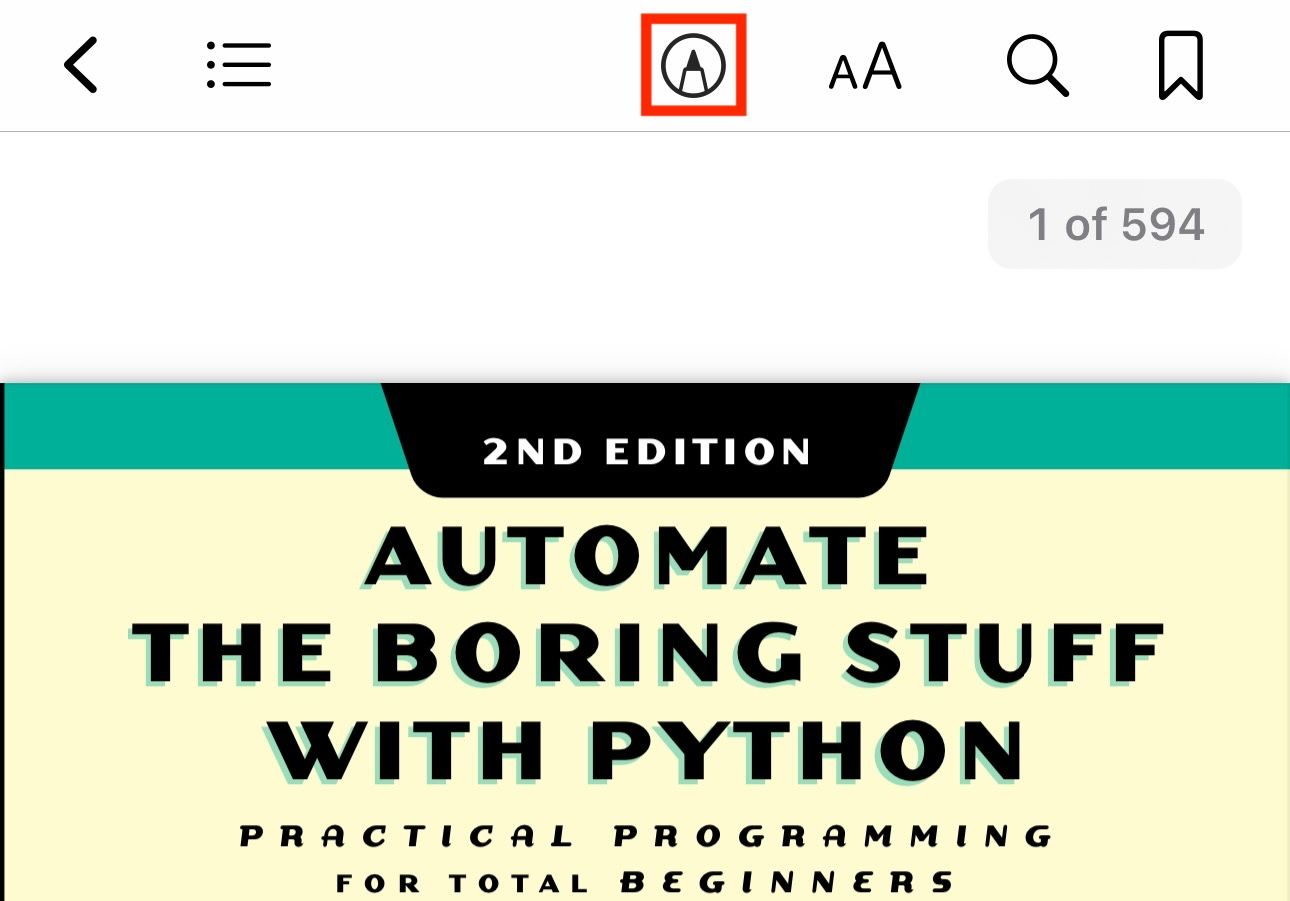
This will open the PDF in the Apple Books app. You can now read the PDF or annotate it using the Markup tools.
9 Create a Wish List of Books You Want to Read
If you’re always on the lookout for new books, the Books app offers a nifty feature called Want to Buy that lets you create a wishlist of all the books you’d want to read. The app syncs your wishlist across all devices, so you can add new items to your wishlist from any of your devices.
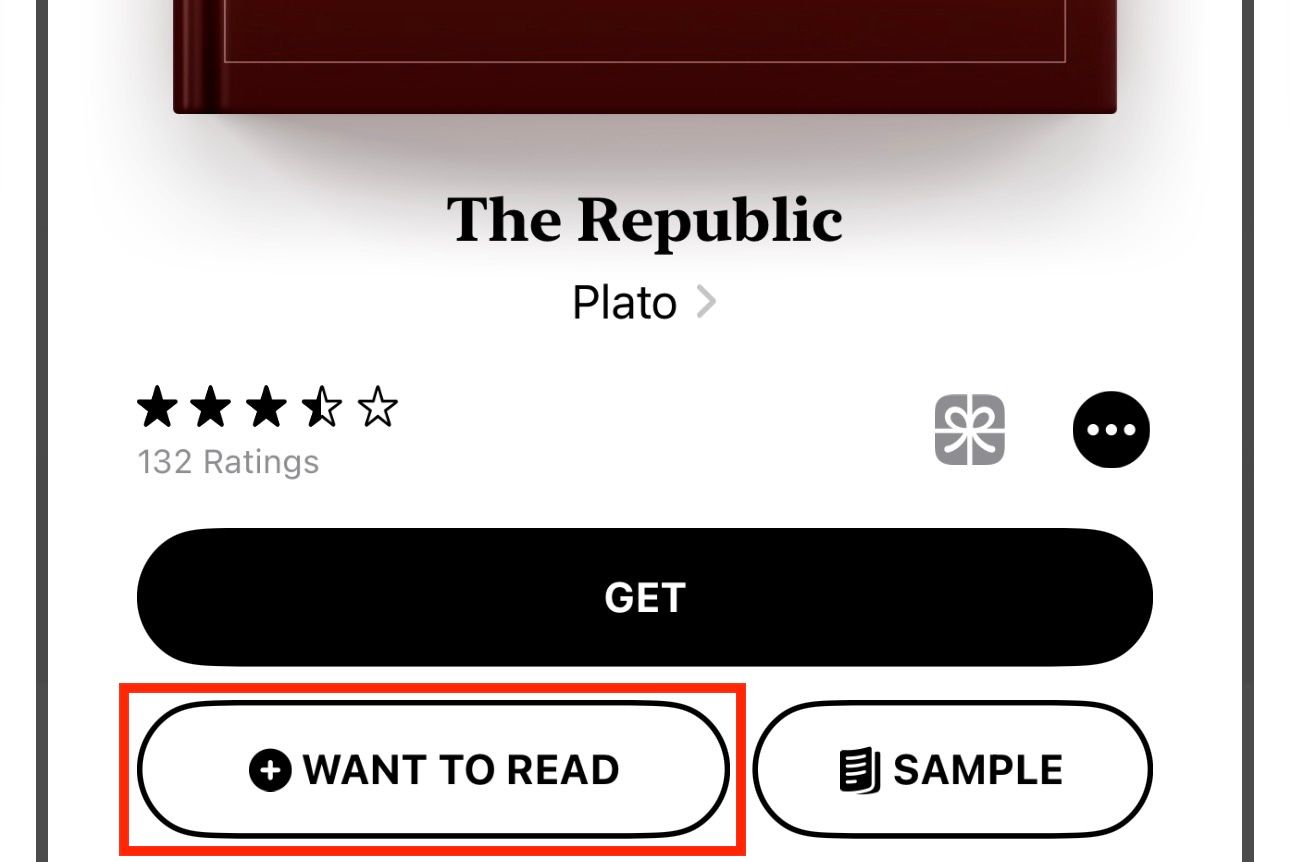
Adding a book to your wishlist is easy. When you find an interesting read while exploring books in the “Book Store” tab on the Apple Books app, tap on the book to expand its details. Then, hit the “Want to Read” button below the “Get” button to add the book to your wishlist.
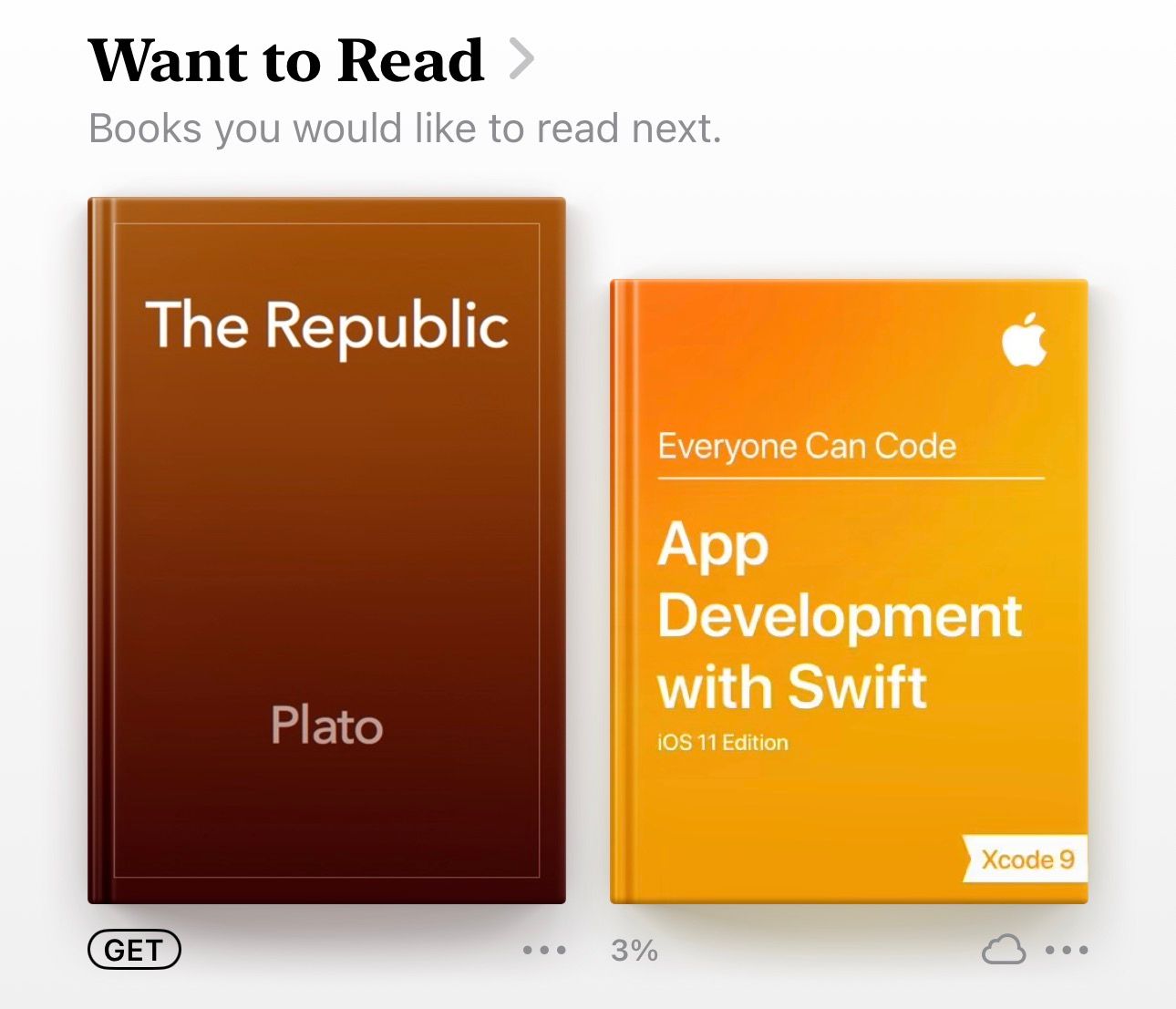
When you want to access your wishlist, head to the “Home” tab. Find the “Want to Read” section and tap on it. Here, you’ll see all the books you’ve saved and can check their samples or purchase them.
Since the Books store is so exhaustive, you can use this feature to keep track of books whether or not you intend to read them digitally (or on the Apple Books service).
10 Read Without Being Disturbed
App notifications can be annoying, especially when you’re trying to concentrate. Thankfully, there’s a workaround to silence your iPhone or iPad while reading that you can use to read books without interruptions. It involves using the Focus feature, which lets you limit or turn off notifications to reduce interruptions (while letting the really important things through, like phone calls from family members).
The above tips will help you use Apple Books like a pro and elevate your reading experience on your iPhone or iPad. As you spend more time on the app, you’ll explore more such tips and functionalities and be able to get more out of it.
• is dedicated to addressing the unique talents and challenges of blind youth by developing their musical, creative, cognitive, physical and social skills through education in music and the performing arts. AMB offers in-person and online lessons on a variety of musical instruments, from the piano and drums to woodwinds (flute, clarinet, saxophone), guitar, ukelele, bass, as well as voice/choir, drama and dance, Braille music, ear training and music theory, composing and arranging, and typing/technology/coding.
• Accessible Chords and Scales Guitar, Mandolin, Banjo and Ukulele Chords and scales for the blind and visually impaired. Hundreds of chords and scales for the guitar, mandolin and ukulele in an accessible, screen-reader-friendly format.
• Accessible Guitar Scales Guitar Scales for the Blind and Visually Impaired. Choose the scale tone (e.g. C, A-flat, F-sharp) and the scale mode (e.g. major, pentatonic, blues) using the dropdowns on the page, then submitting your choices will return a description of how to play the scale for your screen reader.
• Alternate Text Production Center The website of the Alternate Text Production Center (ATPC) of the California Community Colleges. The ATPC is the first publicly funded, system-wide resource dedicated to serving the alternate media needs of the largest post-secondary educational system in the world. There are 113 community colleges in California and each of them has equal access to the media services provided by the ATPC
• Amber Sound Touch a set of free online resources for teaching music to children who are blind or visually impaired, including infants and toddlers, as well as those with multiple disabilities. The site has four sections covering different aspects of teaching music: Children in the early years, Instrumental and vocal instruction, Children with visual impairments and complex needs, and Children with visual impairments and neurodegenerative diseases. Each section includes children’s stories and teaching strategies.
• BARD – Braille and Audio Reading Download From the National Library Service for the Blind and Print Disabled (NLS), BARD is a web-based service that provides access to thousands of special-format books, magazines, and music scores. BARD is password-protected, and all files are in an electronic downloadable form of compressed audio or formatted braille. BARD is operated as a partnership between NLS and its network of cooperating libraries in the United States and its territories. NLS maintains the website, uploads titles, and supplies libraries with circulation statistics. Network libraries approve reader applications, respond to reader inquiries, and provide technical support.
• Braille Music Reader A Braille visualiser of BMML music files, supplied with a series of functions to read and to listen to the text and multimedia interactive music notebook.
• Braille Music2021 Write music in Braille with 6 keys of the keyboard, listen to your music, share it, transform it into a graphic format, import from graphic format to Braille. For Windows 10.
• BrailleM: The Braille Music List BrailleM is a place for discussing and learning about all aspects of braille music code. The list is designed to help beginners in braille music and give them a place where they can ask questions of more experienced braille music users. The list will also be useful to more experienced users, who can discuss about more difficult passages and formats. It also covers subjects related to braille music, such as where to find teaching materials, where to order braille music material, how to transcribe music into braille music code, and so on.
• ChordAssist The ChordAssist is a smart guitar specially designed for blind, deaf, and mute guitarists. It’s hooked up to Google Assistant so the guitarist can use voice commands to control the functions.
• Dancing Dots Dancing Dots offers technology, educational resources and training to assist blind and low vision individuals to read, write, and record their music. Their products and services foster inclusion, literacy and independence for visually impaired musicians and audio producers engaged in educational, leisure, and professional pursuits.
• Dictionary of Braille Music Signs Published in 1979 by the National Library Service for the Blind and Physically Handicapped, Library of Congress, it can be viewed or listed to online, or downloaded in a number of formats, including full text, Kindle, EPUB, and PDF.
• Feel The Beat A curriculum with lessons that teach Music Braille Code, and focus on reading, playing, and memorizing measures through the use of a soprano recorder.
• forScore An application for the Mac, iPad, and iPhone that allows the user to store and catalog scanned PDF versions of all of their music. Includes a special mode called ReFlow which converts multi-line music into single line, side scrolling notes that can also be controlled with a foot pedal or by touching the sides of the screen.
• GOODFEEL® Braille Music Translator Allows sighted musicians to convert print scores to braille music quickly, automatically, and accurately®. Visually impaired and blind musicians can review the braille score with optional verbal and musical cues and independently create print scores of their musical ideas.
• I See Music I See Music, LLC is creating a community of music lovers where accessibility is not an issue in this very technical and sighted industry. I See Music services the artistic and technical needs of those belonging to this music community through Pro-Tools software training for the blind, Sound equipment rental for live music shows, Studio time rental for recording sessions, music studio design consulting, and providing specialized training for the blind in music studio production and engineering.
• Intro to the Guitar for the Visually Impaired This 4-CD bundle is a complete introductory course to the guitar. In other words, all of the lessons are taught verbally so that students can concentrate 100% on learning without any written or braille materials.
• LargePrintMusic Enables you to read music notes in any size. Software for both Windows and Mac, and enlarged music can be viewed on iPads, Android tablets, Windows, and Mac, or printed.
• Let’s Play! Let’s Play! combines both audio and braille lessons for guitarists so they can learn the instrument using their preferred medium. The PDF version of their course is free of charge.
• The Lime Lighter Lime Lighter is a music reading device for low vision musicians. The music notation can be displayed from 1.25 to 10 times bigger than the original sheet music on a 20″ digital touch screen. Musicians simply press the right side of the foot pedal and the music will advance across the screen to the next measure. Press the left pedal to go back one measure. Press the center foot pedal to move to the beginning of the piece.
• Little Amber An innovative music service that aims to enable blind or partially sighted babies and young children to engage with music by providing families and professionals with resources and ideas for music-making.
• MENVI Music Education Network for The Visually Impaired. An International Coalition of Parents, Educators, and Students.
• MagneMusic MagneMusic is a unique magnetic resource designed to assist students who are Blind, to understand what print music looks like. The resource is a white, aluminium, flat rectangle tin 34cm X 21cm X 3cm depth, hinged down one long side and opening somewhat like a cake tin. Holding the tin vertically, you will find a grand stave marked on the front with fine black vinyl tape. The vinyl allows the lines to be clearly felt. Holding the tin horizontally and opening the lid, you will find a long single stave inside the lid, also marked with fine vinyl tape. Inside the tin you will find black magnetic print music symbols which can be placed on either stave. The symbols are magnetic on one side only, which helps with placing stems correctly.
• MuseScore Free and Open Surce professional music notation software that supports the groundbreaking accessibility features of Live Braille Translation and 6-key Braille note input.
• Music Braille Code 2015 Published by The Braille Authority of North America. Free download in PDF and BRF files.
• Music For The Blind More than 980 courses and songs taught totally “by ear” in everyday language. Learning “by ear” you not only learn the song quicker than by using music or tab, you also develop your ability to play by ear. Courses include piano, guitar, bass, banjo, saxophone, violin, flute, trumpet, drums, and many others.
• Music Materials – National Library Service for the Blind and Print Disabled The NLS music collection, authorized by Congress in 1962, includes braille and large-print musical scores, recorded instructional materials, and recorded materials about music and musicians. All materials are circulated postage free, and some digital audio and ebraille materials are available for download over the Internet.
• National Library Service of the Library of Congress The NLS music collection, authorized by Congress in 1962, includes braille and large-print musical scores, recorded instructional materials, and recorded materials about music and musicians. All materials are circulated postage free, and some digital audio and ebraille materials are available for download over the Internet.
• National Resource Center for Blind Musicians Best known for its Summer Music Institute for Blind College-Bound Musicians, a residential program that brings together students who are studying music at the college level, it is also a referral and information service for music students of all ages who are blind or visually impaired.
• Piano by Ear! Piano lessons in an audio-book format. Piano by Ear! has been teaching people to play Songs on the piano completely by ear for over 30 years.
Disclaimer: Much of the information available is external to our website. Music Outfitters has included these sites because we believe they provide information and/or services that you may find useful. However, since these sites are not under our control, we cannot attest to the accuracy of information provided by them. Linking to these websites does not constitute an endorsement by Music Outfitters or any of its employees.









 CoolHappenings®
You must be logged in to post a comment.